Managing a high volume of emails daily can be a daunting task, but with the right strategies, it becomes manageable and efficient. Learning how to organize, prioritize, and respond to large email inflows ensures that your communication remains clear and your workflow uninterrupted.
This comprehensive guide explores effective techniques and tools to handle up to 100 emails a day. From setting up automated filters to optimizing your time management, you’ll gain practical insights to streamline your email routines and maintain productivity without feeling overwhelmed.
Strategies for Efficient Email Management

Managing a high volume of emails daily, such as 100 messages, requires a strategic approach to maintain productivity and prevent overwhelm. Implementing systematic methods for categorization, prioritization, and automation can significantly streamline this process, allowing you to respond promptly and focus on critical tasks without neglecting less urgent correspondence. By adopting effective techniques, professionals can turn an otherwise daunting task into a manageable routine, ensuring no important communication is overlooked.Effective email management hinges on adopting structured methods that allow for quick sorting and prioritization.
These strategies not only save time but also improve response accuracy and scalability, especially as email volume fluctuates. The goal is to develop a workflow that minimizes manual sorting while maximizing efficiency through automation, ultimately enabling consistent and organized communication habits.
Methods to Categorize and Prioritize 100 Daily Emails Effectively
Organizing emails based on their urgency, importance, and relevance is essential for managing high email volumes. A practical approach involves creating predefined categories such as ‘Immediate Response,’ ‘Follow-up Needed,’ ‘Informational,’ and ‘Spam/Unsubscribe.’ Using these categories allows for quick sorting and ensures critical emails are addressed promptly.To implement this, start by scanning your inbox at set intervals—such as every hour—to identify emails that require immediate attention.
Use visual cues like stars or flags for urgent messages. For emails that are informational or less urgent, place them into dedicated folders or labels for later review. This categorization process helps prevent important messages from being buried under less relevant ones.Prioritization can be further refined by establishing rules based on sender, subject s, or project relevance. For instance, emails from key clients or supervisors should always be flagged for immediate review.
Using this method ensures your time is allocated efficiently, focusing first on high-priority messages, and reduces the risk of overlooking critical communications amid a cluttered inbox.
Setting Up Automated Filters and Labels in Email Clients
Automation plays a crucial role in managing large volumes of emails by reducing manual sorting time and increasing accuracy. Most email clients, such as Gmail, Outlook, or Apple Mail, offer robust filtering and labeling features that can be customized to streamline your workflow.To set up filters effectively, start by identifying common traits among emails you want to categorize automatically—such as specific senders, s, or email domains.
In Gmail, for example, navigate to Settings > Filters and Blocked Addresses > Create a new filter. Enter your criteria (e.g., emails from a client or containing specific project names) and choose actions like ‘Apply label,’ ‘Mark as starred,’ or ‘Archive.’ This ensures relevant emails are automatically sorted into designated folders or labeled for quick access.Labels serve as visual tags that help distinguish categories at a glance.
In Outlook, similar rules can be created using the ‘Rules’ feature, enabling automatic sorting into folders. Regularly review and update these filters to accommodate changing priorities and new sources of correspondence, maintaining an optimized and responsive email management system.
Comparison of Manual Versus Automated Email Handling Techniques
Understanding the benefits and limitations of manual versus automated email handling can aid in selecting the most effective approach for your needs. The table below illustrates key differences across three dimensions: time investment, accuracy, and scalability.
| Technique | Time Investment | Accuracy | Scalability |
|---|---|---|---|
| Manual Handling | High; requires continuous attention, scanning, sorting, and responding to each email individually. | Variable; dependent on the user’s diligence, with higher likelihood of errors such as misclassification or missed emails. | Limited; becomes increasingly inefficient as volume rises, leading to potential backlogs and inconsistent response times. |
| Automated Handling | Initial setup requires time to configure filters and labels; minimal ongoing effort. | High; consistent application of rules reduces errors and ensures systematic sorting. | Excellent; easily manages increasing email volume without proportional increases in time, maintaining responsiveness and organization. |
Utilizing automation not only saves time but also enhances accuracy and supports scalability, making it an indispensable tool for managing large daily email volumes efficiently. Combining automated processes with periodic manual review can maximize effectiveness, ensuring critical emails receive timely attention while routine messages are sorted seamlessly.
Tools and Technologies to Handle High Email Volume
Managing a large volume of emails daily can be overwhelming without the right tools and technological support. Modern email management solutions are designed to streamline workflows, prioritize important messages, and automate routine tasks, enabling professionals to handle hundreds of emails efficiently. Selecting the appropriate tools can significantly reduce response times, prevent overlooked messages, and improve overall productivity.
Integrating these technologies seamlessly into existing workflows is essential. Compatibility with current email platforms, ease of use, and automation capabilities ensure that teams can leverage these tools without disruption. Proper implementation allows for a cohesive approach to email management, ensuring high-volume inboxes are organized, monitored, and responded to effectively.
Popular Email Management Tools and Their Features
Below is a comparison table highlighting some of the most widely used email management tools suitable for handling large daily volumes. Each tool offers distinct features, pricing models, and compatibility options, making it easier to identify the solution that best fits your organizational needs.
| Tool | Features | Pricing | Compatibility |
|---|---|---|---|
| Microsoft Outlook with Microsoft 365 |
|
Subscription-based, starting at $69.99/year per user | Windows, Mac, iOS, Android, Web |
| Gmail with Google Workspace |
|
Plans start at $6 per user/month | Web, Android, iOS |
| Spark Email |
|
Free; Premium features at $7.99/month | macOS, iOS, Android, Web |
| Mailbird |
|
One-time payment of $79 or subscription at $3.75/month | Windows, Web (via browser) |
| Superhuman |
|
Starts at $30/month per user | Web, macOS, iOS |
Integration Strategies for Enhanced Workflow Efficiency
Efficient email management often depends on how well these tools are integrated into existing workflows. Connecting email management applications with project management, customer relationship management (CRM), and calendar tools ensures that communication is synchronized across platforms. This integration minimizes manual data entry, reduces the risk of missing critical messages, and fosters a unified approach to task and project tracking.
Automation plays a vital role in streamlining processes. Setting up rules for automatic sorting, tagging, or forwarding emails allows teams to focus on high-priority messages. Additionally, leveraging APIs and third-party integrations can help customize workflows to suit specific organizational needs, ensuring a seamless and productive email management experience.
Best Practices for Email Response and Follow-up
Maintaining an efficient email workflow requires not only managing volume but also responding promptly and effectively. Implementing best practices for responses and follow-ups ensures that communication remains clear, professional, and timely—critical factors in high-volume email management. These strategies help save valuable time, enhance relationships, and prevent overlooked messages, ultimately contributing to a more productive workday.Effective email response and follow-up procedures involve a combination of quick drafting, utilizing templates, and setting structured reminders.
By establishing standardized response protocols and leveraging technological tools, professionals can streamline their communication process. This section explores practical methods to craft efficient replies, implement follow-up systems, and compare different response strategies for optimal results.
Drafting Quick, Effective Responses and Templates
Creating templates and predefined response structures allows for rapid replies, especially to common inquiries or routine updates. These templates should be adaptable to ensure personalization without requiring extensive rewriting, thereby saving time while maintaining a professional tone.
- Develop a library of customizable templates for frequent email types such as meeting confirmations, status updates, or informational requests.
- Use placeholders within templates to insert personalized details quickly, like recipient’s name or specific data points.
- Regularly review and update templates to reflect current information and company standards, preventing outdated responses.
- Keep responses concise, focusing on clarity and actionable information, which reduces back-and-forth and accelerates resolution.
“Effective templates balance efficiency with personalization, ensuring responses are both swift and engaging.”
Setting Reminders and Follow-up Flags
Timely follow-up is vital to maintaining momentum in communication. Properly setting reminders and follow-up flags within your email client helps prevent missed responses and keeps correspondence on track.
- Use built-in email client features such as flags or star markers to indicate pending responses.
- Set calendar reminders or task alerts for follow-ups on emails that require additional information, approvals, or are time-sensitive.
- Establish a standard follow-up timeframe based on email priority, such as 24 hours for urgent matters and 48-72 hours for routine inquiries.
- Review follow-up indicators regularly to ensure all pending responses are addressed within the appropriate timeframe, fostering professionalism and reliability.
“Structured follow-up practices ensure no email is left unanswered, thereby strengthening communication reliability.”
Comparison of Response Strategies
To optimize response efficiency, different strategies can be evaluated based on their speed, level of personalization, and follow-up effectiveness. The table below summarizes common response approaches to help determine the best fit for varying scenarios:
| Response Strategy | Speed | Personalization | Follow-up Effectiveness |
|---|---|---|---|
| Predefined Templates | High | Moderate to High (with placeholders) | Good, if follow-up reminders are used |
| Customized Responses | Moderate to Low | High | Excellent, especially for complex queries |
| Automated Replies (via AI tools) | Very High | Variable (based on input) | Variable; best for routine, repetitive messages |
| Hybrid Approach (Templates + Personalization) | High | High | Optimal for balancing efficiency and engagement |
Implementing a hybrid approach often provides the best balance, allowing quick responses for straightforward inquiries while enabling customized replies for more nuanced communication. Properly combining these methods enhances overall follow-up success and maintains professionalism even amidst high email volumes.
Managing Email Overload and Reducing Clutter
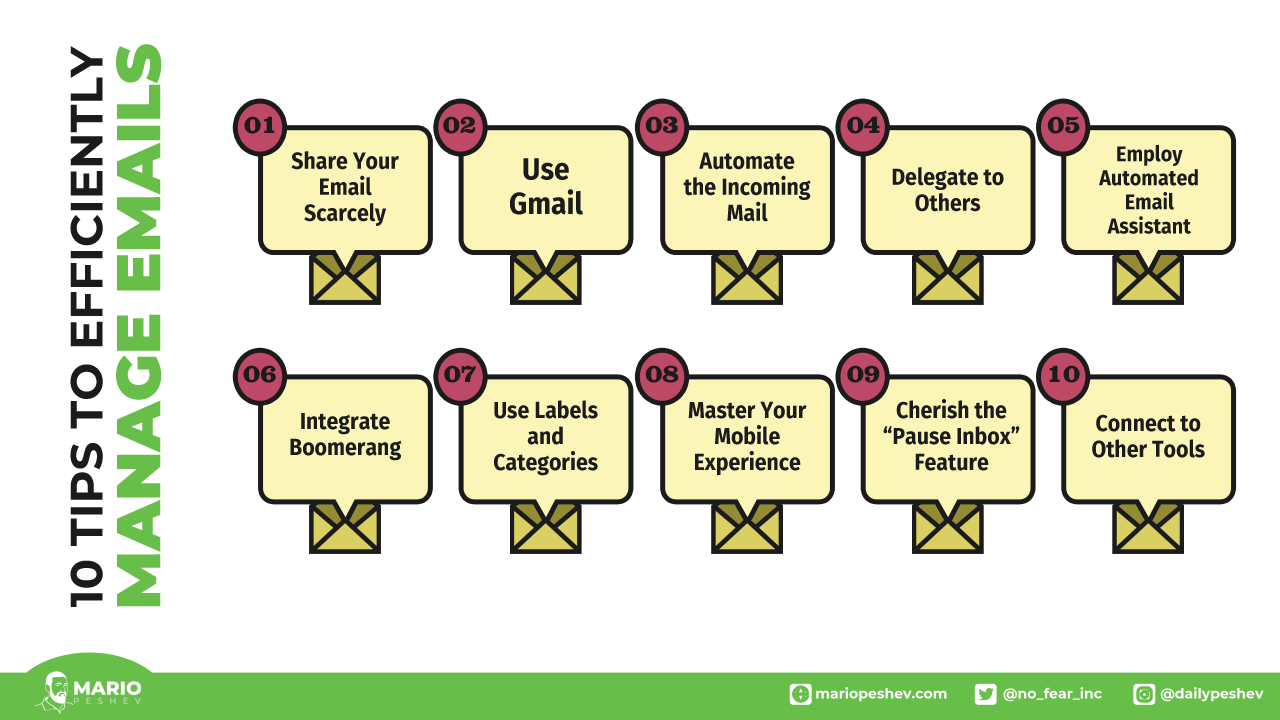
Effectively managing a high volume of daily emails is crucial to maintaining productivity and reducing stress. Over time, email overload can lead to important messages being overlooked and valuable time being spent sorting through irrelevant or redundant messages. Implementing strategies to reduce clutter and manage email overload ensures a streamlined inbox and improved workflow.
Reducing email clutter involves a combination of proactive subscription management, efficient filtering, and regular maintenance. These practices help prevent the accumulation of unnecessary emails and ensure that your inbox remains a tool for effective communication rather than a source of chaos.
Unsubscribing from Unnecessary Mailing Lists and Filtering Spam
To minimize unwanted emails, it is essential to identify and unsubscribe from mailing lists that no longer serve your interests or are irrelevant to your work. Spam filtering is equally important for maintaining an organized inbox. Regularly managing subscriptions and spam filters reduces the volume of irrelevant messages, allowing you to focus on important correspondence.
Strategies include:
- Review frequently received newsletters and promotional emails; unsubscribe from those that do not add value.
- Utilize the unsubscribe links often found at the bottom of marketing emails to automatically remove yourself from mailing lists.
- Leverage email client filters to automatically divert promotional or bulk emails into designated folders or spam.
- Use spam detection tools or features within your email platform to filter out suspicious or unwanted messages.
Consistent unsubscribe efforts and spam filtering significantly reduce inbox clutter, freeing up mental space and saving time.
Archiving or Deleting Emails in Bulk Without Losing Important Information
Handling large volumes of emails efficiently requires bulk archiving or deletion while safeguarding essential information. Archiving allows you to remove emails from your primary inbox without permanently deleting them, ensuring they are still accessible if needed later. Conversely, bulk deletion clears space but requires confidence that no critical messages are discarded.
Methods to manage this process include:
- Use the search function to filter emails by sender, date, or subject to identify groups of messages for archiving or deletion.
- Create custom folders or labels to categorize emails, making bulk actions more precise and manageable.
- Implement rules or filters that automatically archive or delete emails from specific senders or containing certain s.
- Schedule regular sessions—such as weekly or monthly—to review and clean your inbox, ensuring a consistent decluttering habit.
- Before bulk deleting, double-check the filtered results to prevent accidental removal of important communications.
Maintaining a disciplined approach to bulk email management ensures your inbox remains functional and clutter-free, supporting ongoing productivity.
Periodic Inbox Decluttering and Maintenance Steps
To sustain an organized inbox over time, establishing routine decluttering practices is essential. These steps help prevent email overload from recurring and keep your inbox manageable:
- Set aside dedicated time weekly or bi-weekly to review and clean your inbox.
- Use search filters to identify old, irrelevant, or duplicate emails for removal or archiving.
- Unsubscribe from new mailing lists that are no longer beneficial during each decluttering session.
- Update your folder and label system to reflect current priorities and projects.
- Delete or archive emails based on their age, importance, and relevance to your current work.
- Utilize email management tools or add-ons that prompt regular maintenance and offer suggested cleanup actions.
Adopting these steps as a routine not only maintains a clutter-free inbox but also enhances overall email responsiveness and efficiency.
Developing a Personalized Email Workflow

Managing a high volume of emails efficiently requires more than just general organization; it necessitates a tailored, systematic approach that aligns with individual work habits and priorities. A personalized email workflow enables users to streamline their inbox management, reduce clutter, and ensure timely responses, all while minimizing distractions. Building such a workflow involves designing clear processes for handling incoming emails and customizing notification settings to suit specific needs, creating a productive and distraction-free digital environment.A well-structured email workflow helps in categorizing, prioritizing, and acting on emails with consistency.
It empowers users to quickly identify urgent messages, delegate or defer less critical ones, and maintain a clear overview of ongoing communications. Customizing notifications ensures that alerts are meaningful, reducing interruptions caused by unnecessary pop-ups or sounds. This focused approach supports sustained concentration and enhances overall efficiency in managing a large influx of emails daily.
Designing a Structured Process for Email Management
Effective email management begins with establishing a clear, step-by-step routine that accommodates the volume and nature of incoming messages:
- Inbox Segmentation: Create dedicated folders or labels based on categories such as “Urgent,” “To Review,” “Delegated,” and “Archives.” This initial segmentation facilitates quick sorting upon receipt.
- Automated Filtering Rules: Use filters to automatically route emails into relevant folders based on sender, subject s, or other criteria. For example, newsletters can be directed to a “Read Later” folder, while client emails go into a “Priority” folder.
- Prioritization Protocols: Develop criteria to determine which emails require immediate attention and which can be deferred. For instance, emails from key stakeholders or containing specific s like “Meeting,” “Deadline,” or “Invoice” should be flagged as high priority.
- Scheduled Email Review Times: Allocate specific times during the day to process emails, such as morning, midday, and late afternoon sessions. This prevents constant interruptions and fosters focused work periods.
- Action-Oriented Responses: Establish templates or canned responses for common inquiries to expedite replies, and set aside time for follow-up tasks linked to email conversations.
Customizing Email Notifications and Alerts
To maintain focus and avoid unnecessary distractions, customizing notifications is vital. Not every email warrants immediate alert, and over-notification can significantly impair productivity:
Adjust notification settings to receive alerts only for high-priority or critical emails. For example, configure your email client to sound an alert only for messages marked as urgent or from key contacts. Silence notifications for newsletters, promotional emails, or less urgent correspondence.
Utilize desktop or mobile alerts selectively, perhaps enabling them only during designated email review periods. In addition, consider setting different sounds or visual cues for varying levels of urgency, allowing quick identification without opening the email.
Implement rules within your email platform to generate pop-up alerts or badges exclusively based on predefined criteria, such as specific sender addresses or s. This targeted approach ensures that attention is directed only where necessary, optimizing concentration and reducing mental clutter.
Creating a Tailored Email Management Routine
Constructing a personalized routine involves thoughtful planning and consistent practice:
- Identify Personal Priorities: Recognize which types of emails are most critical to your role and set thresholds for immediate action.
- Set Up Organizational Tools: Use filters, labels, and folders to automate sorting aligned with your priorities.
- Allocate Specific Email Review Periods: Establish dedicated times for checking and responding to emails, avoiding constant monitoring, which can fragment focus.
- Implement Response Templates: Develop standard replies for common questions to save time and maintain professionalism.
- Adjust Notification Settings: Fine-tune alerts to notify only for emails that truly matter, reducing interruptions and mental fatigue.
- Conduct Regular Cleanup: Schedule weekly or bi-weekly reviews to archive or delete outdated emails, ensuring the inbox remains manageable and well-organized.
Conclusion
In conclusion, mastering the art of managing a large volume of daily emails is achievable through strategic organization, leveraging technology, and disciplined routines. Implementing these practices will help you stay on top of your inbox while freeing up valuable time for more important tasks, enhancing overall efficiency and effectiveness.