Mastering how to use dual monitors efficiently can significantly transform your workflow and boost productivity. This guide provides a comprehensive overview of setting up, configuring, and optimizing a dual monitor setup to make multitasking seamless and effective.
From hardware requirements and display customization to workspace management and troubleshooting, you’ll discover practical tips and tools to maximize the benefits of using two screens, whether at work or in personal projects.
Setting up dual monitors for maximum efficiency

Establishing a dual monitor setup can significantly enhance productivity, multitasking capabilities, and overall workflow. Proper configuration ensures that each display functions seamlessly, providing a smooth and intuitive user experience. This guide details the essential steps to connect and configure two monitors effectively across various operating systems, along with hardware considerations to ensure compatibility and optimal performance.
Whether working in a professional environment, gaming, or managing multiple applications simultaneously, a well-organized dual monitor setup can transform your workspace. By following these systematic instructions and understanding your hardware options, you can create an ergonomic and efficient multi-screen environment tailored to your needs.
Connecting monitors and configuring settings across operating systems
To maximize efficiency with dual monitors, the initial step involves connecting the displays to your computer hardware and configuring the display settings appropriately. The process varies slightly depending on your operating system, but the fundamental principles remain consistent. Here are the detailed steps for both Windows and macOS users:
Connecting monitors on Windows
- Identify the available video output ports on your computer, such as HDMI, DisplayPort, VGA, or USB-C. Ensure your monitors have compatible input ports or use appropriate adapters.
- Connect each monitor to the respective port. For example, plug an HDMI cable into the computer’s HDMI port and connect it to the monitor’s HDMI input.
- Power on both monitors and your computer. Windows should automatically detect the new displays.
- Right-click on the desktop and select Display Settings.
- In the display configuration window, identify each monitor by clicking Identify. Arrange the virtual displays to match their physical placement by dragging the monitor icons.
- Choose your preferred display mode: extend, duplicate, or show desktop only on one monitor.
- Adjust resolution and orientation settings for each display to optimize visual clarity and ergonomics.
- Click Apply to save changes.
Connecting monitors on macOS
- Verify the availability of video output ports, such as Thunderbolt, USB-C, HDMI, or DisplayPort. Use adapters if necessary to match your monitor inputs.
- Connect each monitor securely using the appropriate cable or adapter.
- Turn on the monitors and your Mac.
- Navigate to System Preferences > Displays.
- Click the Arrangement tab to view the layout of your monitors.
- Drag the display icons to match their physical placement on your desk, ensuring smooth cursor movement.
- Specify whether to mirror displays or extend your workspace by selecting or deselecting the Mirror Displays checkbox.
- Adjust resolution settings as needed.
Hardware requirements and compatibility considerations
To ensure a successful dual monitor setup, understanding the hardware prerequisites and compatibility factors is crucial. These considerations influence the ease of connection, performance quality, and future upgradeability.
GPU Capabilities: Ensure your graphics card supports multiple displays. Most modern GPUs can handle at least two monitors, but high-resolution setups or multiple high-refresh-rate screens may require dedicated or higher-end graphics cards.
Available Ports: Confirm that your computer has the necessary output ports, such as HDMI, DisplayPort, VGA, or USB-C. Some computers may have limited outputs, necessitating the use of adapters or docking stations.
Compatibility of Monitors: Match your monitor inputs with your computer’s output ports. Consider resolution and refresh rate support to prevent performance issues, especially for gaming or high-resolution workflows.
Power Supply and Space: Ensure your workspace has adequate power outlets and physical space to accommodate two monitors comfortably without clutter or ergonomic strain.
Adapters and Docking Stations: When direct connections are unavailable, use quality adapters or docking stations that support multiple outputs without compromising signal quality or performance.
Comparison of common connection types
Choosing the appropriate connection type impacts the quality, speed, and compatibility of your dual monitor setup. The following table compares the most common connection options, highlighting their advantages and limitations to aid in informed decision-making.
| Connection Type | Advantages | Limitations |
|---|---|---|
| HDMI |
|
|
| DisplayPort |
|
|
| VGA |
|
|
| USB-C |
|
|
Configuring Display Settings for Productivity
Setting up your dual monitors with appropriate display configurations is essential for optimizing your workflow and enhancing overall productivity. Proper adjustment of resolution, orientation, and scaling ensures that each screen serves its purpose effectively, reducing eye strain and minimizing unnecessary movements. Additionally, customizing display arrangements and primary display settings allows for seamless multitasking and quick access to frequently used applications.Adjusting display settings within your operating system enables you to tailor your workspace to your specific needs.
These configurations influence how content appears across your monitors, impacting clarity, readability, and ease of navigation. Understanding how to modify resolution, orientation, and scaling options ensures that your dual monitor setup supports your work style efficiently.
Customizing Display Resolution, Orientation, and Scaling
To maximize the benefits of a dual monitor setup, it is vital to configure display resolution, orientation, and scaling settings appropriately. These adjustments can significantly affect the clarity of visuals, text readability, and overall comfort during extended computer use.
Operating systems provide intuitive interfaces to modify display configurations:
- Resolution: Determines the sharpness and detail of the display. Selecting the native resolution of each monitor ensures optimal clarity. For example, a 24-inch monitor with a native resolution of 1920×1080 (Full HD) provides crisp image quality, while scaling might be necessary for higher resolutions like 2560×1440 to balance performance and clarity.
- Orientation: Adjusts the display layout to match physical monitor positioning. This is particularly useful for users who have monitors stacked vertically or arranged at an angle. For instance, setting a monitor to portrait mode facilitates reading lengthy documents or coding tasks.
- Scaling: Alters how content is sized on the screen to improve readability or fit more information. Operating systems typically offer scaling options such as 100%, 125%, or 150%. For high-resolution monitors, increasing scaling prevents text and icons from appearing too small, reducing eye strain and enhancing comfort.
Configuring these settings through your system’s display options or control panel ensures each monitor is tailored for optimal visual performance, aligning with your workflow needs.
Extending, Duplicating, and Setting Primary Displays
Choosing how displays function—whether as an extension, clone, or with a designated primary monitor—affects multitasking efficiency and workspace organization. Proper selection allows for easier navigation and effective window management across screens.
Most operating systems offer straightforward methods to modify display modes:
| Setting | Procedure | Effect |
|---|---|---|
| Extend Display | In display settings, select the ‘Extend’ option for multiple displays. Drag and position monitor icons to match physical layout. | Creates a continuous workspace across both monitors, allowing for independent window management and increased screen real estate. |
| Duplicate Display | Choose the ‘Duplicate’ option in display settings. Confirm that both monitors show the same content. | Useful for presentations or demonstrations where the same content needs to be viewed on multiple screens. |
| Set Primary Display | In display settings, select the desired monitor and mark it as the primary display. Usually, there is an option to set as default or primary. | This monitor will house the taskbar, start menu, and default applications, streamlining workflow and minimizing distraction. |
Note that when extending displays, users can freely move windows between monitors by dragging them across the screen boundaries. Setting the primary display ensures that system notifications, taskbar, and start menu are anchored to the preferred monitor, improving accessibility.
Utilizing software settings to manage display modes and primary monitors enhances multitasking efficiency. By configuring these options thoughtfully, users can create a workspace that matches their specific task requirements and personal preferences, ultimately leading to a more productive and comfortable working environment.
Optimizing workspace arrangement and window management
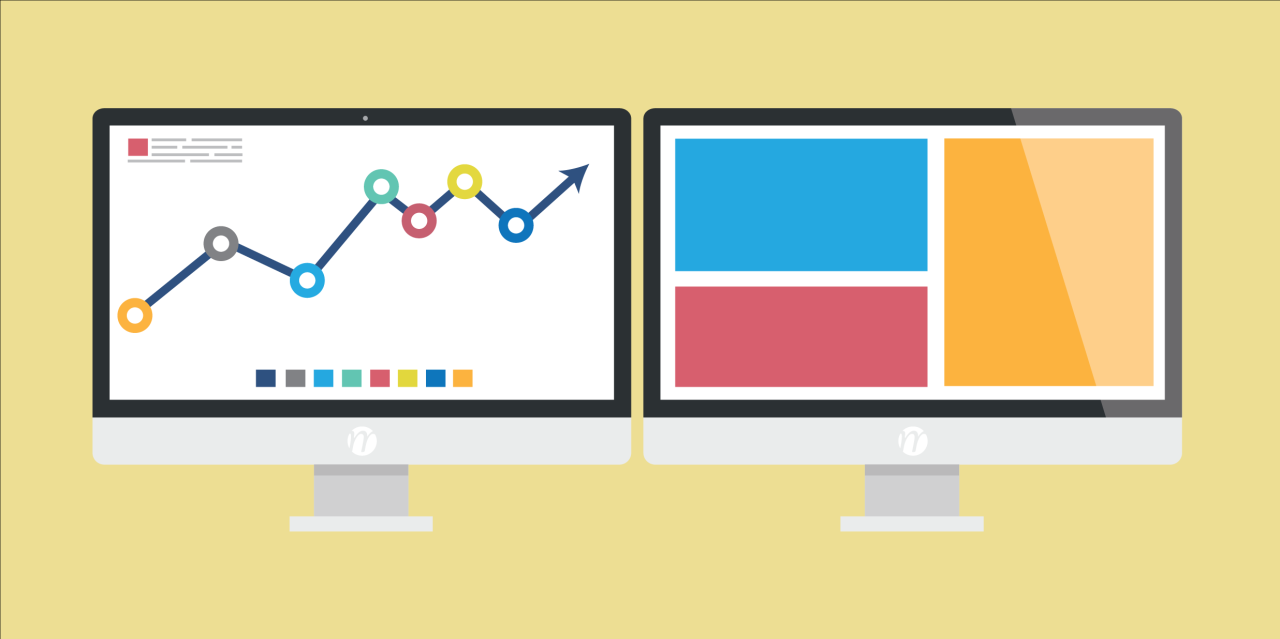
Efficient workspace arrangement and effective window management are crucial for maximizing productivity when using dual monitors. Properly organizing your open applications and windows reduces clutter, minimizes the time spent switching between tasks, and creates a seamless workflow that leverages the full potential of your multi-screen setup.
Implementing strategic window placement, utilizing keyboard shortcuts, and understanding different arrangement techniques can significantly enhance multitasking capabilities. The goal is to arrange your workspace in a way that logically aligns with your daily tasks, enabling quick access to frequently used tools and information without unnecessary window overlaps or distractions.
Techniques for arranging windows efficiently across two screens
Using dual monitors effectively involves thoughtful positioning of windows to avoid overlapping and to facilitate easy navigation. Techniques such as snapping windows to specific areas, creating dedicated zones for different applications, and maintaining consistent window sizes help streamline tasks. For example, dedicating one monitor to communication tools like email and chat, while reserving the other for primary work applications, can improve focus and task switching speed.
Additionally, employing split-screen modes allows simultaneous viewing of related documents or applications side by side, reducing the need to toggle between windows. Consistent placement of critical windows in fixed zones ensures they are always accessible without reorganization, which is especially beneficial during long work sessions or complex projects involving multiple applications.
Keyboard shortcuts and mouse gestures for quick window management
Mastering keyboard shortcuts and mouse gestures accelerates window management tasks, enabling swift switching, resizing, and organizing of applications across dual screens. By integrating these shortcuts into your daily routine, you can reduce reliance on mouse navigation, thus maintaining flow and reducing fatigue.
- Switch between open applications:
Alt + Tab (Windows) / Command + Tab (Mac)
- Snap windows to edges or corners:
Windows: Win + Left/Right Arrow / Win + Up Arrow for maximizing / Mac: Drag window to edges or use Mission Control
- Resize windows quickly:
Use Windows Snap Assist or Mac’s Split View by dragging windows or utilizing Mission Control shortcuts
- Move windows between monitors:
Windows: Win + Shift + Left/Right Arrow / Mac: Drag window to the desired screen or use Mission Control
Mouse gestures like dragging windows to specific screen edges or corners can also facilitate quick arrangement. Combining keyboard shortcuts with mouse actions offers a highly efficient workflow, particularly for users managing multiple applications simultaneously across two displays.
Window arrangement methods with step-by-step guides
Different window arrangements serve various tasks by optimizing screen real estate and maintaining focus. Below is an illustrative table describing common methods, their advantages, and step-by-step instructions for implementation:
| Arrangement Method | Advantages | Step-by-Step Guide |
|---|---|---|
| Split-screen (Side-by-side) | Allows equal view of two applications, ideal for comparing or referencing documents simultaneously. |
|
| Cascading windows | Helps organize multiple open windows, reducing clutter. |
|
| Multiple independent windows (free positioning) | Provides maximum flexibility for complex multitasking and custom layouts. |
|
Implementing these arrangements based on your specific tasks can dramatically reduce wasted time and improve overall efficiency. Regularly adjusting your workspace layout to suit evolving workflows ensures sustained productivity and an optimized dual-monitor experience.
Enhancing Workflow with Dual Monitor Features and Tools
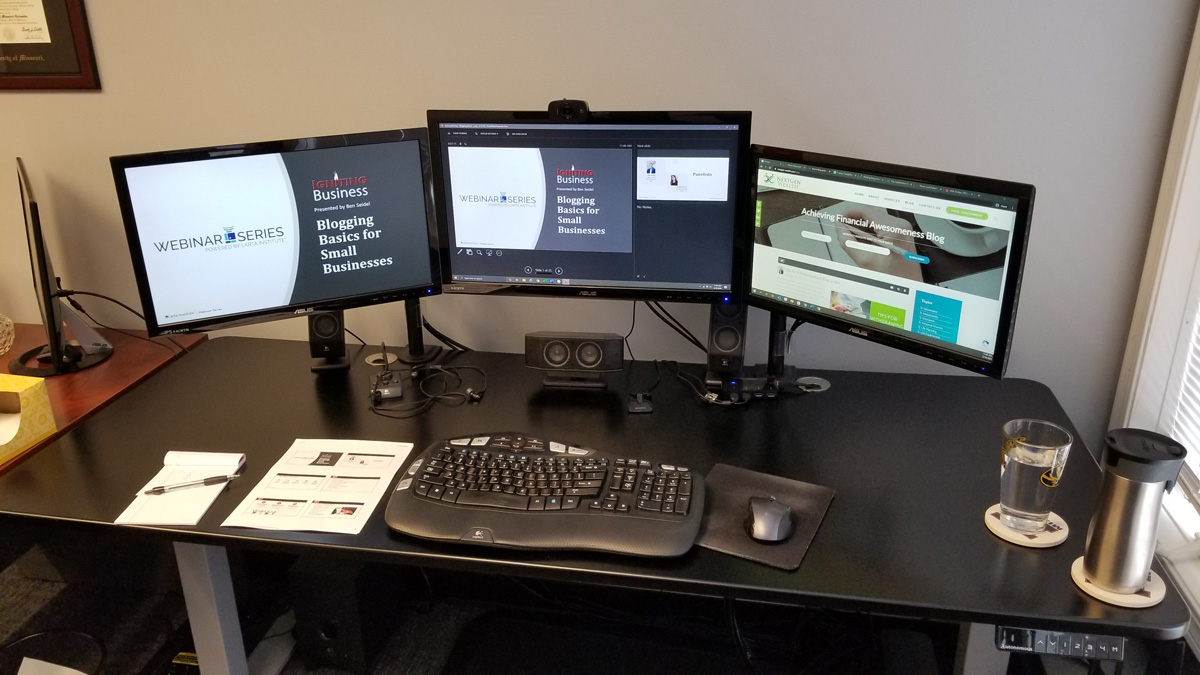
Maximizing the potential of dual monitors involves leveraging advanced features and management tools that streamline your workflow. These tools can enhance productivity by enabling effective workspace organization, quick access to applications, and personalized setups tailored to your specific needs. Implementing these features ensures a seamless transition between tasks and reduces time spent on window management.
Utilizing built-in utilities and third-party software can significantly improve your dual monitor experience. These solutions facilitate virtual desktops, customized layouts, and efficient window management, allowing users to handle multiple projects simultaneously without clutter or confusion. Adopting these tools transforms a simple dual monitor setup into a highly productive workstation.
Utilizing Virtual Desktops and Multiple Workspaces Effectively
Virtual desktops and multiple workspaces are powerful features that help organize applications and reduce desktop clutter. They allow users to divide their workspace into separate, focused environments tailored to different tasks, such as work, communication, or entertainment. When used wisely, virtual desktops enable quick switching between tasks, improving focus and efficiency.
For example, a graphic designer might allocate one virtual desktop for design applications, another for communication tools like email and messaging, and a third for research and reference materials. Switching between these environments is often as simple as a keyboard shortcut or a gesture, minimizing interruptions and maintaining workflow continuity.
Using Third-Party Software and Built-in Utilities for Monitor Management and Customization
Third-party applications and built-in operating system utilities provide advanced options for managing dual monitors beyond default settings. These tools enhance customization, automate window placement, and enable detailed control over monitor behavior and appearance. They are especially beneficial for users seeking more personalized or complex configurations.
Popular third-party software options include:
| Tool | Description | Benefits |
|---|---|---|
| DisplayFusion | Offers multi-monitor taskbars, screen splitting, and window snapping features. | Improves window management, simplifies multi-monitor workflows, and enhances customization options. |
| AquaSnap | Provides advanced window snapping, docking, and tiling features. | Facilitates efficient window arrangement, saving time and reducing manual resizing. |
| UltraMon | Enables desktop management, wallpaper spanning, and application positioning. | Streamlines workspace organization and provides quick access to monitor-specific settings. |
| Microsoft PowerToys (FancyZones) | Offers customizable window layouts and zones for efficient window placement. | Enhances multitasking by allowing users to create predefined window zones for different workflows. |
Benefits of Monitor Management and Customization Tools
Implementing these tools yields multiple advantages, including:
- Increased Productivity: Quick window arrangement and multi-application handling reduce time wastage.
- Enhanced Workspace Organization: Tailored layouts and zones keep your workspace tidy and accessible.
- Reduced Eye and Neck Strain: Automated window placement minimizes unnecessary mouse movements and scrolling.
- Personalized Workflow: Custom configurations align with individual work habits, improving overall efficiency.
Effective utilization of dual monitor features and management tools transforms your workspace into a highly efficient, personalized environment that supports multitasking and enhances overall productivity.
Troubleshooting common dual monitor issues
Despite careful setup and configuration, users may encounter various issues when using dual monitors. Recognizing and resolving these problems promptly can significantly enhance productivity and reduce frustration. Common challenges include display detection errors, resolution mismatches, and flickering screens, which can stem from hardware conflicts, outdated drivers, or incompatible settings.
Understanding the root causes and applying systematic troubleshooting steps can help restore optimal display performance. Below is a detailed table outlining typical issues, potential causes, and effective solutions to address these problems efficiently.
| Potential Issue | Possible Causes | Recommended Solutions |
|---|---|---|
| Display detection errors or monitors not recognized | Loose or damaged cables, incorrect input source, outdated display drivers, hardware conflicts |
|
| Resolution mismatches or improper display scaling | Incompatible display resolutions, incorrect display settings, driver issues |
|
| Screen flickering or flashing | Faulty or loose cables, incompatible refresh rates, outdated drivers, hardware conflicts |
|
| Cursor or window movement lag | Insufficient system resources, outdated driver software, conflicting applications |
|
| Monitors displaying different color profiles or color inconsistencies | Incorrect color calibration, driver issues, monitor settings |
|
Best Practices for Maintaining Dual Monitor Setups
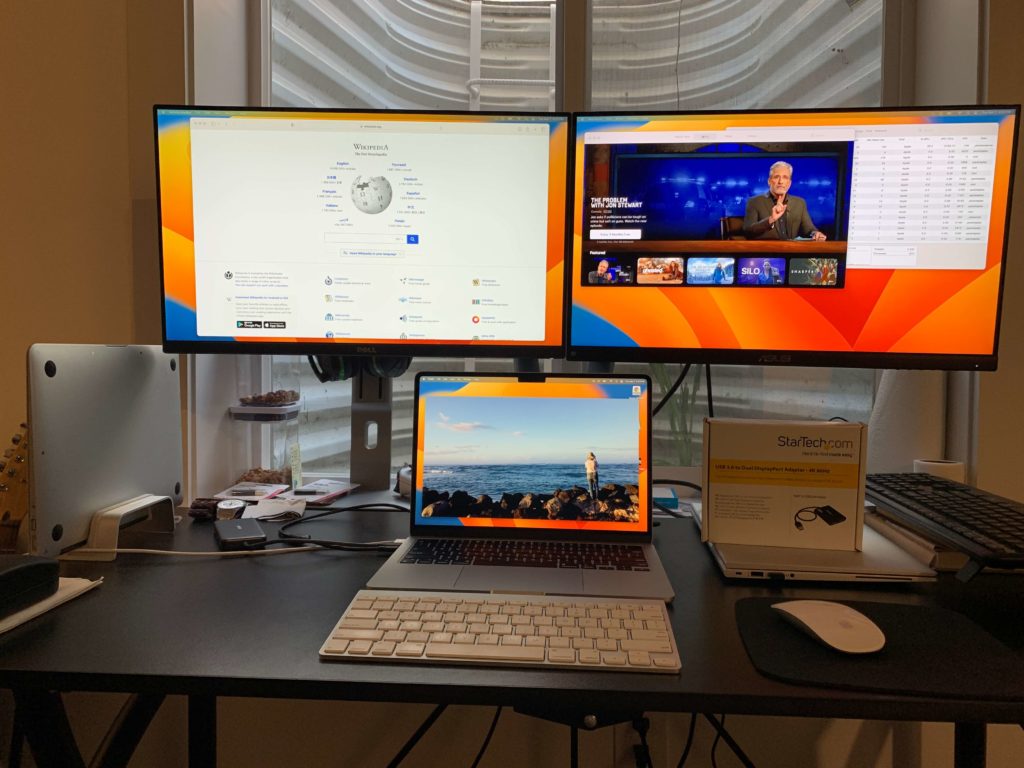
Maintaining a dual monitor setup is essential for preserving optimal performance, ensuring longevity of hardware, and sustaining a productive workspace. Proper care involves proactive measures in cable management, monitor calibration, ergonomic positioning, routine software updates, and hardware checks. Implementing these practices helps prevent common issues, extends the lifespan of your equipment, and ensures a seamless user experience.A well-maintained dual monitor setup not only enhances visual comfort but also supports efficiency during prolonged periods of work.
Regular maintenance habits contribute to stable operation, reduce downtime, and optimize your overall workflow.
Cable Management and Organization
Effective cable management is crucial to prevent clutter, reduce accidental disconnections, and improve airflow around electronic components. Disorganized cables can lead to stress on ports, damage over time, or difficulty in troubleshooting hardware issues.To achieve optimal cable management:
- Use cable clips, sleeves, or ties to bundle and route cables neatly along desks or behind monitors.
- Label cables at both ends to facilitate quick identification during maintenance or troubleshooting.
- Ensure cables are not excessively stretched or bent sharply, which can cause damage or signal interference.
- Opt for high-quality, shielded cables that match the specifications of your monitors and graphics cards for reliable connections.
Monitor Calibration and Ergonomic Positioning
Maintaining visual clarity and ergonomic comfort is vital for sustained productivity and health. Regular calibration ensures color accuracy and optimal display settings, especially for tasks requiring precise visuals, such as graphic design or video editing.For ergonomic positioning:
- Align the top of each monitor approximately at eye level to reduce neck strain.
- Position monitors at an arm’s length distance to minimize eye fatigue.
- Arrange monitors side-by-side with minimal angle to create a seamless viewing experience and avoid excessive head turning.
- Adjust brightness and contrast settings to match ambient lighting conditions, reducing eye strain.
Use a monitor calibration tool or software that provides detailed color profiling, ensuring consistency across both screens.
Routine Software Updates and Hardware Checks
Keeping software and firmware up to date enhances compatibility, security, and overall system stability. Regularly checking hardware components ensures that any potential issues are identified early, preventing costly repairs or replacements.Routine procedures include:
- Updating graphics drivers and display management software to access new features and bug fixes.
- Checking for firmware updates from monitor manufacturers, especially for models with advanced features.
- Inspecting cables and connectors for signs of wear or damage, replacing faulty components promptly.
- Performing periodic tests of display calibration and adjusting settings as needed.
Maintenance Habits for Longevity and Performance
Adopting consistent maintenance routines ensures your dual monitor setup remains reliable and efficient over time. Below is a list of essential habits:
- Regularly dust monitors and cables using a soft, lint-free cloth to prevent dust buildup that can affect cooling and display clarity.
- Keep monitors away from direct sunlight or heat sources, which can cause overheating or color distortion.
- Schedule periodic checks of connection stability and display alignment to maintain workspace ergonomics.
- Calibrate displays every 6-12 months, especially if color precision is critical for your work.
- Update drivers and firmware following manufacturer recommendations or after major Windows or operating system updates.
- Ensure power strips and surge protectors are functioning properly to safeguard hardware from electrical surges.
- Back up configuration settings and display profiles to facilitate quick restoration if hardware or software issues occur.
Finally, keeping a maintenance log can help track routine activities, identify recurring issues, and schedule future inspections, contributing significantly to the longevity and performance of your dual monitor setup.
End of Discussion
Implementing these strategies for using dual monitors efficiently can lead to a more organized, comfortable, and productive environment. By maintaining proper setup and leveraging available tools, you ensure your dual monitor setup remains an asset that enhances your daily tasks and long-term goals.