Managing a cluttered inbox can become overwhelming with numerous unwanted newsletter subscriptions. Learning how to unsubscribe from 10 newsletters quickly not only streamlines your email experience but also enhances productivity and reduces digital distractions. Efficiently handling subscriptions allows you to regain control over your email environment with minimal effort.
This guide provides practical strategies, from utilizing built-in unsubscribe features to leveraging management tools and creating filters, all aimed at helping you unsubscribe from multiple newsletters swiftly and effectively. Whether you use different email platforms or prefer automation, these methods are designed to simplify your inbox management process.
Overview of Unsubscribing from Newsletters Efficiently

Managing your email inbox effectively often involves controlling the influx of newsletters and promotional messages that can clutter your digital space. An organized inbox not only improves productivity but also reduces stress associated with sifting through unnecessary emails daily. Unsubscribing from newsletters you no longer find valuable is a crucial step in maintaining this order, enabling you to focus on more important communications.
To streamline this process, it is essential to quickly identify which newsletters are active and taking up space in your inbox. A systematic approach involves reviewing recent emails, recognizing sender patterns, and utilizing built-in features within your email platform for efficient unsubscription. This ensures that your email management is both swift and effective, saving you time and effort in the long run.
Identifying Newsletters in Your Email Inbox
Recognizing newsletters among other emails requires a strategic review of your inbox. Many newsletters tend to follow specific formats or originate from identifiable sender addresses. Sorting your emails by sender or date can help highlight recurring messages that belong to subscription lists. Additionally, newsletters often include s in the subject line such as “Newsletter,” “Update,” “Announcement,” or similar terms that make them easily distinguishable.
Using search functionalities within your email platform allows you to filter emails based on these s or sender addresses. For example, entering “unsubscribe” in the search bar might bring up emails containing unsubscribe links, enabling you to review and act swiftly. This targeted approach minimizes the time spent manually scrolling through your inbox to find newsletters, making the unsubscription process more efficient.
Comparison of Popular Email Platforms and Their Unsubscribe Features
Different email platforms provide various tools to help users manage subscriptions more easily. Understanding the features available across popular platforms can assist in selecting the most efficient method for unsubscribing from newsletters.
| Platform | Unsubscribe Method | Ease of Use | Additional Tips |
|---|---|---|---|
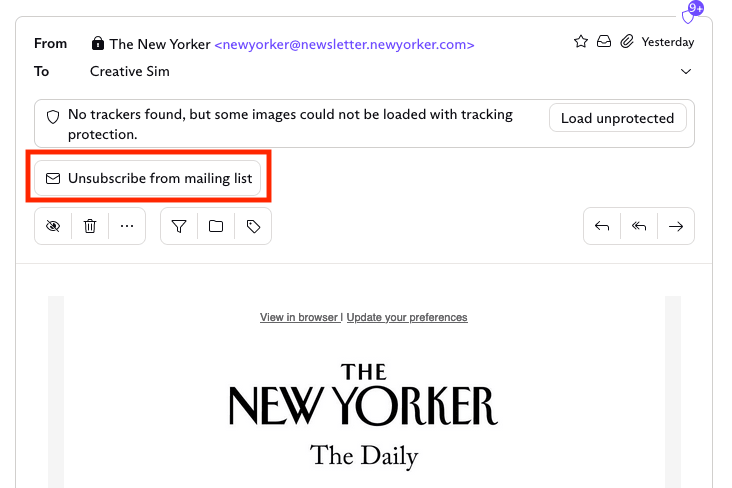
| Gmail | Use the built-in “Unsubscribe” link displayed next to the sender’s name or within the email header; alternatively, use the “Report spam” or “Filter” options for persistent newsletters. | Highly user-friendly; the unsubscribe link appears automatically for recognized newsletters, making it quick to act. | Regularly check the Promotions tab to identify new subscriptions; create filters to automatically delete or archive unwanted newsletters. |
| Outlook | Utilize the “Unsubscribe” button in the email header when available or manually delete subscriptions; utilize rules to manage future emails. | Moderately easy; the unsubscribe option may not always be auto-detected, requiring manual intervention. | Set up focused inbox rules to divert or delete newsletters, reducing inbox clutter. |
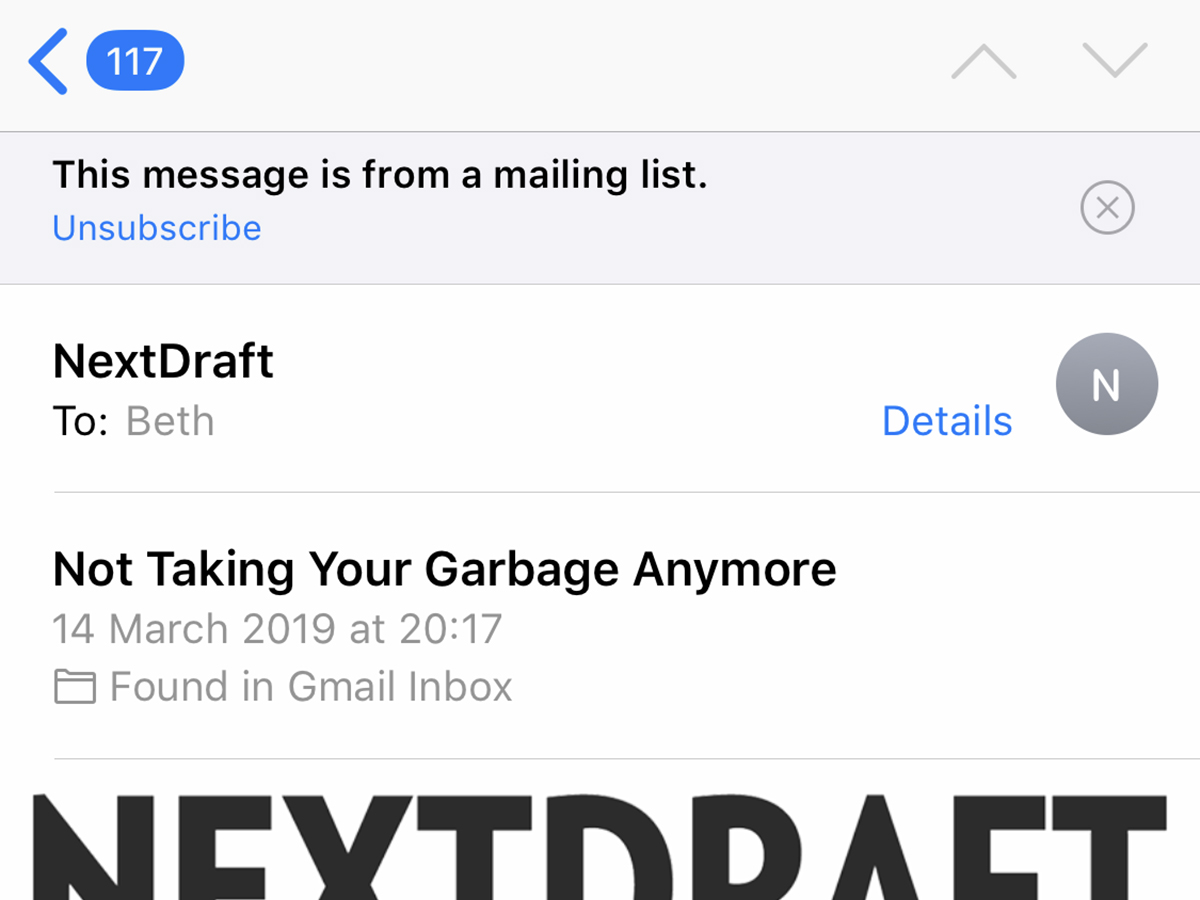
| Yahoo Mail | Click on the “Unsubscribe” prompt that appears at the top of some newsletters or manually visit the sender’s website to unsubscribe. | Relatively straightforward; auto-detection of unsubscribe links enhances efficiency. | Use the spam or block features for persistent, unwanted subscriptions. |
| Apple Mail | Use the “Unsubscribe” link within the email header if available or manually manage subscriptions through mailing list settings. | Moderate; relies on email content structure and sender cooperation. | Create mail rules to automate deletion or movement of newsletters. |
Methods to Unsubscribe from Multiple Newsletters
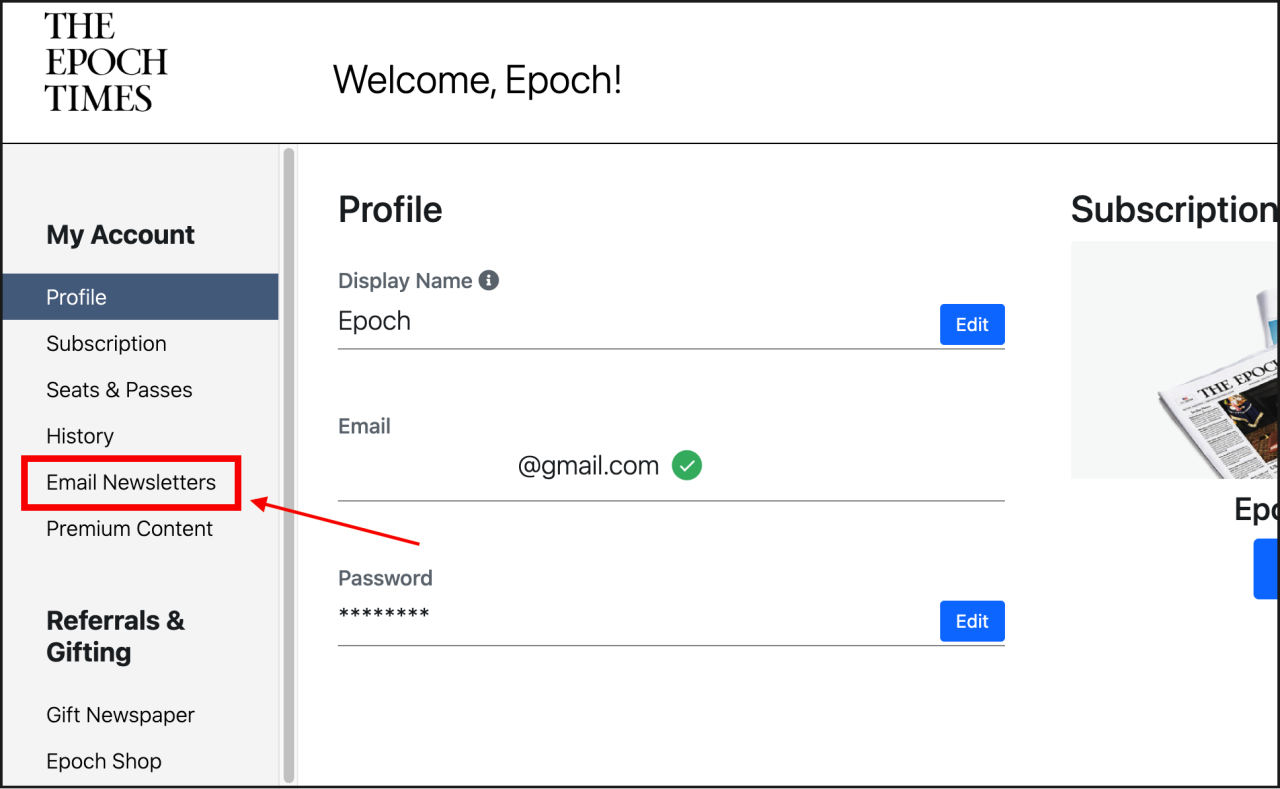
Managing a large volume of newsletter subscriptions can be time-consuming and overwhelming. Employing efficient methods to unsubscribe from multiple newsletters simultaneously can significantly streamline your inbox management. Understanding various approaches allows you to choose the most suitable ones based on your email habits and the tools available to you.
This section explores common unsubscribe procedures across different email services, utilizing built-in unsubscribe links, and leveraging automation tools for bulk unsubscribe operations. By adopting these methods, users can save time, reduce clutter, and maintain a cleaner, more organized inbox.
Using Built-in Unsubscribe Links in Emails
Most reputable newsletters include an unsubscribe link within their email footer, which provides a straightforward way to opt out. This method is often the most direct and compliant with email marketing regulations such as CAN-SPAM and GDPR.
- Locate the unsubscribe link, typically found at the bottom of the email footer, often labeled as “Unsubscribe,” “Manage Preferences,” or similar.
- Click the link, which usually redirects to a confirmation page or a preferences center.
- Follow the instructions on the page to complete the unsubscription process, which may involve clicking a confirmation button or adjusting preference settings.
This method is simple, cost-effective, and does not require additional tools. However, it can be time-consuming if numerous newsletters are involved, as each requires manual action.
Bulk Unsubscribe Using Email Filtering and Automation Tools
For users managing hundreds of subscriptions, manual unsubscribe links become impractical. Automation tools and email filtering rules provide efficient alternatives to unsubscribe from multiple newsletters en masse.
- Email filtering rules: Create rules in your email client to automatically move, delete, or mark emails from specific senders or with particular s. This doesn’t unsubscribe directly but helps manage incoming newsletters more effectively.
- Unsubscribe management services: Utilize third-party services or tools such as Unroll.Me, Cleanfox, or Unsubscriber, which scan your inbox for newsletters and allow you to unsubscribe with a few clicks.
- Using email automation scripts: For advanced users, scripts (e.g., in Python or PowerShell) can automatically parse emails for unsubscribe links and simulate clicks, though this approach requires technical expertise and caution to avoid unintended consequences.
Automation methods significantly reduce manual effort but may involve privacy considerations or require initial setup time. Regularly reviewing and updating filters or scripts ensures ongoing efficiency.
Unsubscribe Procedures Comparison Table
| Method | Required Tools | Time Investment | Effectiveness |
|---|---|---|---|
| Using built-in unsubscribe links | Email client, web browser | Moderate (per email) | High, if links are functional and present |
| Email filtering rules | Email client with filtering capabilities (Gmail, Outlook, etc.) | Low to moderate (initial setup) | Moderate, manages incoming emails but does not unsubscribe |
| Third-party unsubscribe tools | Unsubscribe management services (e.g., Unroll.Me) | Low (initial scan), minimal ongoing effort | High, provides bulk unsubscribe options |
| Automated scripts | Technical knowledge, scripting environment | High (setup and maintenance) | Very high, if correctly implemented, but risk of errors |
Using Email Management Tools and Extensions
Managing a large number of newsletter subscriptions can be a daunting task, especially when attempting to unsubscribe from multiple lists efficiently. Fortunately, various email management tools and browser extensions have been developed to streamline this process, saving users valuable time and effort. These tools automate the identification of subscription emails and facilitate mass unsubscriptions with just a few clicks, offering an effective solution for email overload.
Implementing these tools requires a straightforward setup process, often involving installation as a browser extension or configuring email client settings. Once installed, users can easily access features designed specifically for bulk unsubscription, which typically include selecting multiple newsletters and executing unsubscribe commands concurrently. This approach not only simplifies the process but also reduces the risk of missing unsubscribe options embedded within individual emails.
Popular Email Management Applications and Browser Extensions
There are several widely-used applications and extensions tailored to assist users in managing and unsubscribing from newsletters efficiently. Below are some notable options:
| Tool/Extension | Features | Compatibility | User Review |
|---|---|---|---|
| Unroll.Me | Identifies subscription emails, allows bulk unsubscribe, creates a daily digest of remaining subscriptions | Web-based, Gmail, Outlook, Yahoo Mail | Highly rated for simplicity; some privacy concerns due to data sharing policies |
| Clean Email | Bulk email cleaning, unsubscribe from newsletters, auto-organizes emails into categories | Windows, Mac, iOS, Android, Webmail clients | Positive reviews for comprehensive management; praised for user-friendly interface |
| Mailstrom | Bulk email filtering, unsubscribe options, quick email sorting | Gmail, Outlook, Yahoo Mail, other IMAP accounts | Highly regarded for speed; some users note a learning curve for advanced features |
| Gmail Unsubscribe Extension | One-click unsubscribe links, batch processing | Google Chrome, Gmail web interface | Popular among Gmail users; praised for convenience, some report occasional syncing issues |
Installing these tools typically involves visiting the respective website or extension marketplace, such as the Chrome Web Store or the application’s official download page. Configuration steps often require granting necessary permissions to access your email account or browser, followed by customization options like setting up auto-unsubscribe rules or organizing newsletters into folders. Once configured, users can swiftly select multiple newsletters displayed within the tool’s interface and execute mass unsubscriptions, significantly reducing the time spent managing email clutter.
Workflow Steps to Select and Unsubscribe from Multiple Newsletters Quickly
Optimizing the unsubscription process with email management tools involves a systematic workflow. First, launch the installed application or extension and allow it to scan your inbox to identify subscription emails. The tool will typically present a list of newsletters and mailing lists, categorized for easy review. Users can then select individual entries or opt for bulk selection, depending on their preferences.
Next, review the selected newsletters to ensure only unwanted subscriptions are targeted. After confirming, initiate the unsubscribe action within the tool. Many applications also provide options to automatically unsubscribe from newsletters based on certain criteria or frequency, enhancing efficiency further. Finally, monitor the inbox to verify that unsubscribe requests are processed successfully and that no further unwanted emails from those sources are received.
For best results, regularly update your email management tools to access new features and improvements, and review your subscription list periodically to maintain a clutter-free inbox.
Tips for Maintaining a Clutter-Free Email Inbox
Managing an overflowing inbox can be overwhelming, especially when newsletters and promotional emails accumulate rapidly. Implementing consistent strategies to review and unsubscribe from unwanted subscriptions not only streamlines your email experience but also boosts productivity and reduces stress. Staying proactive with email organization ensures that your inbox remains manageable and focused on important communications.Maintaining a clutter-free inbox requires ongoing effort and mindful habits.
Regularly reviewing your subscriptions helps identify those that are no longer relevant or valuable. Additionally, establishing procedures for managing new subscriptions prevents future clutter. Utilizing specific tools and practices tailored to email management can significantly improve your efficiency and keep your digital space organized.
Regular Review and Unsubscription of Unwanted Newsletters
Consistently auditing your inbox is essential for identifying inactive or irrelevant newsletters that no longer serve your interests. Allocate a few minutes weekly or bi-weekly to browse through received emails, marking those that are outdated or unnecessary. Use the unsubscribe links often located at the bottom of these emails to remove yourself from mailing lists promptly.Furthermore, training yourself to recognize subscription fatigue can prevent future clutter.
When subscribing to new newsletters, consider whether the content aligns with your current needs and interests. If it doesn’t, resist subscribing, or set a reminder to revisit the subscription later, ensuring you only receive valuable communications.
Subscription Management Checklist
Implementing a straightforward checklist helps maintain consistent subscription management and prevents your inbox from becoming unmanageable. The following steps can be integrated into your routine:
- Regularly review all newsletters and promotional emails received.
- Unsubscribe from newsletters that are no longer relevant or frequently ignored.
- Create a system to categorize subscriptions (e.g., work, hobbies, news) for easier management.
- Use email filters or rules to automatically organize incoming newsletters into designated folders or labels.
- Periodically clear out old subscription folders to remove outdated content and streamline access.
- Set a recurring reminder to evaluate your subscriptions, such as monthly or quarterly.
Setting Up Dedicated Email Addresses for Subscriptions
Creating separate email addresses for newsletter subscriptions is an effective strategy to contain promotional clutter and preserve your primary email for personal and professional correspondence. By using dedicated addresses, you can easily filter and manage incoming newsletters without interfering with critical emails.For example, maintaining a primary email account for work and personal communication while establishing a secondary address specifically for newsletters and online shopping allows for better compartmentalization.
This setup simplifies the process of unsubscribing from bulk emails and reduces the risk of missing important messages amidst promotional content.
Common Pitfalls and How to Avoid Them
While managing email subscriptions, certain pitfalls can hinder your efforts to stay organized. Recognizing and addressing these issues is key to maintaining an efficient inbox.
“Failing to review subscriptions regularly often results in a buildup of unwanted emails, making it harder to find important messages.”
Over-acceptance of subscriptions without evaluating their value
Always assess whether a newsletter provides meaningful content before subscribing. Use a dedicated email address for trial subscriptions to avoid cluttering your main inbox.
Ignoring the unsubscribe links
Many newsletters include simple unsubscribe options. Regularly utilize these to prevent buildup.
Relying solely on spam filters
Spam filters are helpful but not foolproof. Manual review and management are necessary to keep your inbox clean.
Not utilizing filters and folders
Properly setting up email rules helps automatically sort incoming newsletters, reducing manual effort.
Neglecting periodic cleanups
Schedule routine times to review and clean your subscriptions, preventing backlog accumulation.By implementing these best practices and being mindful of common pitfalls, you can sustain a clutter-free email inbox that enhances your digital organization and productivity.
Final Wrap-Up
In summary, adopting multiple unsubscribe techniques can significantly declutter your email inbox and save you valuable time. By combining the use of built-in tools, extensions, and custom filters, you can maintain a cleaner digital space with less effort. Regularly applying these strategies ensures your email management remains efficient and stress-free over the long term.