Discover how to automate ten essential tasks with macros to enhance your productivity and streamline workflows. This guide provides practical insights into leveraging macros for personal and professional use, enabling you to save time and reduce manual effort across various tasks.
From data entry and email responses to file management and report generation, learning to create and customize macros can transform your daily routines. By understanding the prerequisites and steps involved, you can effectively implement automation solutions tailored to your needs, making complex processes simpler and more efficient.
Introduction to automating tasks with macros
Macros are powerful tools that enable users to automate repetitive and time-consuming tasks within various software applications. By recording sequences of actions or scripting commands, macros simplify complex workflows, allowing users to accomplish tasks more efficiently and with greater accuracy. This automation reduces manual effort and minimizes errors, leading to smoother operational processes.
In both personal and professional contexts, macros serve as vital assets for enhancing productivity. They facilitate routine data entry, formatting, calculations, and report generation without constant user intervention. For instance, a financial analyst might use macros to automatically generate monthly reports, while a busy executive could automate email formatting and scheduling tasks, freeing valuable time for strategic activities.
Role of macros in task automation
Macros act as programmable shortcuts that execute a sequence of commands or actions within software environments such as Microsoft Excel, Word, or other applications supporting macro functionality. They enable users to record a series of steps once and then replay them whenever needed, ensuring consistency and efficiency across tasks. Macros can be created using scripting languages like VBA (Visual Basic for Applications) or by recording actions directly within the application’s macro recorder.
Through automation, macros eliminate the need for manual repetition, which not only speeds up workflows but also reduces the likelihood of human error. This capability is especially valuable in scenarios where the same set of operations must be performed repeatedly, such as data formatting, calculations, or data transfer processes.
Typical use cases for macros
Understanding common scenarios where macros significantly streamline workflows helps users identify opportunities for automation. Macros find application across numerous domains, enhancing overall efficiency.
- Data Entry and Formatting: Automating the process of inputting data into spreadsheets, including applying specific formats, styles, and validations to ensure consistency.
- Report Generation: Creating complex reports with minimal manual intervention by automating data collection, calculations, and layout adjustments.
- Email and Communication Automation: Sending standardized emails, updating mailing lists, or scheduling messages through macro scripts.
- Data Analysis and Calculations: Performing batch calculations, data cleansing, or applying formulas across large datasets without repetitive manual effort.
- File Management: Automating file renaming, organization, backups, or conversions to streamline document workflows.
By leveraging macros in these contexts, users can achieve substantial time savings, improve accuracy, and focus their attention on higher-value tasks, thereby boosting both personal effectiveness and organizational productivity.
Preparing to automate tasks with macros
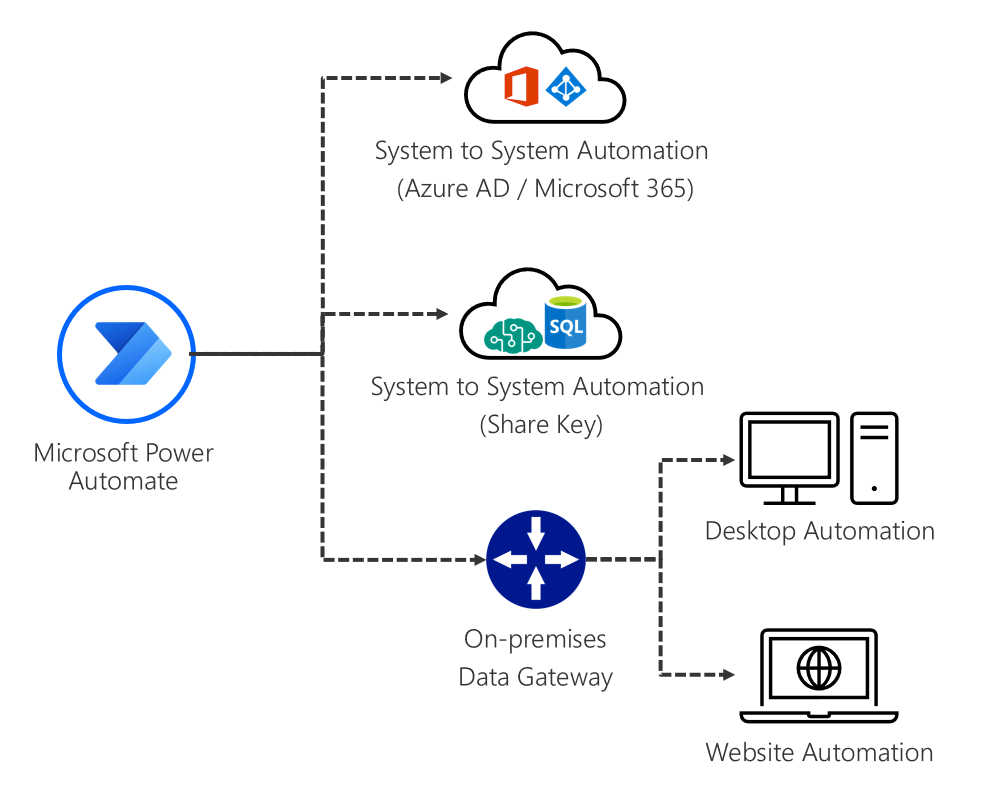
Effective macro automation begins with thorough preparation to ensure smooth development and reliable execution. Understanding the prerequisites, identifying suitable tasks, and assembling the necessary tools lay the foundation for successful automation projects. Proper preparation minimizes errors and enhances efficiency, enabling users to leverage macros fully in streamlining workflows.
Before diving into macro creation, it is essential to verify that the software environment supports macro development and that users have the appropriate permissions. Additionally, systematically recognizing repetitive tasks and compiling a comprehensive toolkit ensures a structured approach to automation. This section Artikels the key steps and considerations to prepare effectively for macro automation.
Prerequisites for creating effective macros
Establishing a conducive environment for macro development requires attention to software capabilities and user permissions. The following factors are vital:
- Supported Software Platforms: Confirm that the application intended for automation—such as Microsoft Excel, Word, or other Office applications—contains built-in macro support or supports scripting languages like VBA (Visual Basic for Applications). Some software may require specific versions or additional modules to enable macro functionality.
- Administrative Permissions: Ensure that the user has adequate permissions to create, modify, and run macros. In corporate or networked environments, macro execution might be restricted by security policies or group policies. Collaborate with IT administrators if necessary to enable macro features.
- Security Settings: Review the macro security settings within the application. Macros are often disabled by default to prevent malicious code execution. Adjust security levels to allow trusted macros, and consider signing macros with a digital certificate for validation.
- Backup and Version Control: Implement backup protocols and version control systems to track changes in macro scripts. This practice safeguards against accidental corruption and facilitates collaborative development.
Identifying tasks suitable for macro automation
Pinpointing the right tasks for automation ensures that macro development yields tangible benefits. The key is to focus on repetitive, time-consuming, and rule-based activities that can be standardized. The following steps assist in task identification:
- Analyze Daily Workflows: Observe daily routines to recognize tasks that require multiple similar steps, such as data entry, formatting, or report generation. For example, updating weekly sales reports or formatting data tables consistently are ideal candidates.
- Evaluate Task Frequency: Prioritize tasks performed frequently, as automation can significantly reduce time and errors associated with repetitive activities. Tasks performed weekly or daily often present the greatest efficiency gains.
- Assess Task Complexity: Select tasks with clear, rule-based procedures that do not depend heavily on subjective judgment. Complex tasks involving decision-making or unstructured data may require advanced scripting beyond basic macros.
- Estimate Cost-Benefit Ratio: Consider the effort needed to develop the macro against the time saved. Tasks with high volumes of repetitions or substantial manual effort stand out as prime candidates.
Checklist of tools and environments for macro development
Having the right set of tools and a suitable environment simplifies macro development and troubleshooting. The following checklist ensures readiness:
| Tool/Environment | Description |
|---|---|
| Office Application with Macro Support | Microsoft Excel, Word, PowerPoint, or similar applications that support VBA or macro scripting. |
| Integrated Development Environment (IDE) | Built-in VBA editor within Office applications provides a user-friendly environment for writing, editing, and debugging macros. |
| Digital Certificates | For signing macros to ensure security and trustworthiness, especially in organizational settings. |
| Backup and Version Control System | Tools like Git or simple backup folders to manage macro versions and revert changes if necessary. |
| Macro Documentation Templates | Standardized formats for documenting macro purpose, parameters, and usage instructions, facilitating maintenance and collaboration. |
| Security Settings Configuration | Adjusting macro security settings within Office applications to balance safety and functionality. |
| Sample Data Sets | Test data to develop and validate macros before deployment in live environments, reducing risks of errors. |
Creating macros to automate data entry

Automating data entry through macros significantly enhances efficiency by reducing manual input errors and saving time, especially when handling repetitive tasks. By recording and customizing macros for data input, users can streamline workflows, ensure consistency, and focus on more strategic activities. This section provides guidance on how to create effective macros for data entry, edit their code for dynamic data handling, and visualize the process within a structured table layout.
Leveraging macros for data entry involves two primary steps: recording the initial macro to capture the sequence of inputs and then editing the macro code to accommodate dynamic data, such as varying entries within tables. The following detailed instructions will facilitate the development of robust macros tailored to specific data input needs.
Recording a macro for standard data input into forms
Recording a macro offers a straightforward approach to automate repetitive data entry tasks. The process begins by initiating the macro recorder, performing the desired data inputs, and then stopping the recording. This method captures all keystrokes and mouse actions, translating them into a macro script that can be executed later to reproduce the same data entry process efficiently.
- Open the application or worksheet where data entry is required.
- Start the macro recorder via the designated menu—commonly found under the “Developer” tab in Excel or similar tools.
- Begin inputting the standard data into the form fields or cells. For example, entering a customer name, date, or product ID into specific locations.
- Complete the data entries and stop the macro recorder. Save the macro with a descriptive name for easy identification.
This recorded macro can now be executed with a single click, automating the process of inputting consistent data into forms or spreadsheets, thereby minimizing manual effort and errors.
Editing macro code for dynamic data handling within tables
While recorded macros are effective for static data inputs, editing the macro code allows for greater flexibility, especially when handling varying data sets within tables. Customizing macro scripts enables dynamic data insertion, where input values can be sourced from external cells, user prompts, or other data structures.
- Access the macro editor through the application’s macro management interface.
- Locate and open the specific macro to be edited, which contains the recorded instructions.
- Modify the static input commands by replacing them with variables or cell references. For instance, instead of hardcoding a value like “John Doe,” use a cell reference such as
Range(“A2”).Value
.
- Implement loops or conditional statements if multiple rows or entries need to be processed dynamically.
- Test the updated macro to ensure it correctly inputs data from the intended source, adapting seamlessly to different data sets.
For example, a macro designed to input customer data can be modified to pull each customer’s details from a table, automating bulk data entry with minimal manual intervention.
Sample table layout illustrating data input automation
Designing a clear and organized table layout is essential for automating data entry effectively. A well-structured table serves as the source for dynamic data inputs and ensures that macros operate smoothly without errors. Below is an example of a simple table layout suitable for data input automation:
| Customer ID | Name | Date of Purchase | Product | Quantity |
|---|---|---|---|---|
| 101 | Jane Smith | 2024-04-15 | Wireless Mouse | 2 |
| 102 | John Doe | 2024-04-16 | Keyboard | 1 |
| 103 | Emily Johnson | 2024-04-17 | Monitor | 3 |
In this layout, each row represents a unique data record that can be populated into forms or database systems using macros. The macro can be programmed to loop through each row, read the data, and input it into corresponding form fields or application interfaces, streamlining bulk data entry processes.
Automating Email Responses Using Macros
Automating email responses with macros is a powerful way to improve efficiency, ensuring timely and consistent communication. By setting up macros to draft and send standardized replies, users can handle large volumes of email with minimal manual effort. This approach is particularly beneficial for customer service teams, sales departments, or any professionals managing repetitive email correspondence.
Integrating macros into email platforms involves creating predefined templates and automating their deployment based on specific triggers or conditions. The process varies depending on the email client or platform in use, but the core principles remain consistent. This section explores how to set up such macros, integrate them seamlessly into different email environments, and compare steps across popular email services.
Setting Up Macros for Drafting and Sending Standardized Email Replies
Establishing macros for email responses begins with defining template content that addresses common scenarios, such as order confirmations, support acknowledgments, or follow-up messages. Once templates are prepared, you can automate the insertion and sending process through macro scripting, which may involve recording actions, using built-in scripting languages, or utilizing third-party tools.
For example, in Microsoft Outlook, you can create a macro using VBA (Visual Basic for Applications) that opens a new email window, inserts predefined text, and sends the email automatically. Similarly, in platforms like Gmail, the use of browser extensions or Google Apps Script allows for scripting automated responses based on specific triggers, such as incoming email content or sender address.
Procedures for Integrating Macros with Email Clients or Platforms
Integration involves linking your macro scripts with the email platform’s interface, enabling one-click execution or automation based on certain events. The procedure generally includes the following steps:
- Creating or recording the macro within the email client or through an external scripting environment.
- Assigning a trigger or shortcut key to execute the macro efficiently.
- Configuring the macro to access email account data securely, ensuring compliance with security protocols.
- Testing the macro to verify that it drafts, populates, and sends emails as intended without errors.
Depending on the email service, additional plugins or add-ins may be required to facilitate macro execution. Proper integration ensures smooth operation and reduces the risk of accidental sends or errors.
Comparison of Macro Steps for Different Email Services or Software
Below is a table summarizing the macro setup and integration steps for common email platforms, highlighting similarities and differences:
| Feature / Service | Microsoft Outlook | Gmail (via Google Apps Script) | Apple Mail (via AppleScript) |
|---|---|---|---|
| Creating Macros | Use VBA to record or write macros within Outlook’s Developer tab. | Write Google Apps Script to generate draft emails and automate sending. | Develop AppleScript that interacts with Mail.app to compose and send emails. |
| Triggering Macros | Assign keyboard shortcuts or button in the ribbon; automate via rules or add-ins. | Set triggers based on incoming email filters or manually run scripts from Google Workspace. | Use keyboard shortcuts or automate via Automator workflows. |
| Automation Security | Enable macros with appropriate security settings; ensure trusted sources. | Authorize scripts via OAuth; handle permissions carefully. | Adjust security preferences; ensure scripts are signed or from trusted sources. |
| Execution | Click macro button or shortcut, macro drafts and sends email automatically. | Run script directly in Google Apps Script editor or from a menu. | Execute AppleScript through Script Editor or Automator actions. |
By understanding the specific steps and requirements for each platform, users can effectively implement macros that streamline their email responses, saving time and ensuring consistency across communications.
Scheduling tasks with macros
Automating tasks to run at specific times or intervals increases efficiency and ensures consistency in workflows. Macros can be programmed to trigger actions based on predefined schedules, removing the need for manual initiation and reducing the risk of errors. Proper scheduling is particularly useful for routine data updates, report generation, or sending notifications, especially in environments where timely execution is critical.
Implementing scheduled macros involves creating mechanisms to trigger these automations precisely when needed. This can be achieved through integrated scheduling features within macro-enabled applications or by leveraging external scheduling tools that interact with your macros. Incorporating calendar or scheduling data enhances the flexibility and accuracy of automation, allowing tasks to adapt to business calendars, holidays, or specific project timelines.
Creating macros that trigger actions at specific times or intervals
To effectively schedule macros, it’s essential to understand the methods available for triggering actions based on time. In applications like Microsoft Excel or Word, built-in features such as VBA (Visual Basic for Applications) can be used in conjunction with Windows Task Scheduler or other external tools for automation. These methods enable you to specify precise times, such as daily at 8:00 AM, or set interval-based triggers, such as every 30 minutes.
Developing a macro for scheduled execution typically involves writing a script that performs the desired task and then configuring the scheduling mechanism to invoke this script at the designated times. For example, in VBA, you can create a macro that performs data backups, and then set up Windows Task Scheduler to run the macro’s associated script or file at specific intervals.
“Scheduling macros ensures that routine tasks are executed reliably and timely, freeing up human resources for more strategic activities.”
Incorporating calendar or scheduling data into macros
Integrating calendar data into macros enhances their ability to execute contextually, such as avoiding tasks during holidays or weekends or aligning actions with project deadlines. This integration can be accomplished by importing calendar information from external sources or by referencing built-in scheduling data within the application.
For example, an Excel macro designed to generate weekly reports can access a calendar table embedded within the worksheet. The macro then checks the current date against holiday lists or non-working days before executing, ensuring tasks are performed only on working days. Similarly, macros can reference project management tools or scheduling databases via API connections to adapt actions based on real-time schedule updates.
| Scheduled Task Name | Date & Time | Status | Notes |
|---|---|---|---|
| Monthly Sales Report | 2024-04-30 09:00 | Pending | Generated automatically on the last day of each month |
| Daily Data Backup | Every day at 2:00 AM | Completed | Ensures data safety and recovery readiness |
| Weekly Email Notifications | Every Monday at 8:00 AM | Scheduled | Includes performance summaries from the previous week |
Managing and Automating File Organization
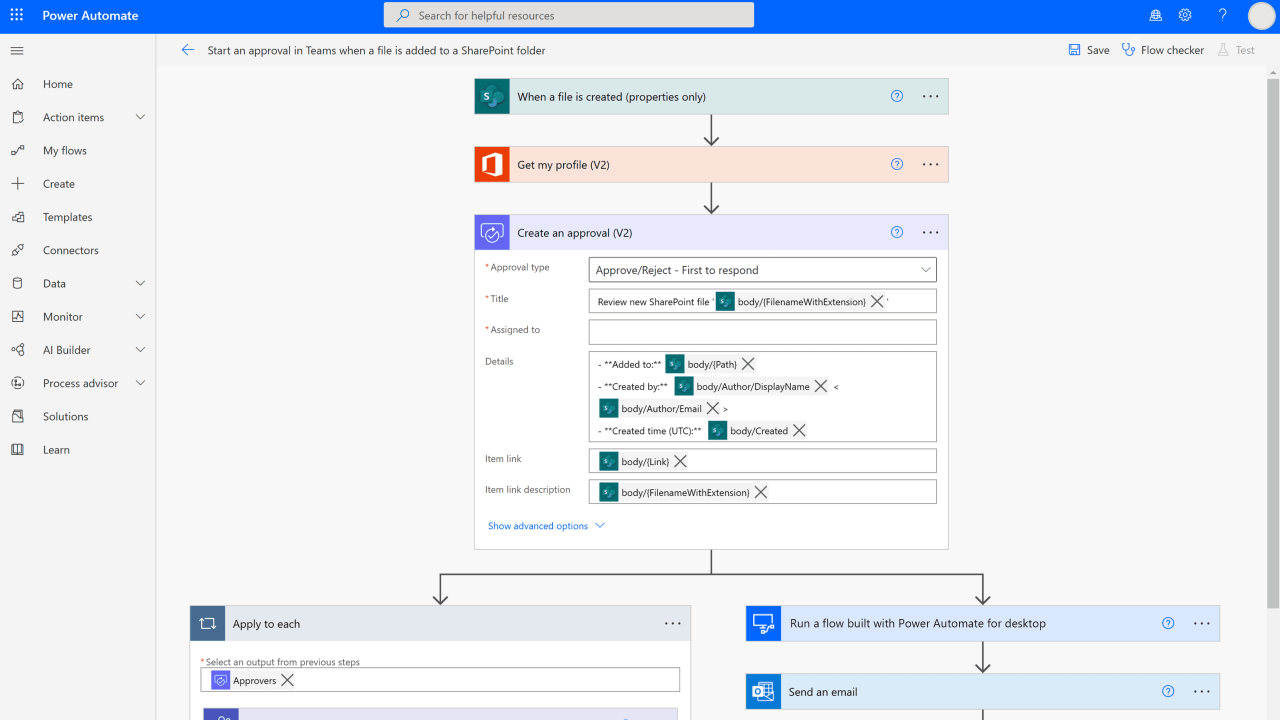
Efficient management of files is a crucial aspect of maintaining productivity and ensuring data is easily accessible. Automating the organization process through macros can significantly reduce manual efforts, minimize errors, and streamline workflows. By implementing automated techniques to rename, move, and categorize files, users can create a more organized digital environment that adapts dynamically to their needs.
Macros designed for file organization can perform a variety of tasks, including batch renaming files based on specific naming conventions, moving files to designated folders based on their types or content, and categorizing files into organized directories automatically. Scripting for folder monitoring allows these macros to run continuously or at scheduled intervals, detecting new or modified files and sorting them accordingly.
This automation not only saves time but also ensures that files are systematically categorized, facilitating quick retrieval and better data management.
Techniques for Renaming, Moving, and Categorizing Files
Applying macros for file management involves several core techniques that enhance organization and efficiency:
- Batch Renaming: Using macros to rename multiple files simultaneously based on predefined templates, such as adding date stamps, sequence numbers, or descriptive labels. For example, renaming all invoice files with the pattern “Invoice_YYYYMMDD_Sequence”.
- Moving Files: Automating the transfer of files from common download or input folders to target directories based on file extension, creation date, or content type. For instance, moving all PDF reports to a “Reports” folder automatically.
- Categorizing Files: Sorting files into categorized folders based on metadata or file properties, such as document type, project, or client name, enabling quick access and better categorization.
Scripting for Folder Monitoring and File Sorting
Advanced macros utilize scripting capabilities to monitor folders continuously or at scheduled times, enabling real-time or periodic file management. These scripts employ event-driven triggers or scheduled tasks to detect new or modified files and execute sorting procedures seamlessly:
- Folder Monitoring: Scripts can be set up to watch specific directories for changes, such as new uploads or edits. When a change is detected, the macro initiates actions like renaming or moving files without manual intervention.
- File Sorting: Once a new file is detected, scripts analyze its properties—such as extension, size, or embedded metadata—and automatically categorize it into appropriate folders. For example, images are sorted into “Images,” documents into “Documents,” and spreadsheets into “Spreadsheets” folders.
- Automation Tools: Scripting can be achieved using VBA in Office applications, PowerShell scripts in Windows environments, or Python scripts with file system libraries, offering flexible options to suit different workflows.
File Types, Actions, and Target Locations
Understanding the typical flow of automated file management involves mapping file types to specific actions and target locations. The following table illustrates common scenarios where macros streamline file organization:
| File Type | Action | Target Location |
|---|---|---|
| PDF Reports | Move and categorize | Reports/Monthly or Client-specific folders |
| Image Files (JPEG, PNG) | Rename and sort | Media/Images or Project-specific directories |
| Excel Spreadsheets | Rename based on content and move | Data/Financial or Project directories |
| Word Documents | Categorize by project/client | Documents/Projects or Clients folders |
| Compressed Archives (ZIP, RAR) | Move to Archive | Archives/Year or Project-specific folders |
“Automated file management enhances operational efficiency by ensuring files are correctly named, stored, and categorized without manual effort, reducing errors and saving valuable time.”
Automating Report Generation
Automating report generation through macros streamlines the process of compiling, formatting, and distributing data-driven reports. This capability enhances productivity by reducing manual effort, minimizing errors, and ensuring consistency across reports, which is crucial for decision-making and record-keeping.
By leveraging macros to automate report creation, organizations can efficiently gather information from multiple sources, format data into professional layouts, and export finalized reports in various formats suitable for sharing and archiving. This process is especially valuable in environments that require frequent reporting, such as finance, sales, and project management.
Procedures for Compiling Data from Multiple Sources into Reports
Creating effective macros for report generation begins with designing procedures that systematically gather data from diverse sources, such as databases, spreadsheets, or external files. These procedures improve accuracy and save time by consolidating information automatically.
- Identify all relevant data sources, including internal databases, Excel worksheets, or cloud-based platforms.
- Develop macro scripts that access and extract data from each source, ensuring correct data ranges and formats.
- Standardize data formats during extraction to facilitate seamless integration into reports.
- Use loops and conditional statements within macros to handle multiple data sets or sources dynamically.
- Implement error handling within macros to manage missing or inconsistent data, alerting users to issues that require manual review.
Exporting Data into PDF or Excel with Embedded Tables
Once data is compiled, exporting it into formatted reports is essential for presentation and sharing. Macros can automate exporting data into formats like PDF or Excel, embedding tables that maintain structure and readability.
An effective macro approach involves generating reports with embedded tables that are dynamically populated based on the compiled data. Using VBA or similar scripting, macros can format tables, apply styles, and embed graphs or charts where necessary.
“Embedding tables within reports ensures data integrity and clarity, making complex information accessible and easy to interpret.”
For example, macros can create an Excel sheet with styled tables summarizing sales performance, then export this sheet as a PDF for distribution. When exporting to PDF, macros can also set print areas, page layouts, and include headers or footers for professionalism.
Using HTML Table Templates for Structured Reports
In scenarios where reports are delivered via web or integrated into internal portals, using HTML table templates allows for customizable and visually appealing report sections. Macros can populate these templates with real-time data from spreadsheets or databases.
- Design HTML templates with clear headers, sections, and styled tables to organize diverse report components effectively.
- Utilize macros to replace placeholder data within the templates with actual report data, ensuring consistency and accuracy.
- Incorporate inline CSS styles within templates for consistent formatting across different report sections.
- Generate complete HTML reports which can be saved as static files or embedded into web pages, providing dynamic and accessible report formats.
- Enhance templates with interactive elements such as collapsible sections or embedded charts for more engaging reports.
For instance, a macro can populate an HTML template with sales, financial, and operational data, then save the final report as an HTML file that stakeholders can view in a browser, ensuring immediate access to up-to-date information.
Customizing macros with scripting languages
Enhancing the functionality of macros through scripting languages like VBA, Python, or similar tools unlocks advanced automation capabilities. By integrating scripts, users can perform complex tasks, manipulate data dynamically, and create more flexible workflows beyond basic macro functions. This level of customization allows for tailored solutions that meet specific organizational or personal automation needs, thereby increasing efficiency and reducing manual effort.
Utilizing scripting languages to extend macro capabilities involves writing code snippets that interact seamlessly with macro environments. These scripts can automate intricate procedures, handle data processing, and connect with external applications or databases. This approach transforms simple automation routines into sophisticated workflows, enabling tasks such as conditional decision-making, data validation, and multi-step processes that are difficult to achieve with basic macros alone.
Extending macro functionality with scripting languages
Integrating scripting languages like VBA (Visual Basic for Applications) and Python into macro workflows enables automation of tasks that require advanced logic, data manipulation, and external system interaction. VBA, embedded within Microsoft Office applications, provides a rich environment for automating Office tasks, while Python offers versatility through external libraries and broader system integration. Employing these languages allows users to develop complex automation scripts that can be triggered within macros, enhancing their scope and power.
Example of a VBA script snippet:
Sub AutoFillCells()\n Range("A1:A10").FillDown\nEnd Sub
This script fills cells A1 to A10 with data from the top cell, automating a repetitive task efficiently.
Example of a Python script snippet:
import pandas as pd\n\n# Load data from Excel\nexcel_data = pd.read_excel('file.xlsx')\n\n# Filter data based on conditions\ndata_filtered = excel_data[excel_data['Status'] == 'Completed']\n\n# Save filtered data\ndata_filtered.to_excel('filtered_data.xlsx', index=False)
This script automates data analysis and report preparation by filtering data and exporting it, streamlining the workflow.
Comparison of scripting options for macro customization
Choosing the appropriate scripting language for macro customization depends on factors such as ease of use, integration capabilities, and the complexity of tasks. The table below compares VBA, Python, and other scripting options based on key features and limitations to guide users in selecting the most suitable tool for their automation needs.
| Scripting Option | Features | Limitations |
|---|---|---|
| VBA (Visual Basic for Applications) |
|
|
| Python |
|
|
| Other options (JavaScript, PowerShell) |
|
|
Troubleshooting and optimizing macros

Maintaining efficient and error-free macros is essential to ensure seamless automation workflows. When macros do not perform as expected or slow down processes, troubleshooting and optimization become critical steps. These practices help identify issues, enhance macro performance, and increase overall reliability, leading to more consistent automation outcomes.Effective troubleshooting involves systematically diagnosing macro scripts to pinpoint errors or inefficiencies. Optimization focuses on refining macro code and execution strategies to reduce processing time, minimize errors, and improve stability.
Adopting best practices in these areas can significantly enhance the productivity and robustness of macro-based automation systems.
Strategies for debugging macro scripts and identifying errors
Debugging macros requires a structured approach to isolate issues and understand their root causes. The following strategies facilitate efficient troubleshooting:
- Use built-in debugging tools: Many macro environments, such as VBA in Excel, offer debugging interfaces that allow step-by-step execution, variable inspection, and breakpoints to halt execution at critical points.
- Implement error handling: Incorporate error-handling routines using constructs like “On Error” statements to catch and log runtime errors without crashing the macro, providing insights into failure points.
- Review code logic systematically: Break down complex macros into smaller segments and test each individually. This modular approach helps isolate problematic sections more efficiently.
- Leverage message boxes and logging: Insert message boxes or write logs at key points to monitor variable values and program flow, especially when analyzing unexpected behaviors.
- Validate input data: Ensure that all data sources meet expected formats and ranges, as invalid data often causes errors during macro execution.
- Test in controlled environments: Run macros with test data or in sandboxed copies of files to prevent unintended modifications and facilitate error tracing.
Best practices for optimizing macro performance and reliability
Optimizing macros involves refining code efficiency, reducing execution time, and ensuring consistent results. The following practices are recommended:
- Minimize repetitive operations: Avoid redundant calculations or repeated access to external data sources within loops. Cache data when possible to reduce access overhead.
- Use efficient data structures: Prefer arrays, dictionaries, or collections over cell-by-cell operations in Excel, as they process data faster and more reliably.
- Disable unnecessary features during execution: Turn off screen updating, automatic calculations, and events at the start of macro execution, then re-enable them afterward to improve speed and prevent unwanted triggers.
- Write modular code: Break macros into smaller, reusable functions or subroutines to facilitate testing, maintenance, and troubleshooting.
- Optimize loop constructs: Use proper loop types and exit conditions to prevent infinite loops and reduce runtime, especially in large data sets.
- Document code thoroughly: Clear comments and consistent formatting help future debugging and enhancement efforts, ensuring reliability over time.
Common issues and their solutions
Understanding typical macro problems enables quicker resolution and prevents recurring errors. Below are common issues encountered in macro automation along with their solutions:
| Issue | Description | Solution |
|---|---|---|
| Runtime errors due to invalid data types | Macros fail when data does not match expected formats, causing type mismatch errors. | Implement data validation routines before processing, and use error handling to manage unexpected data gracefully. |
| Slow macro execution | Processing large datasets or inefficient loops cause delays, impacting productivity. | Optimize code by reducing cell interactions, disabling screen updates, and utilizing array operations instead of cell-by-cell processing. |
| Macros not responding or crashing | Unresponsive macros may be due to infinite loops or unhandled errors. | Introduce exit conditions in loops, add error handling, and use debugging tools to identify infinite or problematic sections. |
| Broken references or missing objects | Macros depend on external references or objects that may change or be deleted. | Use explicit object references, validate object existence before use, and avoid hard-coded paths or references. |
| Unintended macro execution | Macro triggers activate unexpectedly, causing unintended changes. | Refine trigger conditions, use specific event handling, and restrict macro execution to controlled scenarios. |
Regular review, testing, and documentation of macro scripts are essential practices for maintaining automation integrity and performance.
Sharing and deploying macros across platforms

Efficiently distributing and deploying macros across various platforms enhances productivity and promotes consistency in automated tasks. Whether working within a single organization or collaborating across different teams, understanding how to share macros securely and effectively is essential for maximizing their benefits while maintaining data integrity and security.
Sharing macros involves exporting macro files from one environment and importing them into another, often across different software versions or platforms such as Excel, Word, or other Office applications. This process demands careful handling to ensure compatibility, security, and ease of deployment, especially in environments where multiple users rely on shared automation tools.
Methods for exporting, importing, and sharing macro files
To facilitate seamless macro deployment, several methods can be employed depending on the platform and organizational preferences:
- Exporting macro files: Macros are typically stored within files with specific extensions, such as
.xlsmfor Excel macro-enabled workbooks,.docmfor Word, or as add-ins with.xlamextensions. Exporting involves saving or copying these files to a shared network or cloud storage, ensuring they are accessible for import on other systems. - Importing macro files: Importing involves opening or loading the macro-enabled files into the target application. For example, importing an Excel macro involves opening the
.xlsmfile or adding it as an add-in via the application’s add-in manager. This process may require enabling macros and adjusting security settings to allow execution. - Sharing macro files: Sharing can be achieved through multiple channels such as email, shared drives, cloud storage services (e.g., OneDrive, SharePoint, Google Drive), or version control systems. Using collaborative platforms enables multiple users to access, update, and deploy macros efficiently.
In addition to file sharing, organizations may develop centralized macro repositories or utilize scripting platforms that support version control, updates, and auditing, which streamline macro management across different environments.
Security considerations when deploying macros in shared environments
While macros significantly enhance automation capabilities, they also pose security risks if not managed properly. Malicious macros can compromise systems, steal data, or introduce malware. Therefore, security considerations are paramount when deploying macros across shared platforms:
Always verify the source of macros before deployment and ensure they originate from trusted creators to prevent security breaches.
- Enable macro security settings: Configure macro security options in Office applications to restrict or prompt for macro execution. Setting macros to “Disable all macros with notification” allows users to review each macro before running.
- Use digital signatures: Digitally signing macros ensures their authenticity and integrity. Trusted certificates confirm that the macro has not been altered and originates from a verified source.
- Implement access controls: Limit macro deployment to authorized personnel and restrict editing privileges. Using role-based access controls prevents unauthorized modifications.
- Regularly update security policies: Keep macro security policies current in line with emerging threats and organizational standards. Training users on safe macro practices also reduces risks.
Sharing options and protocols illustrated in a table
Below is a comprehensive table that illustrates various sharing options, protocols, and best practices for deploying macros across platforms. This helps in selecting the appropriate method based on organizational needs and security requirements.
| Sharing Method | Description | Protocols/Tools | Security Considerations | Ideal Use Case |
|---|---|---|---|---|
| Shared Network Drive | Save macro files on a local or networked shared folder accessible to authorized users. | SMB/CIFS protocols, Windows File Sharing | Ensure proper permissions; restrict access to trusted users; regularly scan for malware. | Small teams within an organization requiring centralized access. |
| Cloud Storage Services | Upload macro files to cloud platforms like OneDrive, SharePoint, or Google Drive for easy access and version control. | HTTP/HTTPS protocols, cloud platform APIs | Leverage access controls, enable two-factor authentication, and monitor sharing permissions. | Distributed teams needing real-time collaboration and easy deployment. |
| Email Attachments | Send macro files directly via email for individual or small-group sharing. | SMTP protocols, email encryption standards (SMIME, PGP) | Verify the recipient’s trust, use encrypted email, and scan attachments for malware. | Ad-hoc sharing or when immediate deployment is necessary. |
| Version Control Systems | Manage macro files within repositories like Git for versioning, auditing, and collaborative development. | Git, SVN protocols | Implement access controls, code reviews, and signing to ensure integrity and security. | Development teams working on complex macro projects requiring version tracking. |
| Macro Add-ins or Custom Deployment Packages | Distribute macros as add-ins or packaged installers to streamline deployment across multiple systems. | COM add-ins, Office Deployment Tool | Sign packages digitally; restrict installation rights; monitor usage. | Large-scale deployment in enterprise environments. |
Adhering to best practices in sharing and deploying macros across platforms not only enhances operational efficiency but also safeguards organizational data and IT infrastructure from potential security threats.
Last Word
In summary, mastering how to automate ten tasks with macros empowers you to optimize your tasks, minimize errors, and free up valuable time for more strategic activities. Implementing these automation techniques can significantly improve your overall productivity and workflow management.