Setting up a dual monitor workstation is an excellent way to enhance productivity and streamline workflow. This guide provides a comprehensive overview of how to establish an efficient and ergonomic environment using two monitors, ensuring you make the most of your workspace.
From selecting the appropriate hardware components to configuring display settings and optimizing ergonomics, this resource will walk you through every step necessary to create a seamless dual monitor setup tailored to your needs.
Overview of Setting Up a Dual Monitor Workstation
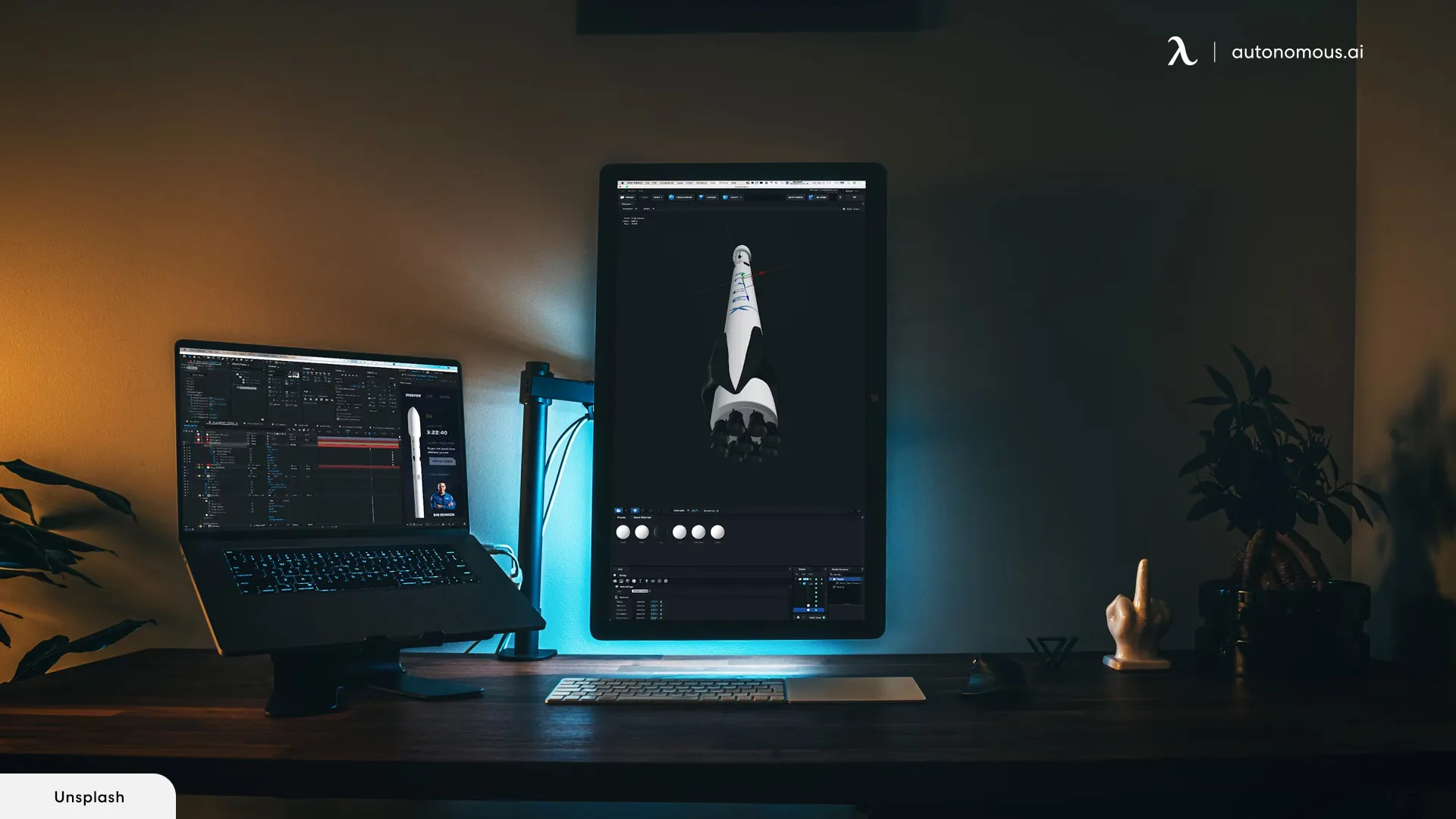
Establishing a dual monitor setup has become a popular choice among professionals seeking to enhance their productivity and streamline their workflow. This configuration allows users to multitask more efficiently by expanding their visual workspace, reducing the need to switch between multiple windows and applications constantly. Whether for graphic design, programming, data analysis, or general office work, a dual monitor setup can significantly improve operational efficiency and user comfort.
Implementing a dual monitor workstation involves careful planning and selection of appropriate hardware components. The typical hardware requirements include compatible monitors, a suitable graphics card or video outputs, and an ergonomic workspace layout. Proper arrangement of monitors ensures a seamless transition between screens, minimizes neck and eye strain, and maximizes usable desktop space. The following step-by-step process guides users through planning their workspace layout effectively, taking into account ergonomic principles and workspace dimensions to create an optimal environment for daily tasks.
Hardware Requirements for a Dual Monitor Setup
Choosing the right hardware is crucial to ensure a smooth and efficient dual monitor experience. The essential components include monitors, graphics hardware, and peripherals. High-resolution monitors, such as those with 1080p, 1440p, or 4K displays, provide clear visuals and detailed imagery, which are particularly beneficial for creative professionals and data analysts. Additionally, the graphics card should support multiple outputs with sufficient ports—such as HDMI, DisplayPort, or DVI—to connect both monitors simultaneously.
In terms of peripherals, ergonomic stands or mounts are recommended to position the monitors at eye level, reducing neck strain. Cables and adapters should be compatible with the monitors and graphics card ports, ensuring a clutter-free workspace. Adequate desk space and proper cable management are also vital to create a tidy and efficient environment, which can boost focus and productivity during long working hours.
Planning Your Workspace Layout for Dual Monitors
Creating an effective workspace layout involves strategic placement of monitors to promote ergonomic comfort and workflow efficiency. Proper planning begins with measuring the available desk space and selecting monitors that fit within those dimensions without causing clutter. The monitors should be arranged in a way that minimizes head and eye movement; typically, placing the primary monitor directly in front of the user and the secondary monitor to the side at a slight angle facilitates natural viewing angles.
Consideration should also be given to lighting conditions, ensuring that glare and reflections are minimized. Positioning monitors perpendicular to windows or light sources helps in reducing eye strain. Using monitor stands or mounts can allow for adjustable height, tilt, and swivel, ensuring that each screen aligns comfortably with the user’s line of sight. Finally, maintaining a clean and organized workspace with adequate cable management enhances both safety and aesthetics, contributing to a more productive environment.
Selecting the Right Monitors for a Dual Setup

Choosing the appropriate monitors is a critical step in establishing an efficient and comfortable dual monitor workstation. The right combination enhances productivity, reduces eye strain, and caters to specific professional or personal needs. It is essential to consider various factors such as size, resolution, refresh rate, and panel type to ensure the monitors align with the intended tasks and workspace ergonomics.
Understanding these factors helps in making informed decisions that improve workflow, whether for multitasking, graphic design, gaming, or general use. Furthermore, selecting between identical or mixed monitors impacts visual consistency and setup flexibility, influencing the overall user experience. This section provides a detailed overview of key considerations and compares popular monitor configurations to assist in making optimal choices.
Factors to Consider When Choosing Monitors
When selecting monitors for a dual setup, several technical specifications and ergonomic features should be evaluated to ensure compatibility and suitability for your specific tasks. These factors include size, resolution, refresh rate, and panel type, each contributing uniquely to the overall performance and user comfort.
- Size: Monitor size, measured diagonally in inches, influences workspace space and viewing comfort. Common sizes range from 24 to 32 inches for general use, with larger screens preferred for detailed work or immersive experiences.
- Resolution: Higher resolution displays provide sharper images and more screen real estate. For professional tasks like graphic design, high resolutions such as 4K (3840×2160) are advantageous, while 1080p (Full HD) suffices for everyday tasks.
- Refresh Rate: The refresh rate, measured in Hz, affects motion clarity. A standard 60Hz is suitable for most tasks, but gamers and video editors benefit from higher rates such as 75Hz or 144Hz for smoother visuals.
- Panel Type: Different panel technologies—IPS, TN, and VA—offer varying color accuracy, response times, and contrast. IPS panels excel in color reproduction and viewing angles, ideal for creative work, while TN panels provide faster response times suitable for gaming.
Comparing Identical vs. Mixed Monitors
Deciding between identical or mixed monitors hinges on priorities like visual consistency, flexibility, and workspace aesthetics. Identical monitors ensure seamless visual uniformity, simplifying calibration and reducing distractions. Conversely, mixed monitors offer greater flexibility, allowing users to select displays optimized for specific tasks, such as pairing a high-resolution monitor with a secondary smaller or curved display.
Identical Monitors: Provide uniformity in color, brightness, and resolution, facilitating multi-monitor workflows where consistency is crucial.
Mixed Monitors: Enable customization based on task-specific needs, for example, a high-resolution monitor for detailed editing combined with a larger, curved display for general navigation.
Comparison Table of Popular Dual Monitor Options
Below is a comparison of popular dual monitor configurations, highlighting key features and specifications to assist in making an informed decision:
| Model | Size | Resolution | Refresh Rate | Panel Type | Price Range |
|---|---|---|---|---|---|
| Dell UltraSharp U2723QE | 27 inches | 3840×2160 (4K) | 60Hz | IPS | $500 – $600 |
| LG 34WN80C-B | 34 inches | 3440×1440 (Ultrawide QHD) | 60Hz | IPS | $700 – $800 |
| Acer Nitro VG271 | 27 inches | 1920×1080 (Full HD) | 144Hz | TN | $250 – $300 |
| Samsung Odyssey Neo G8 | 32 inches | 4K (3840×2160) | 240Hz | VA | $1,200 – $1,300 |
| ASUS ProArt PA278CV | 27 inches | 2560×1440 (QHD) | 75Hz | IPS | $400 – $500 |
Choosing the appropriate monitors involves balancing technical specifications with budget considerations and the specific requirements of the tasks at hand. Prioritizing features like resolution and panel type will significantly impact workflow efficiency and visual comfort in a dual monitor setup.
Configuring Monitors and Display Settings
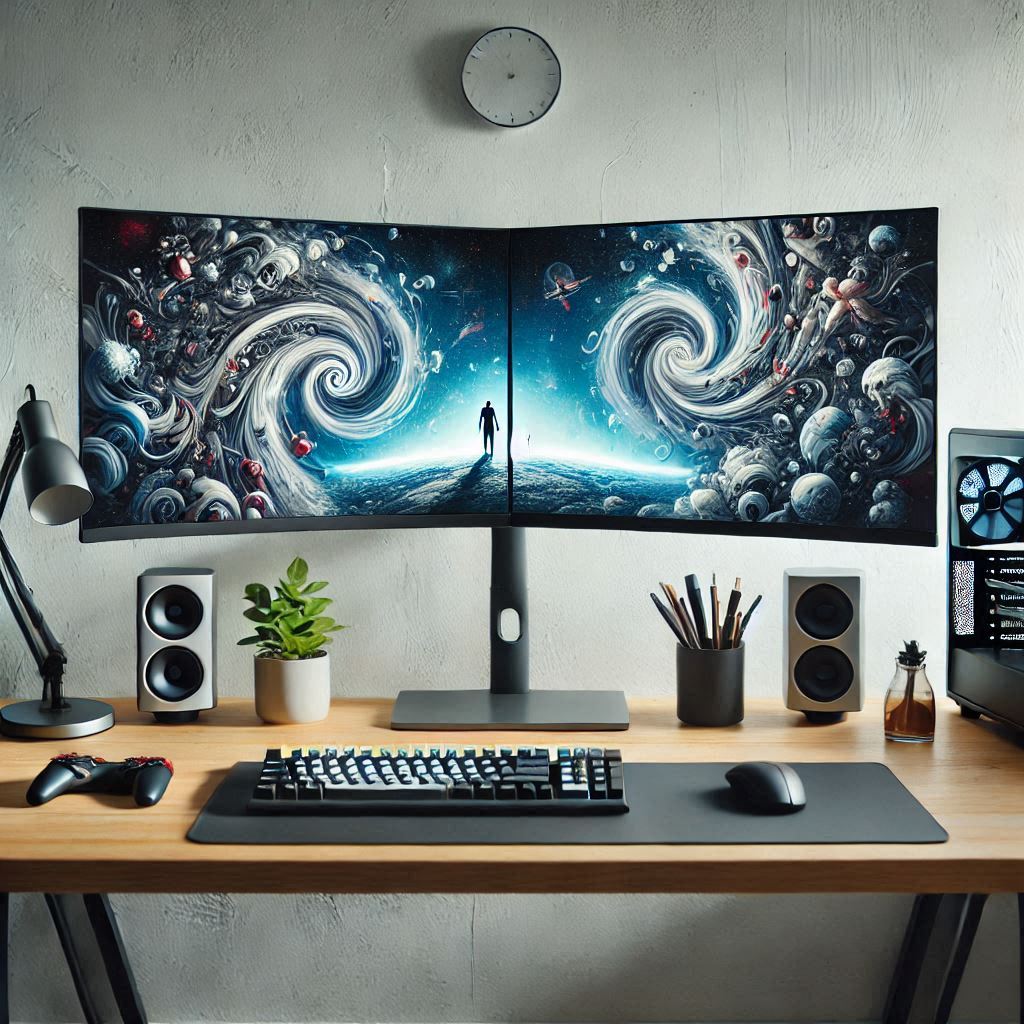
After physically connecting your monitors, the next crucial step is to configure the display settings to ensure a seamless and productive workflow. Proper configuration enhances multitasking efficiency and provides an ergonomic setup tailored to your preferences and work environment.
This process involves linking your monitors through appropriate ports, adjusting display modes such as extended or mirrored screens, and fine-tuning resolution, orientation, and display order. Mastering these settings allows for an optimized dual monitor workstation that aligns with your specific needs and maximizes your productivity.
Connecting Monitors Using Various Port Types
Choosing the right connection method is essential for achieving the best display quality and compatibility. Modern computers and monitors support a range of port types, each with specific advantages and considerations.
- HDMI (High-Definition Multimedia Interface): Widely used for connecting monitors and TVs, HDMI transmits high-quality audio and video signals. It is commonly found on desktops and laptops, providing a straightforward connection with good resolution support up to 4K and beyond.
- DisplayPort: Known for supporting higher refresh rates and resolutions, DisplayPort is ideal for professional applications requiring crisp visuals, such as graphic design or video editing. It also offers daisy-chaining capabilities, allowing multiple monitors to be connected via a single port.
- DVI (Digital Visual Interface): An older digital connection that supports high-quality video. Although less common on newer devices, DVI remains a reliable option for certain monitors and legacy systems.
- VGA (Video Graphics Array): An analog connection with lower resolution support, VGA is mostly phased out but may still be encountered in older equipment. For optimal visual clarity, digital connections are preferred.
Connecting monitors involves selecting the appropriate port based on your device’s available outputs and the monitor’s inputs. Ensuring secure cable connections and verifying compatibility can prevent display issues and maximize image quality.
Extending or Mirroring Displays within Operating System Settings
Configuring how your monitors display content is vital for an efficient workflow. Operating systems provide options to extend the desktop across multiple screens or mirror the primary display, each serving different purposes.
- Extending displays: This mode creates a larger desktop workspace by spreading windows across both monitors. It enhances multitasking by allowing separate applications or documents to be viewed simultaneously on different screens. For example, you can have your email client open on one monitor and a presentation or spreadsheet on the other.
- Mirroring displays: This setup duplicates the same content on both screens, which is useful for presentations or demonstrations where viewers need to see identical content. It ensures consistent display across multiple monitors but limits the workspace size.
To adjust these settings, access the display configuration menu within your operating system:
- Windows: Right-click on the desktop and select Display Settings. Under the Multiple displays section, choose Extend these displays or Duplicate these displays from the dropdown menu. You can also identify each monitor by clicking Identify, which displays a number on each screen for easy configuration.
- MacOS: Open System Preferences and navigate to Displays. Click on the Arrangement tab to view and arrange your monitors. Drag the display icons to match physical placement and select the Mirror Displays checkbox if mirroring is desired.
Adjusting Resolution, Orientation, and Display Order
Optimizing display settings involves fine-tuning resolution, orientation, and the arrangement of monitors to match your physical setup, thereby improving usability and reducing strain.
- Resolution adjustments: Select the resolution that best balances clarity and performance. Higher resolutions like 1920×1080 (Full HD) or 2560×1440 (QHD) offer sharper images but may require more graphics processing power. For professional work, consider 4K resolution if supported.
- Orientation settings: Adjust the display orientation between landscape and portrait modes based on the task. Portrait mode is advantageous for reading lengthy documents or coding, while landscape suits most desktop applications.
- Display order: Ensure the physical and virtual arrangement of monitors match, so moving the cursor seamlessly from one screen to another. In system settings, drag the monitor icons to reflect their actual placement on your desk. This prevents cursor misalignment and enhances navigation.
Proper configuration of display resolution, orientation, and order results in an ergonomic setup that minimizes eye strain and maximizes workflow efficiency.
Enhancing Productivity with Dual Monitors

Implementing a dual monitor setup offers significant advantages in workflow efficiency and multitasking capabilities. By strategically organizing applications and customizing display profiles, users can create an ergonomic and streamlined workspace that maximizes output. Proper configuration and thoughtful arrangement of windows enable users to switch seamlessly between tasks, reducing time spent on window management and increasing overall productivity.
Optimizing your dual monitor environment involves not only physically arranging the screens but also leveraging software features such as shortcuts and display profiles. These tools help in maintaining consistency across sessions and facilitate quick access to commonly used applications or window arrangements, making daily tasks more manageable and less time-consuming. The following strategies illustrate how to make the most of your dual monitor setup for a more efficient work experience.
Organizing Applications and Windows Effectively Across Screens
Effective organization of applications and windows is essential to harness the full potential of a dual monitor workstation. Distributing tasks logically across screens minimizes clutter and enhances focus, allowing users to view relevant information at a glance. For example, dedicating one monitor to email and communication tools while reserving the other for primary work applications such as spreadsheets, design software, or coding environments can significantly streamline workflows.
To facilitate this, users can employ features like window snapping, which allows applications to automatically align to specific areas of the screen(anchors like half or quarter of the display). Windows and macOS both offer built-in options for this, making it easier to organize multiple windows without manual resizing. Additionally, creating predefined window layouts tailored to specific tasks can save time and reduce the distraction of constant window rearrangement.
Advanced users often utilize virtual desktops or workspaces to separate different types of tasks, switching between them with ease. For instance, a user working on a graphic design project might have the editing tools on one monitor and reference images or communication channels on the other, ensuring all necessary resources are visible simultaneously.
Creating Shortcuts and Custom Display Profiles
Shortcuts and custom display profiles significantly enhance workflow efficiency by enabling quick access to preferred configurations and application arrangements. Creating desktop or keyboard shortcuts for specific window layouts allows users to instantly switch between work modes, such as a “Design Mode” with all design tools visible or a “Research Mode” displaying multiple reference documents simultaneously.
Display profiles, which store configurations like resolution, color calibration, and window arrangements, can be customized for different tasks or lighting conditions. These profiles can be activated automatically based on the time of day or specific applications, ensuring optimal visual comfort and productivity. For example, a user may set a high-contrast profile for design work and switch to a standard profile for general tasks, reducing eye strain and improving clarity.
Custom profiles can also include preset arrangements of multiple applications and windows, saved as a workspace. This approach allows for rapid setup before starting critical tasks, minimizing setup time and ensuring consistency across sessions.
Utilizing software tools such as display management utilities or operating system features simplifies the process of creating and switching between these profiles, further streamlining daily workflows.
Examples of Workflows Benefiting from Multi-Monitor Arrangements
Many professional workflows gain tremendous efficiency from dual monitor configurations, particularly in fields requiring multitasking and rapid data access. Graphic designers, for instance, often use one monitor for editing tools and the other for previewing work or browsing reference images. Similarly, programmers may dedicate one screen to coding and debugging, while the other displays documentation, chat windows, or test results.
Financial analysts and traders frequently monitor multiple data streams, charts, and news feeds simultaneously, enabling quicker decision-making. Content creators may use one monitor for editing videos or images and another for managing project assets or communication tools.
Real-world cases demonstrate the productivity gains: a software development team reported a 20-30% reduction in time spent switching between applications after adopting dual monitors. Likewise, remote workers handling customer support and multitasking with multiple chat windows, knowledge bases, and dashboards find their workflow smoother and more efficient.
Advanced Tips for Multi-Monitor Workstations
Optimizing a multi-monitor setup extends beyond basic configuration, allowing users to enhance efficiency, visual accuracy, and workspace flexibility. Leveraging advanced techniques such as hotkey customization, monitor calibration, and hardware extensions can significantly elevate your multi-monitor experience. Implementing these tips requires understanding specific tools and procedures that empower users to maximize their productivity and display quality.
By integrating these advanced strategies, professionals can streamline workflows, ensure color consistency across displays, and expand their visual workspace beyond traditional dual setups. This section provides detailed guidance on setting up hotkeys for seamless display switching, using monitor calibration tools for precise color accuracy, and extending desktops with specialized hardware or software solutions.
Setting Up Hotkeys for Switching Displays
Efficient workflow management often involves swiftly switching focus between different monitors. Custom hotkeys facilitate this by allowing users to toggle active windows, move applications, or change display modes with keystrokes. Proper configuration of hotkeys can significantly reduce time spent on manual window management, thereby improving overall productivity.
To set up hotkeys for display management:
- Identify the operating system’s built-in keyboard shortcut options or utilize third-party software such as DisplayFusion, UltraMon, or AutoHotkey, which offer extensive hotkey customization for monitor management.
- Create specific hotkeys to perform actions like moving the active window to a desired monitor or switching between extended and duplicated displays. For example, in AutoHotkey, scripts can be written to move windows with simple keystrokes like Ctrl+Alt+Left/Right.
- Configure hotkeys to cycle through display modes, such as extending, mirroring, or disabling specific monitors, to adapt quickly to different tasks or presentations.
- Test hotkeys thoroughly to ensure conflict-free operation, especially if multiple software tools are used simultaneously.
Using Monitor Calibration Tools for Color Accuracy
Color consistency is vital, especially in creative work, design, or professional photography. Monitor calibration tools help achieve precise color reproduction by adjusting the display’s color profile, gamma, and brightness settings. Regular calibration ensures uniformity across multiple monitors, preventing color discrepancies that can affect workflow quality.
Calibration involves the following procedures:
- Select a reputable hardware calibration device, such as the X-Rite i1Display or Datacolor Spyder series. These devices contain colorimeters or spectrophotometers that measure screen output.
- Install the calibration software provided with the device and connect it to your monitor following the manufacturer’s instructions.
- Initiate the calibration process, which typically involves the device reading color patches displayed on the screen and adjusting the monitor’s internal settings accordingly.
- Save the calibration profile, ensuring it is set as the default for the operating system or specific applications. This guarantees consistent color rendering across different sessions.
- Perform periodic recalibrations—preferably monthly—to maintain color accuracy, especially if ambient lighting conditions or monitor settings change.
This process is critical for professionals in digital art, photography, and video editing, where color precision directly impacts the final output’s quality and fidelity.
Extending Desktops Beyond Two Monitors with Hardware or Software
Expanding beyond a standard dual-monitor setup involves specialized hardware and software solutions that enable seamless multi-display configurations. These methods provide additional workspace for multitasking, data analysis, or complex design tasks where multiple screens are advantageous.
Approaches to extend desktops include:
- Using Multi-Output Graphics Cards: High-end graphics cards come with multiple video outputs (HDMI, DisplayPort, DVI) that support more than two monitors. Proper driver configuration ensures each monitor functions independently within the extended desktop environment.
- Employing Display Adapters and Docking Stations: USB-to-video adapters or docking stations can connect additional monitors via USB ports. This is especially useful for laptops with limited built-in outputs, providing a cost-effective way to expand display real estate.
- Virtual Desktop Management Software: Tools like Actual Multiple Monitors or DisplayFusion enable users to create virtual desktops or extend displays across multiple physical screens, even in configurations where hardware limits exist. These applications offer features such as custom taskbars, window management, and hotkeys for multi-monitor control.
- Specialized Hardware Solutions: KVM extenders and multi-display controllers allow combining multiple monitors into a cohesive extended desktop, often used in professional environments like trading floors or control centers.
- Ensure compatible hardware capabilities, such as sufficient video memory and output ports, and update display drivers to support extended multi-monitor configurations smoothly.
Last Point
In conclusion, establishing a two-monitor workstation can significantly boost your efficiency and comfort when working on various tasks. With proper planning, hardware selection, and ergonomic considerations, you can enjoy a well-organized and productive workspace that meets your professional or personal needs.