Organizing your emails effectively is essential for maintaining productivity and ensuring quick access to important messages. Creating email folders allows you to categorize and manage your correspondence systematically, reducing clutter and enhancing your email experience. Whether you’re using popular email clients or managing custom filters, understanding how to create and maintain folders can significantly improve your email management skills.
This guide provides comprehensive steps for creating email folders across various platforms, along with best practices for organizing, customizing, and troubleshooting to keep your inbox tidy and efficient.
Introduction to Email Folders
Organizing emails using folders is a fundamental practice that enhances efficiency and improves email management. By creating a structured system, users can quickly locate, categorize, and prioritize their messages, reducing clutter and saving valuable time in daily communication.
The purpose of email folders extends beyond simple organization; they serve as a tool to segregate personal, professional, and spam messages, facilitating better workflow and inbox control. Well-structured folders contribute to a more streamlined email environment, making it easier to handle large volumes of messages effectively.
Common Folder Structures in Email Management
Implementing a logical folder hierarchy is crucial for maintaining order within your email account. Typical folder structures often include primary categories such as Inbox, Sent, Drafts, and Spam, which are supported by subfolders tailored to specific projects, clients, or topics. This structure allows for quick access to relevant emails without sifting through unrelated messages.
To illustrate how such a hierarchy can be organized, consider the following example of a basic email folder structure:
| Primary Folder | Subfolder 1 | Subfolder 2 | Subfolder 3 |
|---|---|---|---|
| Inbox | Work | Personal | Subscriptions |
| Sent | Projects | Follow-up | Archives |
| Drafts | Pending Responses | Templates | |
| Spam | Phishing | Advertisements |
This hierarchical setup ensures that each email has a designated place based on its purpose and content, simplifying navigation and management of your email account.
Creating Email Folders in Popular Email Clients
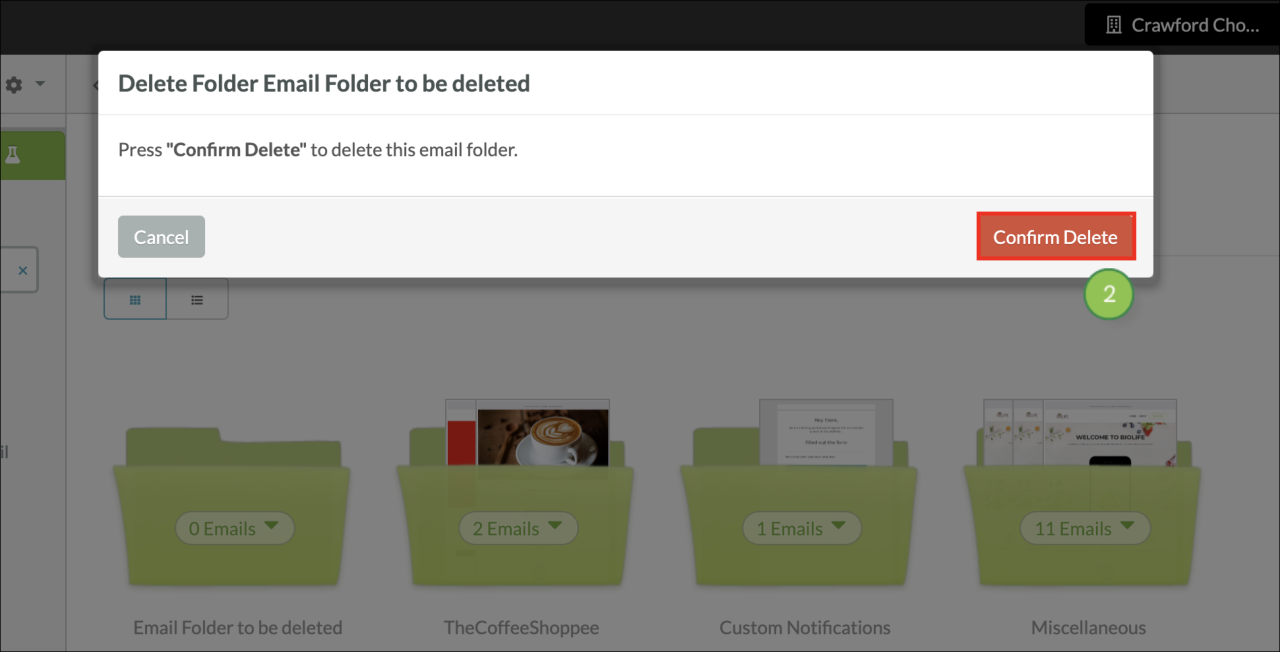
Effective email management begins with organizing messages into appropriately labeled folders. Different email clients offer varied methods to create and manage folders, enabling users to maintain a tidy inbox and improve productivity. Understanding how to efficiently set up folders in these platforms ensures seamless email organization tailored to individual needs.
Each email service provider has its unique interface and process for folder creation. Familiarity with these procedures, along with best practices for naming and categorizing folders, enhances the overall email management experience. The following sections detail step-by-step instructions for creating folders in Gmail, Outlook, Yahoo Mail, and Apple Mail, complemented by a comparative table to illustrate differences and similarities across these popular platforms.
Creating Folders in Gmail
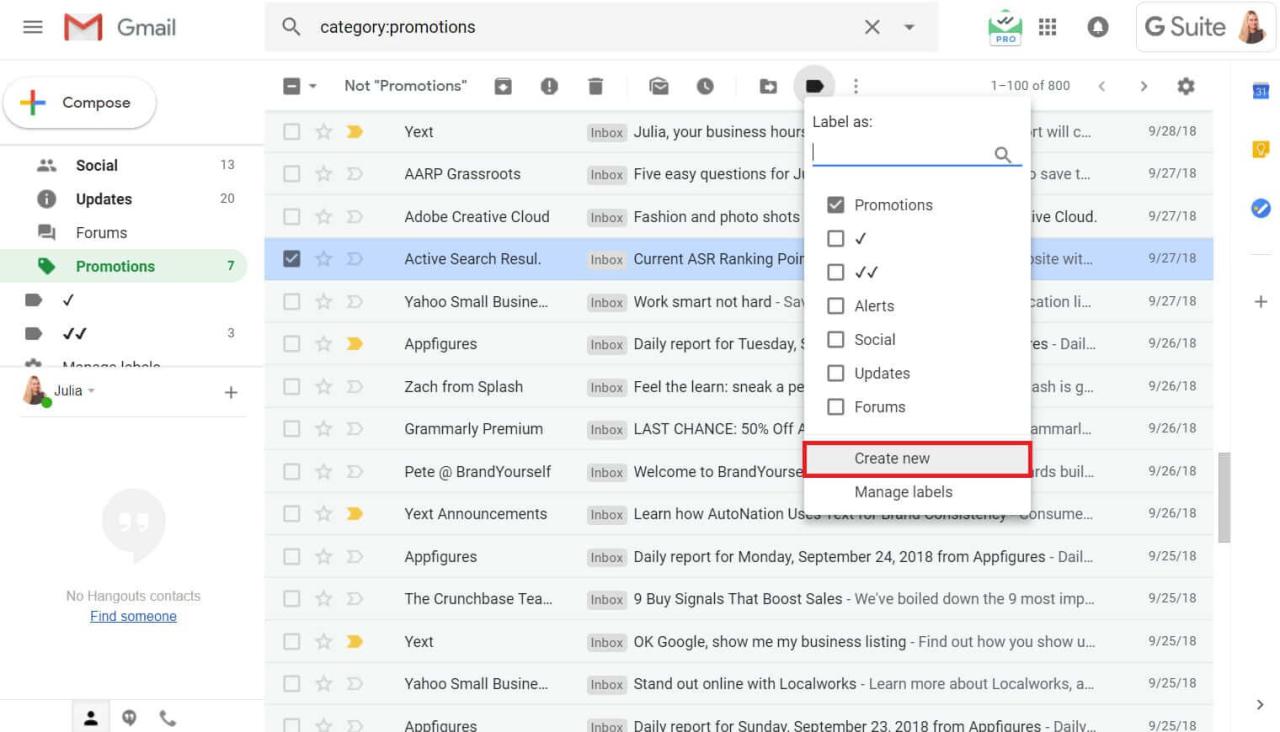
Gmail uses labels instead of traditional folders but allows users to create label-like categories for organizing emails. The process is straightforward, whether through the web interface or mobile app.
- Login to your Gmail account via a web browser or open the Gmail app.
- Locate the left-hand sidebar where your labels and inbox are displayed.
- Click on the “More” option at the bottom of the label list to expand existing labels.
- Select “Create new label” from the list.
- Enter a meaningful name for your label, such as “Projects,” “Receipts,” or “Clients.”
- Click “Create” to finalize the label creation. You can also nest labels within other labels for hierarchical organization.
Best practices for naming labels include using clear, concise terms that reflect the folder’s content. Categorizing labels by project, priority, or sender can streamline email retrieval and management.
Creating Folders in Outlook
Outlook offers a traditional folder hierarchy accessible via its desktop and web versions, enabling users to organize emails efficiently.
- Open Outlook and navigate to your email inbox.
- In the folder pane on the left, right-click on your account name or any existing folder.
- Choose “New Folder” from the context menu.
- Type a descriptive name for the new folder, such as “Invoices,” “Meetings,” or “Follow-ups.”
- Press Enter to create the folder. You can drag and drop emails into the folder or set up rules for automatic sorting.
Using descriptive and category-specific names enhances quick access and helps in segregating emails effectively based on their content or importance.
Creating Folders in Yahoo Mail
Yahoo Mail facilitates folder creation through its simplified interface, supporting efficient email organization for personal and professional use.
- Sign in to your Yahoo Mail account.
- On the left sidebar, locate the “Folders” section.
- Click the “New Folder” icon or link, often represented by a plus (+) sign.
- Enter a name for your folder, such as “Bills,” “Travel,” or “Work Projects.”
- Press Enter or click “Save” to create the folder.
Consistent and logical naming schemes, such as grouping related topics together, aid in quick email classification and retrieval.
Creating Folders in Apple Mail
Apple Mail on macOS provides an intuitive way to create folders directly within the application, allowing users to organize emails efficiently.
- Launch Apple Mail and select your email account.
- In the sidebar, right-click (or Control-click) on the mailbox list where you want to add a folder.
- Select “New Mailbox” from the context menu.
- Provide a name for the mailbox, such as “Work,” “Family,” or “Subscriptions.”
- Choose the location where you want the mailbox to reside, typically on your email server or on your Mac.
- Click “OK” to create the folder.
To maximize organization, use consistent naming conventions, and consider creating nested folders to compartmentalize related emails further.
Comparison of Folder Creation Processes Across Email Services
| Feature | Gmail | Outlook | Yahoo Mail | Apple Mail |
|---|---|---|---|---|
| Method to create folder/label | Labels via settings or sidebar labeled “Create new label” | Right-click on folder pane > New Folder | Folder icon or “New Folder” link in sidebar | Right-click on mailbox list > New Mailbox |
| Naming conventions | Clear, descriptive labels (e.g., “Projects”) | Descriptive folder names (e.g., “Invoices”) | Simplified folder names like “Bills” | Specific names based on category (e.g., “Work”) |
| Hierarchy support | Nested labels | Folders within folders | Subfolders support | Nested mailboxes possible |
| Automatic sorting options | Filters and rules | Rules and Quick Steps | Filters | Rules and Smart Mailboxes |
| Accessibility | Web and mobile apps | Desktop and web | Web interface | macOS application |
Organizing Emails into Folders
Efficient email management involves not only creating folders but also systematically sorting incoming and existing emails into these folders. Proper organization helps maintain clarity, reduces clutter, and ensures important messages are easily accessible. Whether manually sorting emails or automating the process through rules and filters, mastering these techniques can significantly enhance your productivity and email handling experience.Emails can be organized in two primary ways: manually moving individual messages into designated folders or setting up automated rules that direct emails into specific folders upon receipt.
Manual organization offers flexibility and control, allowing you to categorize emails based on immediate relevance or personal judgment. Conversely, automated methods save time and ensure consistent sorting, especially when dealing with high volumes of emails from specific contacts or sources.Implementing rules or filters is a crucial step in automating email organization. These tools analyze incoming messages based on defined criteria and execute specific actions, such as moving emails into designated folders.
Properly configured filters help segregate newsletters, work-related correspondence, personal messages, or spam, streamlining your inbox management. Below is a sample table illustrating common filter rules used to automatically sort emails effectively.
Methods for Moving Emails into Folders
Organizing emails can be achieved through a combination of manual actions and automated processes. Both methods are valuable and can be used complementarily to maintain an efficient inbox.
- Manual Moving: Select individual emails or groups of emails and drag them into the desired folder. Most email clients also allow right-clicking on an email and choosing the “Move to” option to select the target folder. This method is ideal for sporadic organization or when dealing with a few specific messages that do not follow a predictable pattern.
- Automatic Sorting via Rules or Filters: Establish criteria-based rules that automatically route incoming or existing emails into certain folders. This approach is especially beneficial for recurring emails from specific contacts, newsletters, or mailing lists, reducing manual effort and ensuring consistent order.
Setting Up Rules or Filters
Rules and filters serve as the foundation of automated email organization. By defining specific criteria, users can ensure that emails fitting certain patterns are directed to appropriate folders, keeping the inbox uncluttered and making it easier to prioritize messages.
Creating effective filters involves setting clear criteria based on sender, subject, s, or other email attributes. Once established, these filters execute actions such as moving, deleting, or marking emails, resulting in a streamlined email workflow.
| Criteria | Action | Folder Destination |
|---|---|---|
| Emails from “[email protected]” | Move to | Work |
| Subject contains “Newsletter” | Move to | Subscriptions |
| Emails marked as “Spam” | Delete or Move to | Spam |
| Emails from contacts in the “Family” group | Move to | Family |
| Emails with attachments larger than 5MB | Flag for review | N/A |
Note: Regularly reviewing and updating filter rules ensures that email organization remains effective and adapts to changing communication patterns.
Managing and Maintaining Email Folders
Ensuring that email folders remain organized and efficient over time is essential for maintaining productivity and preventing inbox clutter. Proper management and regular maintenance can save time and improve the overall email experience. This section explores techniques for editing, renaming, and deleting folders without disrupting your email organization, strategies for archiving old emails for long-term storage, and practical tips for keeping your folders tidy and functional.Effective management of email folders involves balancing flexibility with consistency.
Whether you need to update folder names to reflect changing project names or remove obsolete folders, it is crucial to do so carefully to avoid misplacing emails or disrupting your organization system. Archiving old yet valuable emails ensures your active inbox remains uncluttered while still preserving important records. Additionally, adopting best practices in maintaining folder hygiene can significantly enhance efficiency and reduce stress.
Techniques for Editing, Renaming, and Deleting Folders
Managing email folders requires tools and methods that allow modifications without compromising email integrity. When renaming folders, ensure that the new name accurately reflects the folder’s content to maintain clarity across your email system. Most email clients provide options to rename folders via right-click menus or settings panels, which usually do not affect the emails stored within.Deleting folders should be undertaken cautiously, especially if the folder contains emails that are still relevant.
Before deleting, verify the contents or move important emails to appropriate folders. In some email clients, deleting a folder may prompt a warning about potential data loss. To prevent accidental deletions, consider exporting or archiving the folder’s contents beforehand. When performing these actions, always ensure that the email organization structure remains intact and that linked filters or rules are updated accordingly.
Strategies for Archiving Old Emails into Folders
Archiving is a vital strategy for managing large volumes of emails, especially those that are no longer actively needed but must be retained for record-keeping or compliance purposes. Creating dedicated archiving folders helps segregate old emails from active correspondence, thereby improving inbox clarity.To effectively archive emails, establish a clear and consistent naming convention for archive folders—such as “2019 Archives” or “Project XYZ – 2023.” Use email client features like manual move or automated rules to transfer emails into these folders periodically.
For example, setting up a filter that automatically archives emails older than six months from specific senders or projects can streamline long-term management. Remember to regularly review archived folders to delete redundant or outdated emails, ensuring storage is optimized.
Maintenance Tips for Keeping Email Folders Organized and Clutter-Free
Maintaining an organized folder system requires regular attention and discipline. Here are practical tips to keep your email folders tidy:
- Schedule weekly or monthly reviews of your folders to identify and delete outdated or irrelevant emails.
- Consistently update folder names to reflect current projects, clients, or priorities for clarity.
- Use descriptive and standardized naming conventions to make folder contents easily identifiable.
- Implement archiving routines for emails that no longer need immediate access but must be preserved.
- Limit the number of nested subfolders to avoid complex hierarchies that are difficult to navigate.
- Utilize search functions combined with folder labels to quickly locate emails rather than creating excessive folders.
- Set up automatic rules or filters to categorize incoming messages into appropriate folders, reducing manual organization efforts.
The key to effective email folder maintenance is consistency. Regularly reviewing and updating your folder structure ensures it continues to serve its purpose efficiently, saving time and reducing clutter.
Customizing Folder Views and Settings
Personalizing the way your email folders appear and function can significantly improve your email management efficiency. Customizing folder views allows you to tailor the display to suit your preferences, making it easier to locate and organize messages effectively.
Different email clients offer various options for customizing folder views, including adjusting layout, display density, and visual cues. Incorporating color-coding or labels further enhances folder visibility, enabling quick identification of important or urgent emails at a glance.
Adjusting Folder Display Options in Email Clients
Most popular email clients provide settings to modify how folders are displayed, allowing users to customize elements such as folder pane layout, icon sizes, and sorting preferences. These adjustments help in decluttering the interface and focusing on relevant folders.
For example, in Microsoft Outlook, users can choose to display folders in a compact or expanded view, and sort folders alphabetically or by usage frequency. Gmail offers the ability to choose between list and grid views in folder labels, along with options to show or hide system folders.
In Apple Mail, users can customize sidebar display options, including showing favorites or specific mailboxes, and adjust how folders are grouped, such as by account or folder type.
Using Color-Coding and Labels to Enhance Folder Visibility
Implementing color-coding or labels within your email organization system can dramatically improve the speed and accuracy of locating emails. Assigning distinct colors or labels to specific folder categories helps in quickly distinguishing between work, personal, urgent, or project-related emails.
In Gmail, labels can be colored, which allows for visual cues when browsing your folder list or inbox. Outlook offers conditional formatting rules, enabling users to assign colors to folders or emails based on criteria like sender, subject, or importance level.
Color-coding can also be employed to prioritize folders— for instance, red for urgent projects, green for completed tasks, or blue for ongoing communication. This visual strategy ensures that your most critical folders stand out, reducing the likelihood of overlooking important messages.
Customizable Features Table
| Feature | Available Options | Effect |
|---|---|---|
| Folder Display Density | Compact, Comfortable, Expanded | Adjusts how much space folders occupy; compact for more folders visible, expanded for easier reading |
| Folder Sorting | Alphabetical, Usage-Based, Manual | Controls folder order for quicker access based on preference or frequency of use |
| Color-Coding | Assign colors to folders or labels | Visual differentiation for rapid identification of folder categories |
| Folder Pane Layout | Single column, Multi-column, Collapsible groups | Customization for optimal workspace organization and space management |
| Label Customization | Edit label names, assign colors | Personalizes folder labels to better reflect their contents or priority levels |
“Using visual cues like colors and labels transforms your email folders into an intuitive navigation system, reducing the time spent searching for emails.” — Productivity Expert
Troubleshooting Common Issues

Creating and managing email folders can significantly streamline your email experience, but encountering issues is not uncommon. Recognizing and resolving these problems promptly ensures your organizational system remains effective and reliable. This section provides guidance on identifying typical challenges faced during folder management and offers solutions to maintain smooth email operations.Emails not appearing in the designated folders, synchronization errors, or misplacement are frequent problems that can cause confusion and hinder productivity.
These issues often stem from software glitches, incorrect settings, or connectivity problems. Addressing them promptly helps restore proper email organization.
Folder Synchronization Errors
Synchronization issues occur when the email client or server fails to update folder contents accurately across devices or platforms. This can result in missing emails, duplicate messages, or outdated folder structures. Ensuring synchronization is seamless is critical for consistent email management.To resolve folder synchronization errors, consider the following troubleshooting steps:
- Verify Internet Connectivity: Confirm that your device has a stable internet connection, as poor connectivity can disrupt synchronization processes.
- Refresh or Resynchronize Folders: Manually refresh your email client or trigger a resync option to force synchronization. Many clients have a ‘Sync Now’ button or similar feature.
- Check Email Client Settings: Ensure that folder synchronization settings are enabled for all folders, especially custom or subfolders. Review account sync options within your email client configuration.
- Update or Reinstall Email Client: Using outdated software can cause sync issues. Update your email application to the latest version, or reinstall it if problems persist.
- Consult Email Server Status: Sometimes, server outages or maintenance can impede synchronization. Check your email provider’s status page or contact support for real-time updates.
- Review Folder Permissions and Settings: Ensure you have the necessary permissions for folder sync, especially if using shared or delegated folders.
Emails Misdirected or Not Properly Sorted
Misplacement of emails into incorrect folders can be frustrating and compromise your organizational system. This issue might occur due to misconfigured rules, filters, or accidental manual moves.To troubleshoot email misplacements, follow these steps:
- Review Filtering Rules and Filters: Check if any active rules automatically move emails based on specific criteria. Adjust or disable rules that misclassify emails.
- Examine Sorting Settings: Verify that sorting preferences are correctly set in your email client to display emails in the intended folders.
- Confirm Manual Moves: Ensure that emails are not accidentally dragged or moved to wrong folders. Implement confirmation prompts if available to prevent errors.
- Test with New Emails: Send test emails with different parameters to observe how they are sorted. Adjust filters accordingly if misclassification occurs.
- Rebuild Folder Indexes: Some email clients allow rebuilding folder indexes, which can resolve misplacement issues. This option typically resides within account or folder settings.
Regularly reviewing and updating your folder rules and synchronization settings can prevent many common email management issues, ensuring your folders function as intended without requiring constant manual intervention.
Last Point

Mastering the art of creating and managing email folders empowers you to keep your inbox organized and clutter-free. By applying these techniques and tips, you can streamline your email workflow, making it easier to find and categorize messages whenever needed. Consistent maintenance and customization will ensure your email system remains efficient and tailored to your needs.