Organizing your desktop folders effectively can significantly enhance your productivity and streamline your workflow. A well-structured desktop not only reduces visual clutter but also makes it easier to access important files quickly, leading to a more efficient work environment.
This guide provides practical strategies for evaluating your current folder setup, planning a logical organization system, and implementing visual cues to maintain a tidy digital workspace. Whether for personal or professional use, mastering desktop organization can transform how you manage your digital files daily.
Understanding the Importance of Organizing Desktop Folders
Maintaining an organized desktop is fundamental to enhancing overall productivity and creating a workspace that fosters efficiency. A cluttered desktop not only hampers quick access to essential files but also creates a sense of chaos that can distract from important tasks. When desktop folders are systematically arranged, users experience a smoother workflow, allowing them to focus on their responsibilities without unnecessary interruptions or delays.An unorganized desktop often results in misplaced files, duplicated documents, and difficulty locating critical resources promptly.
For example, having dozens of scattered documents related to a single project across multiple locations can lead to missed deadlines or redundant work. Such clutter can cause stress, reduce concentration, and diminish overall work quality. Additionally, a disorganized workspace can impact hardware performance, as excessive icons and files may slow down system responsiveness.Organized folders contribute significantly to streamlining daily operations by categorizing related files together, enabling quick retrieval and reducing time wasted searching for documents.
This structure supports a more methodical approach to task management and decreases cognitive overload. When folders are logically grouped—such as separating work documents, personal files, and ongoing projects—users can navigate their digital environment with ease and confidence, ultimately leading to improved workflow and a calmer, more focused mind.
Assessing your current desktop folder setup
Before implementing an organized system for your desktop, it is essential to evaluate your existing folder structure thoroughly. This assessment helps identify what is working efficiently and what needs improvement, ensuring that subsequent organization efforts are targeted and effective.
Understanding your current desktop environment allows you to recognize patterns in your file access habits and reveals the clutter or redundancy that may hinder productivity. By conducting a detailed review, you can establish a clear baseline and develop a tailored organization strategy aligned with your workflow and priorities.
Steps to evaluate existing desktop folder structures
Evaluating your current desktop setup involves a systematic approach to examining how files and folders are arranged, accessed, and maintained. The following steps facilitate a comprehensive review:
- Visual Inspection: Begin by sorting through all folders and files on your desktop. Note the number of folders, their naming conventions, and visual clutter. This provides an immediate sense of the complexity and areas that need simplification.
- Identify Active versus Dormant Folders: Determine which folders are frequently used and which are rarely accessed. This can be achieved by observing your typical workflow or utilizing system tools, such as Recent Files or Usage Reports, to track access patterns.
- Assess Folder Content: Open each folder to evaluate the type and volume of files stored. Check for duplicate files, outdated versions, or files misplaced outside designated folders.
- Review Naming Conventions: Analyze whether folder names are descriptive and consistent. Clear names facilitate quicker navigation and reduce confusion during retrieval.
- Check for Redundancies and Overlaps: Identify folders with overlapping content or unnecessary duplicates. Consolidating these can streamline your desktop and improve overall efficiency.
Methods for identifying frequently used versus rarely accessed folders
Distinguishing between folders based on access frequency allows prioritization in your organization process, enabling a clutter-free desktop that aligns with your daily tasks.
Usage tracking tools and behavioral observations serve as reliable methods for this purpose.
Some effective techniques include:
- Manual Observation: Keep a log over a week, noting which folders you access daily versus infrequently. This simple method provides personal insights into your habits.
- System Usage Reports: Use built-in operating system features such as Windows’ “Recent Items” or Mac’s “Recents” folder to monitor access history. Third-party applications can also offer detailed usage statistics.
- File Access Timestamps: Inspect file properties to see last accessed or modified dates, revealing which folders are active. Sorting folders based on modification dates helps identify priority areas.
- Automated Tools: Employ desktop organization software that tracks and reports folder access frequency, aiding in objective decision-making.
Techniques to categorize folders based on type or purpose
Effective categorization simplifies navigation and ensures that similar files are grouped logically. Developing a consistent classification system enhances both accessibility and long-term organization.
Applying principles like grouping by project, document type, or workflow stage can significantly improve clarity.
Key techniques include:
- Grouping by Content Type: Create categories such as “Work Documents,” “Personal Files,” “Media,” or “Financial Records.” This allows quick location based on the nature of the file.
- Grouping by Project or Client: For work-related folders, organize by specific projects or clients, e.g., “Project Alpha,” “Client XYZ.” This reduces searching time and improves focus.
- Grouping by Action or Workflow Stage: Separate folders into phases like “To Do,” “In Progress,” and “Completed.” This mirrors your operational process and streamlines task management.
- Using a Hierarchical Structure: Develop a folder hierarchy that reflects your categorization scheme, with broad categories at the top level and specific subfolders beneath. For example, “Work” > “Reports” > “2023 Q1.”
- Applying Consistent Naming Conventions: Use standardized, descriptive names for folders to reinforce their purpose and facilitate searchability.
Planning a Folder Organization System for 10 Desktop Folders

Developing an effective organizational structure for your desktop folders is essential to maintaining productivity and minimizing clutter. When managing a set of ten folders, a strategic plan ensures easy access, logical grouping, and future scalability. The process involves creating a clear hierarchy, establishing consistent naming conventions, and grouping related folders into meaningful categories that reflect your workflow or personal interests.
This planning stage acts as the foundation for a tidy and efficient desktop environment, reducing time spent searching for files and enhancing overall digital hygiene.Proper planning begins with understanding the types of files and projects stored within these folders. Identifying common themes or functions allows you to design a hierarchy that minimizes redundancy and maximizes clarity. For instance, folders related to work projects can be grouped separately from personal documents, and within each category, further sub-categorization can optimize accessibility.
An organized system not only saves time but also prevents accidental deletion or misplacement of important files.
Designing a Logical Folder Hierarchy
Creating a workflow for designing a folder hierarchy involves analyzing your current usage patterns and establishing a logical structure that aligns with your daily activities. Start with broad categories that encompass your main areas of work or interest, then define subcategories that drill down into specific topics or projects. For example, a user might have top-level folders such as “Work,” “Personal,” “Finance,” “Hobbies,” and “Education.” Under “Work,” subfolders like “Reports,” “Presentations,” and “Meeting Notes” can be created to streamline document retrieval.To ensure consistency, it’s beneficial to adopt a visual mapping technique such as a tree diagram, which illustrates the parent-child relationships among folders.
This visualization helps identify potential overlaps, gaps, or redundancies, allowing for refinement before implementing the structure. It’s also advantageous to prioritize frequently accessed folders at the top level, while less-used folders can be nested deeper within the hierarchy.
Templates for Naming Conventions and Categorization Schemes
Establishing standardized naming conventions is vital for quick identification and sorting of folders. Consistency in naming reduces confusion and enhances searchability. A practical template might include date prefixes, project codes, or descriptive s. For example, a folder named “2024-10-23_ClientMeetingNotes” follows a YYYY-MM-DD format for chronological sorting and includes a descriptive element for clarity.Categorization schemes should reflect the nature of your files and the way you think about your work or interests.
Common schemes include:
- By Function: such as “Marketing,” “Finance,” “Design”
- By Project: like “ProjectAlpha,” “WebsiteRedesign”
- By Time Period: for example, “Q1_2024,” “Fall2023”
- By Priority or Status: such as “Urgent,” “Pending,” “Completed”
Implementing a consistent naming approach ensures that folders are easily sortable and searchable, aiding in rapid retrieval and a clutter-free desktop.
Grouping Related Folders into Clusters or Categories
Grouping related folders into clusters simplifies navigation and visually organizes your desktop. Clusters serve as high-level categories that contain several related folders, making it easier to locate related files and reduce visual clutter. For example, you could create a cluster called “Work Projects” that includes folders like “ClientA,” “ClientB,” and “Internal Reports.” Similarly, a “Personal” cluster might include “Travel,” “Receipts,” and “Health Records.”To effectively group folders:
- Identify common themes or functions among your folders.
- Assign a high-level category name that clearly reflects the group’s purpose.
- Arrange related folders within the cluster, either visually or through nested folder structures.
- Use visual cues such as color-coding or folder icons to distinguish different categories at a glance.
This approach not only streamlines your workflow but also creates a visually coherent desktop environment, making it easier to transition between tasks and locate files quickly. Proper grouping also reduces stress associated with clutter, allowing you to focus on your priorities efficiently.
Techniques for organizing folders on the desktop
Organizing desktop folders efficiently enhances productivity and ensures quick access to essential files. Implementing effective techniques allows for a clutter-free workspace, making it easier to locate documents and applications when needed. In this section, we explore practical methods to structure your desktop folders systematically, ensuring optimal usability and aesthetic appeal.A well-organized desktop involves not only creating and managing folders but also using visual cues and shortcuts to streamline workflow.
By adopting these techniques, users can maintain a clean digital environment that minimizes search time and reduces frustration caused by disorganization.
Creating new folders and subfolders
Creating folders and subfolders is fundamental to establishing a hierarchical structure for your desktop files. This process involves a few straightforward steps that, when executed consistently, significantly improve file management.To begin, right-click on an empty space on your desktop and select “New” from the context menu, then click “Folder.” Name the folder clearly and descriptively to reflect its contents. For organizing related files, create subfolders within the main folder by opening the parent folder, right-clicking inside it, and selecting “New” > “Folder.” This nested structure allows for categorizing files into specific groups, such as separating work documents from personal items or dividing project files by stages.Utilize naming conventions that are logical and consistent.
For example, prefixing folders with dates (e.g., “2024_ProjectX”) or using specific s helps in quick identification. Regularly reviewing and updating folder structures ensures that your organization adapts to evolving needs.
Color-coding and labeling folders for quick identification
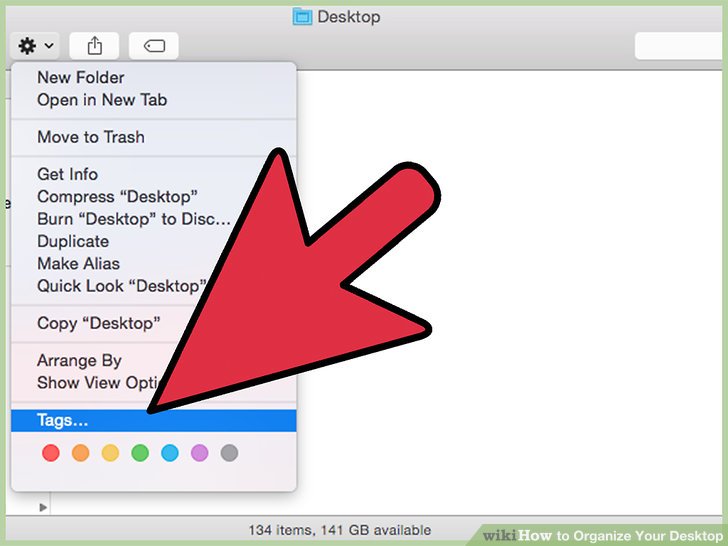
Visual differentiation plays a crucial role in efficient desktop organization. Color-coding and labels enable users to identify folders at a glance, reducing the time spent searching for specific content.Most operating systems offer options for customizing folder icons or applying tags. For instance, in Windows, third-party software or built-in features like File Explorer tags can assign different colors to folders. Mac users can change folder icons by copying colored icons from icon libraries or creating custom icons with image editing tools.Applying labels involves adding descriptive tags or color indicators to folders, which can be especially useful when managing multiple categories, such as urgent tasks, ongoing projects, or reference materials.
For example, using red for urgent items, green for completed tasks, and blue for ongoing work creates a quick visual hierarchy.Use consistent color schemes across all folders to avoid confusion. This method enhances overall clarity and allows for rapid navigation, especially on cluttered desktops with numerous folders.
Using desktop shortcuts and pinning for frequently accessed folders
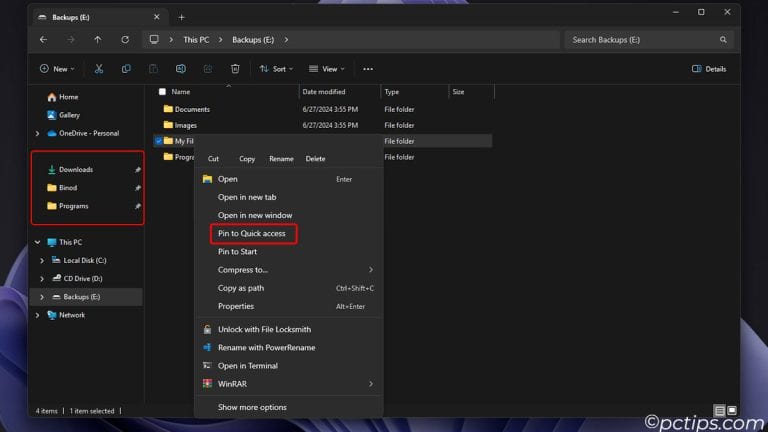
Maximizing efficiency involves minimizing the steps needed to access commonly used folders. Creating desktop shortcuts and pinning folders to taskbars or start menus are effective strategies for achieving this.To create a shortcut, right-click on the desired folder and select “Create shortcut” or “Send to” > “Desktop (create shortcut).” Moving these shortcuts to prominent locations ensures instant access, saving time during daily tasks.
Organizing shortcuts into groups or categories further streamlines workflow.Pinning folders to the taskbar or start menu provides persistent access points. On Windows, right-click the folder and select “Pin to Start” or “Pin to taskbar,” depending on preferences. Mac users can add folders to the Dock by dragging them there, ensuring they remain easily accessible regardless of open applications.These techniques help prioritize workflow by bringing frequently used folders to the forefront, reducing navigation steps and enhancing overall productivity.
Regularly reviewing pinned items ensures the desktop remains relevant and clutter-free, supporting an effective organizational system.
Implementing visual strategies to enhance folder management

Establishing effective visual strategies is crucial for maintaining a clean, efficient, and easily navigable desktop environment. By leveraging visual cues such as icons, labels, and tags, users can quickly identify and access their folders, reducing time spent searching and minimizing clutter. These strategies not only improve productivity but also contribute to a more aesthetic workspace, making desktop management an engaging and streamlined process.Visual differentiation of folders aids in establishing an intuitive organizational system.
When folders are easily recognizable at a glance, it becomes simpler to locate specific files or categories, especially when managing multiple folders on a limited desktop space. Implementing consistent visual cues ensures that the desktop remains orderly and visually appealing, preventing the chaos that often accompanies unmanaged digital spaces.
Using icons, labels, and tags for better visual clarity
To enhance folder visibility and recognition, utilizing distinct icons, labels, and tags plays a vital role. Customized icons can symbolize the folder’s content or priority, making it easier to identify their purpose without opening each one. Labels and tags can be color-coded or descriptive, providing immediate visual context.Introducing color-coding systems is one effective way to differentiate folders. For instance, using blue icons for work-related files, green for personal projects, and red for urgent items can facilitate quick sorting and prioritization.
Tags can be added to folders where supported, allowing users to assign multiple labels for nuanced categorization, such as “Finance,” “Q1 Reports,” or “Pending Review.”
Step-by-step instructions for customizing folder icons
Customizing folder icons involves a series of straightforward steps that can significantly improve visual management:
- Select the folder you wish to customize on your desktop.
- Right-click on the folder and choose “Properties” from the context menu.
- In the Properties window, navigate to the “Customize” tab.
- Click on the “Change Icon…” button to open the icon selection window.
- Browse through the default icons or click “Browse…” to select a custom icon file. Common formats include .ico, .png, or .bmp.
- Choose an icon that best represents the folder’s content and click “OK.”
- Apply the changes by clicking “Apply” and then “OK.”
For a more personalized touch, users can create their own icons using graphic design tools or download icon packs from reputable sources online. After creating or selecting an icon, saving it in an accessible location ensures you can easily assign it to multiple folders as needed.
Maintaining a minimalistic and clutter-free desktop appearance
A clean desktop fosters focus, reduces stress, and enhances overall efficiency. To achieve and sustain a minimalistic look, it is essential to adopt strategies that limit visual clutter and promote simplicity.Begin by evaluating the necessity of each folder and file present on the desktop. Remove or archive items that are seldom used or temporarily stored. Group related folders into clusters and assign them a common visual theme or icon style to establish coherence.
Consistently organizing folders into well-defined categories prevents overlap and confusion.Utilize desktop customization tools or features to hide the desktop icons altogether, displaying only essential folders or shortcuts. Additionally, consider using a neutral background that does not compete with folder icons, emphasizing clarity and focus. Regularly reviewing and reorganizing the desktop ensures that clutter does not accumulate over time, maintaining an environment conducive to productivity and visual serenity.
Automating and maintaining organized folders
Organizing your desktop folders is a significant step toward a more efficient digital workspace. However, maintaining this organization over time requires strategic automation tools and regular routines. By implementing automation and consistent maintenance practices, you ensure your desktop remains clutter-free, allowing for quicker access and reducing the risk of misplaced files. This section explores essential tools, routines, and backup systems to keep your desktop folders systematically organized with minimal ongoing effort.
Effective folder management benefits greatly from automation features that can save time and reduce manual effort. Utilizing built-in operating system tools, third-party applications, or scripting solutions can streamline file sorting, ensuring that new downloads or documents automatically find their designated locations. Regular routines, such as weekly or monthly cleanups, help maintain clarity and prevent clutter buildup, fostering a productive digital environment.
Additionally, setting up reliable backup systems safeguards your organized folders against data loss, ensuring your structured system remains intact even in unforeseen circumstances.
Tools and features for auto-sorting files into designated folders
Automation tools enhance the efficiency of managing desktop folders by automatically sorting incoming files based on predefined rules or parameters. Modern operating systems offer native features, while third-party apps provide more advanced options. Implementing these tools ensures that files are consistently placed in their correct categories without manual intervention, saving time and maintaining organization. Many operating systems include features such as:
- Windows File Explorer’s “Quick Access” and “Auto-Run” scripts that can be customized for sorting
- macOS Automator workflows that automatically move or rename files based on type or name patterns
Third-party applications that facilitate auto-sorting include:
- DropIt: A versatile tool that sorts files into predefined folders based on rules you set
- Hazel (Mac-only): An advanced automation app that watches specified folders and performs actions like moving, tagging, or deleting files according to conditions
- File Juggler: Windows-based software that monitors folders and applies sorting rules dynamically
Implementing these tools involves defining clear rules for file types, source locations, and target folders. For example, automatically moving all PDF documents from the Downloads folder into a dedicated “Documents” folder, or sorting images into a “Photos” directory based on file extensions and creation dates.
Routine desktop cleanup practices
Establishing regular routines for desktop maintenance ensures your organized folder system remains effective and clutter-free. Whether on a weekly or monthly basis, these routines help review the current organization, delete unnecessary files, and adjust folder structures to accommodate changing needs. Recommended cleanup practices include:
- Review the contents of each folder, removing duplicates, outdated files, or irrelevant documents
- Update folder categories or create new folders to reflect evolving project requirements
- Use batch file renaming tools to standardize naming conventions across files for easier identification
- Empty recycle bins and clear temporary files to free up storage space
To streamline these routines, consider setting calendar reminders or using automation scripts that generate reports on folder sizes or newly added files needing review. Additionally, adopting a habit of sorting files immediately after download or creation prevents accumulation of disorganized data.
Establishing backup systems for organized folders
Maintaining organized folders is only beneficial if the data within them is safeguarded against loss. Setting up reliable backup systems ensures that your carefully structured desktop environment remains protected from hardware failures, accidental deletions, or malware threats. Backup strategies include:
- Utilizing cloud storage services such as Google Drive, Dropbox, or OneDrive for automatic synchronization of key folders
- Implementing scheduled local backups using external drives or network-attached storage (NAS) devices
- Employing backup software that creates incremental or full backups at regular intervals, such as Acronis True Image or Macrium Reflect
For optimal data security, consider combining multiple backup methods—using cloud services for real-time synchronization and local backups for comprehensive copies—so that your organized folders are always recoverable. Regularly verifying backup integrity and updating recovery procedures ensure that your system remains resilient against unforeseen data loss events.
Troubleshooting Common Organizational Challenges
Maintaining an organized desktop folder structure can significantly enhance productivity and ease of access. However, over time, users may encounter challenges that disrupt their system’s effectiveness, such as folder overlaps or forgotten categories. Addressing these issues promptly and effectively ensures the continued efficiency of your desktop organization system.Organizational challenges often arise due to evolving needs, inconsistent naming conventions, or neglecting regular updates.
Recognizing and resolving these issues prevents clutter from re-establishing itself and safeguards against productivity loss. Employing strategic troubleshooting methods helps maintain a clean and accessible workspace, even as demands change over time.
Overlapping Folders and Redundant Categories
Inconsistent categorization often leads to folder overlaps where files or subfolders appear in multiple locations, causing confusion and inefficiency. This issue may stem from unclear naming conventions or a lack of a standardized system, making it difficult to locate specific items quickly.To resolve this, conduct a comprehensive review of your folder structure, identifying duplicate or similar categories. Consolidate overlapping folders into a single, well-defined directory with clear labels.
Use consistent naming conventions and folder hierarchies to prevent future overlaps. Implementing a tagging system or color-coding can further distinguish categories, reducing confusion.
Reorganizing and Decluttering Over Time
As your work or personal projects evolve, your desktop folders may become cluttered with outdated or unnecessary files. Regularly scheduled decluttering sessions are vital to maintaining an optimal organizational system.Start by evaluating directory contents and removing obsolete files or archives that no longer serve a purpose. Create a routine, such as monthly or quarterly reviews, to assess the relevance of stored information.
During these sessions, consider archiving older files to external storage or cloud services, keeping only current and frequently accessed folders on the desktop. This ongoing process ensures your folder structure remains lean and functional.
Adapting the Folder Structure to Changing Needs
A static folder organization system may not accommodate new project types, collaboration requirements, or workflows. Adapting your structure ensures it continues to meet your evolving demands.Begin by analyzing recent changes or emerging needs, such as new software tools or collaborative tasks. Adjust your folder hierarchy to include new categories or subfolders that reflect these developments. Naming conventions should be flexible enough to encompass future modifications without becoming overly complex.
Additionally, involve stakeholders or team members in restructuring discussions to align the system with collective workflows, enhancing overall efficiency.
Implementing Continuous Improvement Strategies
Effective troubleshooting involves proactive measures to prevent recurring organizational challenges. Establishing a habit of periodic audits and updates ensures your desktop remains organized.Set aside time regularly to review your folder structure, identify potential overlaps, and remove redundant files. Use visual mapping tools or checklists to track the organization process. Incorporate automation tools or scripts that can help identify duplicate files or outdated data, streamlining maintenance efforts.
Encouraging a disciplined approach to organization guarantees that your desktop remains a productive and clutter-free environment over the long term.
Example Structures for 10 Desktop Folders
Organizing your desktop efficiently involves creating a clear and logical folder structure that caters to your specific needs. Presenting sample configurations can help visualize how to categorize and store files effectively. Below, various example structures are Artikeld to suit different user profiles, demonstrating how to assign purposes, organize storage locations, and customize folders for personal or professional use.
Designing these structures with flexibility ensures they remain adaptable, scalable, and aligned with your workflow. Each configuration provides a foundational template that can be tailored further, enabling seamless integration into daily routines and enhancing overall productivity.
Sample Folder Structures for Different User Needs
Below is a table outlining three distinct configurations, each tailored to specific user scenarios such as general personal use, professional work, and creative projects. These serve as practical examples demonstrating how to assign purposes, organize storage locations, and customize folder names to optimize desktop management.
| Folder Name | Purpose | Recommended Storage Location |
|---|---|---|
| Personal Documents | Storing personal files such as ID scans, receipts, and personal notes | Desktop or a dedicated “Personal” folder for quick access |
| Work Projects | Organizing ongoing work files, project drafts, and reports | Desktop or a specific “Work” folder, possibly within a cloud-synced directory |
| Financials | Tracking budgets, invoices, and tax documents | Subfolder within “Documents” or “Financials” folder for discreet storage |
| Creative Assets | Storing images, videos, and design files for creative projects | Dedicated “Creative” folder on the desktop or in a media directory |
| Receipts & Bills | Keeping scanned receipts, utility bills, and payment confirmations | Folder named “Receipts” on desktop or cloud-synced location |
| Meeting Notes | Saving notes from meetings and conference calls | Folder “Meetings” within “Work” or “Personal” category |
| Educational Materials | Storing course notes, assignments, and study guides | Folder “Education” or “Learning” on desktop for quick access |
| Photos & Memories | Archiving personal photos and memorable videos | Folder “Photos” or “Memories” in user’s media directory |
| Software & Tools | Saving installers, utilities, and software-related files | Folder “Tools” or “Utilities” on desktop or in dedicated software directory |
| Archived Files | Storing older files for backup or reference purposes | Separate “Archive” folder for decluttering active workspace |
Multiple configurations can be tailored depending on user needs, such as professionals managing client files, students organizing coursework, or creative individuals handling media projects. For example, a freelancer might include folders like “Clients,” “Invoices,” and “Proposals,” while a student might prefer “Assignments,” “Lecture Notes,” and “Exams.” Customization involves adjusting folder names, adding subfolders for detailed categorization, and selecting storage locations that align with workflow preferences.
Flexibility in structuring allows for a personalized desktop environment that enhances navigability and efficiency. Consistently reviewing and refining these folder arrangements ensures ongoing relevance, reduces clutter, and supports a more productive digital workspace.
Ultimate Conclusion
In conclusion, a thoughtfully organized desktop with clearly categorized folders can greatly improve your efficiency and reduce stress. By adopting systematic approaches and automation tools, you can maintain a clutter-free environment that adapts to your evolving needs, ensuring your workspace remains both functional and visually appealing.