Mastering the art of organizing a large number of files swiftly can significantly enhance productivity and reduce stress. Whether for personal projects or professional tasks, knowing how to categorize and arrange files in a minimal amount of time can make a substantial difference in your workflow. This guide provides practical strategies to accomplish this task efficiently, ensuring your digital workspace remains tidy and accessible.
By implementing a structured folder hierarchy, standardized naming conventions, and leveraging powerful tools, you can streamline the entire process. From preparing your files to applying quick sorting techniques, each step is designed to maximize speed without compromising accuracy. These methods are ideal for anyone seeking a quick yet effective way to organize numerous files in just minutes.
Setting Up Your File Organization System

Organizing a large number of files efficiently requires a carefully designed system that promotes quick access and easy sorting. Establishing an effective structure at the outset can significantly speed up the process of locating and managing files, especially when working under tight time constraints. The goal is to create a logical, intuitive framework that minimizes confusion and maximizes productivity.A well-planned file organization system involves designing a folder hierarchy tailored to your specific needs.
This hierarchy should reflect the categories, projects, or types of files you handle most frequently. Additionally, adopting standardized naming conventions ensures consistency across files, making searches faster and reducing errors. Choosing appropriate tools or software further streamlines the process, enabling rapid creation, renaming, and sorting of files with minimal manual effort.
Designing a Logical Folder Hierarchy
Developing a folder structure that aligns with your workflow is fundamental for quick access and efficient sorting. Begin by analyzing the main categories relevant to your files, such as clients, projects, dates, or document types. Create top-level folders for each primary category, and within these, establish subfolders that break down further details. For example, a project-based hierarchy might include a main folder named “Projects,” with subfolders for each client or individual project, and further subdivisions for specific phases or document types.Incorporate a consistent naming pattern for folders that includes key identifiers like dates, project codes, or client initials.
This approach ensures that folders are sorted logically in file explorers and reduces time spent searching for specific items. Regularly review and refine your hierarchy based on evolving needs to maintain relevance and efficiency.
Creating Standardized Naming Conventions
Standardized naming conventions are essential for maintaining consistency across your files, which simplifies both manual and automated sorting. Establish clear rules that include essential information such as date formats, version numbers, and descriptive s. For example, adopting the pattern “YYYYMMDD_ProjectName_Version” allows files to be sorted chronologically and by project.Implement prefixes or suffixes to denote file types or statuses, such as “Draft,” “Final,” or “Review.” Consistency in naming reduces ambiguity and facilitates quick identification.
Document your naming standards and communicate them with team members if applicable to ensure uniformity. This practice helps prevent duplicate or misnamed files, saving valuable time during retrieval and management.
Selecting Tools and Software for Rapid File Management
Leveraging the right tools can dramatically enhance your ability to manage numerous files within a limited timeframe. Desktop file management software like Total Commander, Directory Opus, or XYplorer offers advanced features such as batch renaming, quick search functions, and customizable views that accelerate organization tasks. Cloud storage solutions like Dropbox, Google Drive, or OneDrive provide synchronization and collaborative features that facilitate real-time updates and access from multiple devices.Specialized software with automation capabilities, such as File Juggler or DropIt, can automatically classify and move files based on predefined rules, drastically reducing manual effort.
Additionally, utilizing built-in operating system features like Windows PowerShell scripts or macOS Automator workflows can automate repetitive tasks such as creating folders, renaming files, or applying tags. Selecting tools aligned with your workflow ensures that organizing 50 files—or even hundreds—becomes a swift and manageable process.
Preparing Files for Rapid Sorting
Efficient file organization begins with preparing your files in a manner that facilitates quick and accurate sorting. Centralizing all relevant files into a single location and establishing clear categorization methods streamline the process, saving valuable time when managing large volumes of data. Proper preparation ensures that subsequent steps, such as categorization and renaming, can be executed smoothly and systematically.
Organizing files before sorting minimizes confusion, reduces the risk of overlooking important data, and lays the foundation for an orderly digital workspace. Implementing batch operations at this stage can drastically cut down the time needed to prepare files for final organization, especially when dealing with multiple formats, dates, or projects.
Gathering All Files into a Single Location
Consolidating files from various sources into one dedicated folder simplifies the sorting process. This approach prevents the need to switch between multiple directories and ensures all files are accessible in one view. To achieve this efficiently:
- Use system search functions to locate all relevant files across drives or directories, filtering by file type or date for targeted gathering.
- Employ copy or move commands in batch scripts or file management tools to transfer files into a centralized folder, such as a “To Sort” directory.
- Leverage automated tools or software features that can synchronize or collect files from multiple locations into a single location with minimal manual effort.
This method creates a comprehensive collection that forms the basis for rapid sorting.
Categorizing Files Using Batch Methods
Once all files are gathered, categorization based on type, date, or project accelerates the sorting process. Batch processing techniques enable quick classification without manual handling of each file individually:
- File Type: Utilize file extensions to group similar files, such as images, documents, or spreadsheets. File explorers often allow filtering by extension, which can then be moved into designated folders.
- Date-Based Categorization: Sort files by creation or modification date. Many systems permit sorting by date columns, enabling you to select files from specific periods quickly and move them collectively.
- Project or Context: For files associated with different projects, add consistent naming conventions or tags to identify their context, then filter and move accordingly.
Automation tools like bulk selection, right-click context menus, or specialized software scripts can facilitate this process, ensuring accuracy and efficiency. For example, using a file management utility that supports batch renaming and moving can process hundreds of files simultaneously based on predefined criteria.
Efficient Techniques for Renaming Multiple Files
Renaming files in bulk is vital for creating a logical, easy-to-navigate structure. Manual renaming of each file can be time-consuming; hence, employing bulk operations or scripting is advisable:
- Built-in Batch Renaming Tools: Operating systems like Windows and macOS include native options for batch renaming, allowing users to add prefixes, suffixes, or sequential numbering to multiple files simultaneously.
- Third-Party Renaming Software: Applications such as Bulk Rename Utility or Advanced Renamer provide advanced options, including pattern-based renaming, metadata incorporation, and preview features to avoid errors.
- Scripting Solutions: For repetitive or complex renaming tasks, scripting languages like PowerShell, Bash, or Python can be employed. For instance, a script can automatically append dates to filenames, standardize naming conventions, or extract metadata from files to generate descriptive names.
Implementing these techniques reduces the time spent on manual renaming and minimizes mistakes. As an example, a user managing hundreds of project documents can run a script that appends the project code and date to each filename, resulting in a clear and organized file structure ready for final categorization.
Utilizing Sorting and Filtering Techniques
Efficient organization of multiple files relies heavily on leveraging the advanced features available within your file explorer. By applying sorting and filtering techniques, you can dramatically reduce the time required to categorize and locate specific files, especially when dealing with large volumes. These tools allow you to quickly identify duplicates, outdated versions, and files that require immediate attention, streamlining your workflow and ensuring accuracy throughout the sorting process.Effective use of sorting and filtering features transforms a cluttered digital workspace into a manageable and accessible repository.
Properly applied, they enable you to view files based on attributes such as name, date modified, size, or type, facilitating rapid decision-making. This approach minimizes manual searching and reduces the likelihood of errors, ultimately saving valuable time and enhancing productivity.
Leveraging File Explorer Features to Filter and View Files by Attributes
File explorers like Windows File Explorer or macOS Finder provide robust filtering capabilities that are essential for quick file organization. Begin by customizing your view settings to display relevant columns such as ‘Date Modified,’ ‘Type,’ or ‘Size.’ Sorting files by these attributes helps you identify the most recent documents, large files, or specific formats swiftly. Utilize the search and filter options to narrow down files based on criteria like file extension, date ranges, or s found within filenames.
For example, filtering all PDF documents created within the last month allows for targeted reviews. Advanced filtering options, such as using the search box with syntax like `*.docx` or `date: this year`, enhance precision, enabling you to focus solely on files requiring organization.
Designing a Procedure to Quickly Identify Duplicates or Outdated Files
Establishing a systematic procedure to identify duplicate or outdated files accelerates the sorting process and reduces clutter. Begin with sorting files by name or size, which can reveal exact duplicates or similar versions. Then, utilize the ‘Date Modified’ attribute to flag older files that may be obsolete.For more precise identification, employ duplicate file finder tools—many free and commercial options are available—that scan directories for files with identical content or hashes.
These tools often present a side-by-side comparison, allowing you to confirm duplicates before deletion. For outdated files, compare modification dates against current project timelines to determine relevance. Creating an initial inventory of potential duplicates or obsolete files ensures that these can be addressed rapidly, avoiding unnecessary manual checks.
Comparing Manual Sorting Versus Automated Sorting Tools for Speed and Accuracy
Manual sorting involves systematic browsing, sorting, and tagging files based on visible attributes. While this approach grants granular control, it can be time-consuming and prone to human error, especially with large datasets. It requires consistent attention and can become tedious when dealing with hundreds of files, increasing the risk of overlooking duplicates or misclassifying files.Automated sorting tools and scripts, on the other hand, utilize algorithms to categorize files instantly based on predefined criteria.
These tools can batch process large volumes, identify duplicates through checksum comparisons, and apply tags or move files automatically. For example, software like Duplicate Cleaner or CCleaner can scan entire directories in seconds, presenting clear reports for review. Although automated tools require initial setup and validation, they significantly enhance speed and accuracy, making them ideal for high-volume or complex sorting tasks.
Applying Time-Saving Tools and Shortcuts
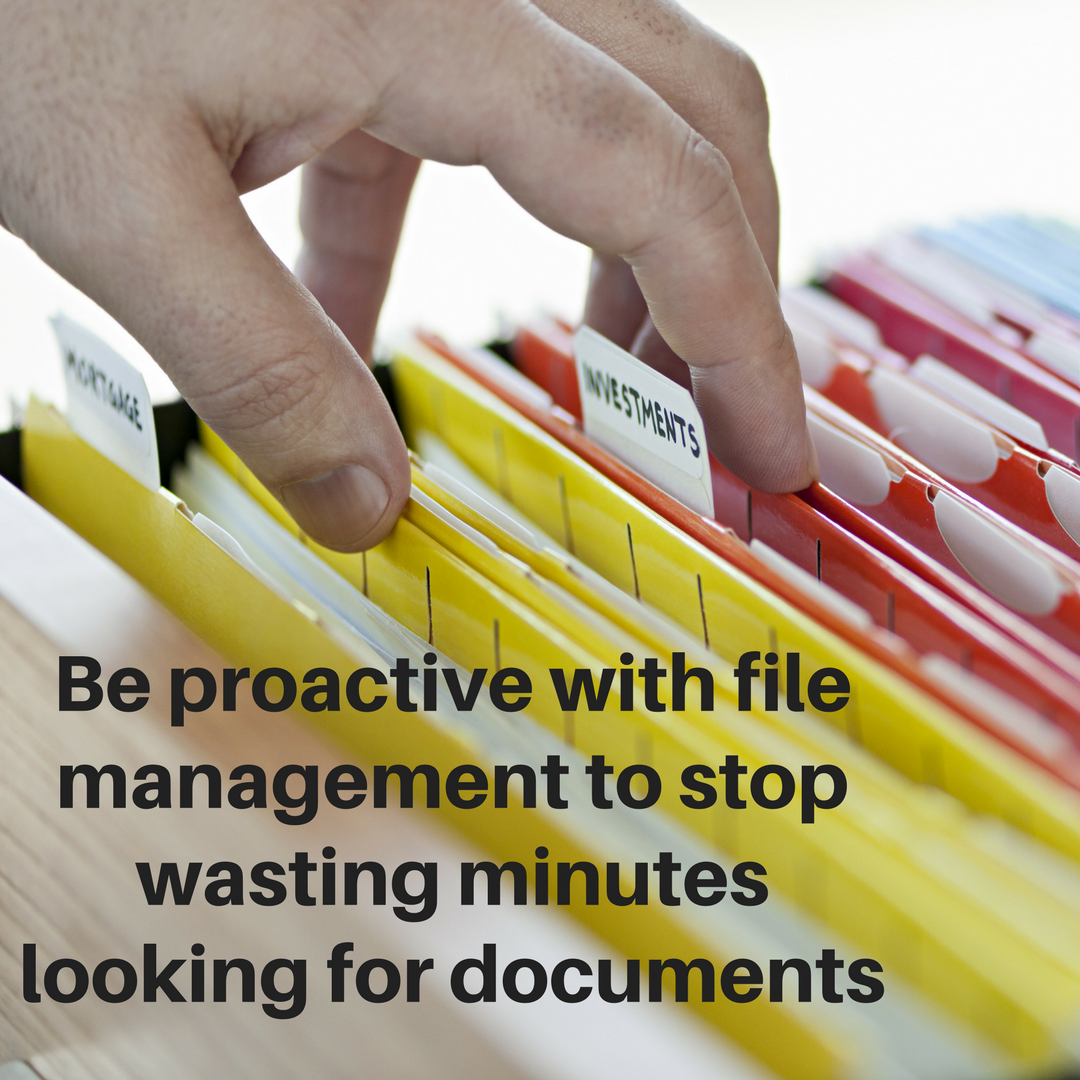
Maximizing efficiency during file organization sessions hinges on leveraging keyboard shortcuts, automation tools, and batch processing techniques. These strategies significantly reduce the time spent on repetitive tasks, allowing you to organize large volumes of files swiftly and accurately. Integrating these tools into your workflow can transform a routine task into a streamlined process, freeing up valuable time for other priorities.
By adopting time-saving tools and shortcuts, users can move files, execute commands, and automate sorting procedures with minimal effort. This not only accelerates the organization process but also minimizes human error, ensuring files are sorted consistently and correctly. Carefully selecting and applying the right combination of shortcuts and automation solutions enhances productivity and supports scalable file management, especially when dealing with extensive datasets or multiple folders.
Using Keyboard Shortcuts and Quick Actions for Rapid File Management
Keyboard shortcuts are fundamental for expediting file operations, as they eliminate the need for multiple mouse clicks and navigation. Familiarity with common shortcuts can dramatically boost workflow speed. Here are key shortcuts and their applications in file management:
- Copy: Ctrl + C (Windows) / Command + C (Mac) – Quickly duplicate selected files to clipboard.
- Cut: Ctrl + X / Command + X – Move files instead of copying.
- Paste: Ctrl + V / Command + V – Place files into target folders or locations.
- Select All: Ctrl + A / Command + A – Highlight all files within a folder for batch operations.
- Rename Files: F2 (Windows) / Enter (Mac, after selecting a file) – Enable quick renaming for consistency.
- Move Files: Alt + Drag (Windows) / Option + Drag (Mac) – Drag files to new locations while moving instead of copying.
- Open Context Menu: Shift + F10 or Context Menu key – Access quick options without mouse navigation.
Utilizing these shortcuts in conjunction with quick actions, such as creating custom keyboard macros or scripts, can further streamline file management. Applying consistent shortcuts reduces cognitive load and helps maintain focus on the task rather than navigation.
Employing Third-Party Automation Applications and Scripts
Automating repetitive sorting tasks via third-party applications or scripting can save substantial time, especially when dealing with extensive or regularly updated file sets. Here is a step-by-step guide to employing automation tools:
- Identify suitable automation tools: Options include dedicated file management utilities like “Bulk Rename Utility,” “DropIt,” or scripting languages such as PowerShell, Bash, or Python.
- Define sorting criteria: Specify rules based on file extensions, creation dates, size, or naming conventions. Clear rules enable precise automation.
- Create automation scripts or rules: Use built-in features of tools or write scripts that perform tasks such as moving files, renaming, or deleting based on defined criteria.
- Test on sample files: Always test your automation on a subset to prevent unintended data loss or misplacement.
- Execute automation: Run scripts or rules on your entire dataset, monitoring progress to ensure accuracy.
- Schedule regular automation: For ongoing workflows, schedule scripts using task schedulers like Windows Task Scheduler or cron jobs on Unix-based systems.
For example, a PowerShell script can be written to move all image files from a download folder into categorized subfolders based on their file extension. These scripts can be saved as batch files and run with a single click, ensuring consistent and rapid organization.
Best Practices for Batch Processing Files
Batch processing is crucial for managing large sets of files efficiently. Implementing best practices ensures that each operation is completed accurately and swiftly:
- Group files logically: Organize files into meaningful batches based on criteria like file type or date, which simplifies processing and minimizes errors.
- Use multi-select features: Select multiple files simultaneously for actions such as moving or renaming, avoiding repetitive operations on individual files.
- Leverage drag-and-drop: When supported, drag multiple files into target folders or applications to expedite movement and categorization.
- Automate repetitive renaming or tagging: Use batch renaming tools to apply uniform naming conventions across large groups, saving time and ensuring consistency.
- Monitor progress and verify results: Always check a sample of processed files to confirm accuracy, particularly when automating complex tasks.
- Implement error handling: Use scripting features to log errors and skip problematic files, preventing interruptions and maintaining workflow continuity.
Applying these batch processing strategies, combined with automation scripts and keyboard shortcuts, creates a highly efficient environment for quickly organizing extensive collections of files without sacrificing accuracy or control.
Structuring Files into Final Organized Format

Efficiently grouping and categorizing files into a well-structured system is essential for maintaining quick access and ongoing productivity. After preparing your files and utilizing sorting techniques, the next step involves assembling these files into a logical, final organized format that aligns with your workflow or project needs. This process not only streamlines retrieval but also minimizes the chance of misplacement, saving valuable time during future searches.A structured approach to final organization involves creating clear categories or folders that logically group related files.
This can be accomplished with minimal clicks by utilizing drag-and-drop functions within your file explorer or by using bulk selection commands, such as Shift or Ctrl (Cmd on Mac), to quickly move multiple files at once. Establishing a consistent folder hierarchy—such as main categories with subfolders—further enhances clarity and ease of navigation. For example, a project folder might contain subfolders labeled “Reports,” “Data,” and “Presentations,” each containing relevant files.To verify the accuracy and effectiveness of your organization, perform quick spot checks by opening a few files from each category to ensure they are correctly placed.
Implementing a file index table can significantly facilitate this process, allowing you to confirm that all items are accounted for and properly categorized. Adjustments can then be made efficiently by dragging misplaced files into the correct folders or renaming files for clarity.
Creating a File Index Table
Using an HTML table to develop a visual index of your organized files offers a straightforward method for quick reference. Below is a template example illustrating how to catalog key information such as file name, category, date modified, and notes:
| File Name | Category | Date Modified | Notes |
|---|---|---|---|
| Q3_Sales_Report.xlsx | Reports | 2024-03-15 | Latest quarterly sales data |
| Market_Analysis.docx | Research | 2024-02-28 | Competitive analysis document |
| Presentation_March.pptx | Presentations | 2024-03-10 | Monthly project update |
This table serves as an at-a-glance overview, aiding in quick verification and updates. When creating your index, consider including hyperlinks to files for immediate access, especially if the files are stored in cloud-based or network locations.Methods for verification include cross-referencing the index with the actual folder contents, ensuring consistency between recorded data and physical file placement. Conducting periodic reviews of the index and folder contents helps identify misplaced files or outdated entries, allowing prompt adjustments.
Maintaining a systematic approach and updating your index regularly will keep your file organization robust and reliable over time.
Tips and Tricks for Completing the Process in 10 Minutes

Efficiently organizing 50 files within a tight timeframe demands strategic planning and focused execution. Implementing proven tips and tricks can significantly streamline the process, ensuring you meet your goal without compromising accuracy or quality. These quick-action strategies are designed to maximize your productivity, minimize distractions, and handle unforeseen challenges effectively.In high-pressure scenarios, every second counts. Adopting time management techniques and maintaining a calm, systematic approach can make the difference between a rushed, error-prone task and a swift, thorough organization.
Additionally, knowing how to quickly address unexpected issues or anomalies in files helps prevent delays and keeps your workflow smooth and uninterrupted.
Quick Action Checklist
To ensure a swift and effective file organization session, follow this checklist of immediate steps to execute during the process:
- Scan all files briefly to identify obvious duplicates or irrelevant items.
- Apply batch renaming or categorization to similar files simultaneously.
- Create temporary folders for different categories before detailed sorting begins.
- Use keyboard shortcuts to speed up navigation and command execution (e.g., Ctrl + C, Ctrl + V, Ctrl + Z).
- Flag or mark files that require immediate attention or special handling for quick access.
- Set a timer to allocate specific time blocks for each phase, such as sorting, filtering, and finalizing.
- Keep a running checklist of completed steps to monitor progress and stay focused.
- Prepare an emergency plan for handling corrupted files or unexpected anomalies.
Time Management Strategies
Effective time management is essential to complete the task within 10 minutes. Strategies include:
- Prioritize key steps: Focus first on sorting and filtering the most critical files that impact your overall organization.
- Use the Pomodoro technique: Work in focused intervals (e.g., 25-minute focused sessions with short breaks) if the task extends beyond initial time limits.
- Set strict time limits for each stage: For example, allocate 2 minutes for initial scanning, 3 minutes for categorization, and 5 minutes for final adjustments.
- Eliminate distractions: Turn off notifications, close unrelated applications, and set your environment for maximum concentration.
- Utilize visual cues: Use color-coding or visual markers to quickly identify files that need action or categorization.
Handling interruptions requires quick decision-making, such as temporarily pausing less critical tasks to stay on schedule or postponing minor adjustments until after the main sorting.
Handling Unexpected Issues and File Anomalies
Despite careful planning, unforeseen issues such as corrupted files, duplicate entries, or irregular formats may arise. Address these efficiently by:
| Issue | Quick Response |
|---|---|
| Corrupted Files | Immediately isolate the corrupted file into a separate folder to prevent interference with other files. Use a quick repair tool or rename the file if possible, and plan to revisit it for detailed troubleshooting after the initial sorting. |
| Duplicate Files | Identify duplicates through filtering or by using specialized duplicate finder tools. Delete or consolidate duplicates as appropriate, prioritizing the most recent or highest quality versions. |
| Irregular File Formats | Convert irregular formats into standardized ones using batch conversion tools or manually adjust essential files. Use default applications to quickly open and verify content before further sorting. |
| Unexpected Large Files | Flag large files for separate handling, such as archiving or compressing, to reduce processing time. Focus on smaller, more manageable files during the initial phase. |
Maintaining a calm, focused mindset and adhering to these strategies can transform what appears to be an overwhelming task into a swift, manageable process within the tight 10-minute window.
Epilogue
In summary, organizing 50 files in 10 minutes is achievable through a planned approach that combines logical structure, efficient tools, and time management strategies. By staying focused on key actions and utilizing automation where possible, you can transform a daunting task into a quick and successful activity. Implement these techniques to keep your digital environment neat, accessible, and ready for any task ahead.