Mastering Excel shortcuts can significantly enhance your productivity and streamline your workflow. By learning to quickly navigate, format, and analyze data within Excel, you can accomplish tasks more efficiently and save valuable time. This guide provides a clear, step-by-step approach to help you integrate essential shortcuts into your daily routine, transforming the way you work with spreadsheets.
We will explore the importance of identifying and customizing shortcuts, highlight five crucial shortcuts with detailed execution methods, and demonstrate practical applications to optimize your Excel experience. Whether you’re a beginner or looking to refine your skills, understanding these techniques will empower you to work smarter and faster.
Introduction to Excel shortcuts
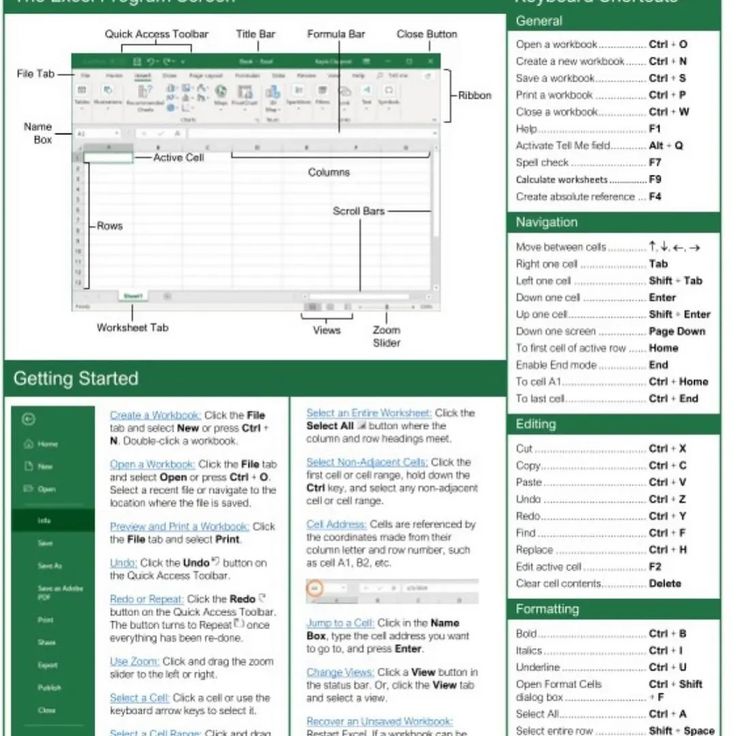
Excel shortcuts are essential tools that significantly enhance productivity by allowing users to perform common tasks swiftly without relying solely on the mouse or menu navigation. Mastering these shortcuts can transform a cumbersome workflow into a seamless experience, especially when handling large datasets or performing repetitive actions.
In various professional environments—such as financial analysis, data management, or administrative tasks—efficiency is key. Utilizing shortcuts reduces the time spent on routine functions like formatting, data entry, or navigation, enabling users to focus more on analysis and decision-making. For example, instead of manually copying and pasting data, a quick keyboard command can accomplish the same task in seconds, saving valuable time during busy work periods.
Common scenarios where shortcuts improve workflow
Excel shortcuts are particularly beneficial in scenarios involving extensive data manipulation, such as preparing reports, updating spreadsheets, or conducting data analysis. When working with large datasets, switching between sheets, selecting entire columns or rows, and entering data rapidly can be streamlined through specific shortcut keys.
Using shortcuts also minimizes errors by reducing reliance on mouse clicks, which can sometimes lead to selecting incorrect cells or executing actions in the wrong order. Additionally, shortcuts facilitate a more ergonomic workflow, decreasing strain caused by frequent mouse movements and clicks.
Overview of essential Excel shortcuts
Understanding and memorizing a core set of shortcuts can dramatically improve your efficiency in Excel. Some of the most vital shortcuts include:
| Shortcut | Function |
|---|---|
| Ctrl + C | Copy selected cells |
| Ctrl + V | Paste copied cells |
| Ctrl + X | Cut selected cells |
| Ctrl + Z | Undo the last action |
| Ctrl + Y | Redo the last undone action |
| Ctrl + Arrow Keys | Navigate quickly to the edge of data regions |
| Ctrl + Shift + Arrow Keys | Select data regions rapidly |
| Ctrl + Space | Select entire column |
| Shift + Space | Select entire row |
| Ctrl + F | Open the Find dialog box |
| Ctrl + S | Save the current workbook |
| Ctrl + P | Open the Print dialog |
| F2 | Edit the active cell |
| F4 | Repeat the last action or toggle absolute/relative references |
By integrating these shortcuts into daily tasks, users can expedite common operations, improve accuracy, and create a more professional workflow that minimizes interruptions and maximizes productivity.
Identifying and customizing Excel shortcuts

Efficient navigation and operation within Excel are greatly enhanced by understanding and tailoring keyboard shortcuts to suit individual workflows. Recognizing the existing shortcuts allows users to streamline their tasks, while customizing shortcuts can further optimize productivity, especially when working with repetitive actions or specialized functions.
Excel provides a versatile environment where default shortcuts are designed to cover a wide range of functionalities. However, these can be viewed, modified, or newly assigned according to user preferences. This flexibility ensures that users can create a personalized interface, reducing reliance on menu navigation and accelerating their data management processes.
Accessing and viewing existing shortcuts in Excel
To effectively utilize shortcuts, it is essential to first familiarize oneself with the pre-existing key combinations. Excel offers several methods to view these shortcuts, primarily through built-in menus and online resources.
- Using the Help menu: Access the ‘Tell Me’ search bar or the ‘Help’ menu, and type in ‘keyboard shortcuts’. This will display various shortcuts categorized by function, such as editing, formatting, and navigation.
- Keyboard tip popups: When hovering over ribbon buttons or menu items, a tooltip appears showing the associated shortcut key combination, if available.
- Online resources and cheat sheets: Microsoft’s official documentation offers comprehensive lists of default shortcuts, often accompanied by printable cheat sheets for quick reference.
While these methods provide a quick way to learn shortcuts, they are primarily for reference. To tailor shortcuts to specific needs, users must access Excel’s customization features.
Customizing or assigning new shortcuts in Excel
Customizing shortcuts involves modifying existing key bindings or creating new ones for actions not currently associated with a shortcut. This process generally requires accessing Excel’s options and, in some cases, using VBA (Visual Basic for Applications) for advanced customization.
- Open Excel Options: Click on the ‘File’ tab, then select ‘Options’ to open the Excel Options dialog box.
- Navigate to Customize Ribbon: In the Options window, click on ‘Customize Ribbon’, then click on the ‘Keyboard shortcuts: Customize…’ button located at the bottom left corner.
- Select the command category: In the ‘Categories’ list, choose the appropriate category for your desired action.
- Assign or modify shortcuts: In the ‘Commands’ list, select the specific command. In the ‘Press new shortcut key’ box, press the desired key combination. If the shortcut is already assigned, Excel will notify you, allowing you to overwrite or choose a different combination.
- Save your customizations: Click ‘Assign’ to confirm, then ‘Close’ to exit the dialog. Your new shortcut will now be available for immediate use.
Advanced users may use VBA to create macros and assign custom shortcuts to execute complex or repetitive tasks that standard Excel options do not support. This approach offers a high degree of flexibility when optimizing workflow efficiency.
Default vs. Customized Shortcuts for Common Actions
Understanding the differences between default and customized shortcuts helps in assessing their utility and efficiency. Below is a table illustrating typical default shortcuts alongside potential customized alternatives designed for personalized workflows.
| Action | Default Shortcut | Customized Shortcut | Notes |
|---|---|---|---|
| Copy | Ctrl + C | Ctrl + Shift + C | Using Shift can help differentiate copy from cut actions in complex workflows. |
| Paste | Ctrl + V | Ctrl + Shift + V | Custom shortcut for pasting values only, if frequently used. |
| Save Workbook | Ctrl + S | Alt + S | Assigning a less common key combination can prevent accidental saves. |
| Insert New Row | Ctrl + Shift + + | Ctrl + Alt + R | Customized for quicker access in large datasets. |
These customized shortcuts can be tailored to suit specific tasks, making repetitive actions faster and reducing strain during intensive data manipulation. By comparing default and personalized shortcuts, users can identify opportunities to streamline their Excel experience effectively.
Mastering essential Excel shortcuts in 5 steps

Proficiency in Excel shortcuts significantly enhances productivity and efficiency when managing data. Knowing the key shortcuts allows users to perform common tasks swiftly, reducing the reliance on mouse navigation and streamlining workflows. This section focuses on five fundamental shortcuts that are essential for everyday Excel use, providing clear instructions and practical tips to master them effectively.
Mastering these shortcuts involves understanding their functions, practicing their execution, and incorporating them into daily tasks. Consistent repetition and deliberate practice can help reinforce memory, making these shortcuts second nature. Additionally, exploring alternative methods to achieve the same results can deepen understanding and adaptability within Excel.
Key Excel shortcuts and their functions
Below, five pivotal shortcuts are Artikeld, along with detailed procedures for optimal execution. These shortcuts are selected based on their frequency of use and their ability to significantly speed up common tasks such as data editing, navigation, and formatting.
| Shortcut | Function | Procedure |
|---|---|---|
Ctrl + C |
Copy selected cells or data |
|
Ctrl + V |
Paste copied data |
|
Ctrl + Z |
Undo the last action |
|
Ctrl + Arrow Keys |
Navigate efficiently within data ranges |
|
Ctrl + S |
Save current workbook |
|
Tips for effective memorization and practice of shortcuts
Integrating keyboard shortcuts into daily Excel use requires deliberate practice and strategic memorization techniques. To facilitate this, consider the following strategies:
- Make a habit of using shortcuts during routine tasks to reinforce muscle memory.
- Create a personalized reference sheet highlighting your most-used shortcuts for quick review.
- Set specific practice goals, such as learning and applying one new shortcut each day.
- Utilize flashcards or mobile apps designed for keyboard shortcut memorization.
- Practice with real data, applying shortcuts in practical scenarios to improve retention and familiarity.
By consistently practicing these techniques, users can develop a natural fluency that reduces reliance on mouse navigation and makes working with Excel more intuitive and efficient. Incorporating shortcuts into your workflow not only saves time but also enhances overall productivity, especially when handling complex spreadsheets or large datasets.
Practical applications and workflow integration
Integrating Excel shortcuts into daily tasks significantly enhances efficiency and accuracy. By applying these shortcuts seamlessly within your routine, you can streamline data entry, formatting, and analysis processes, reducing reliance on mouse navigation and minimizing errors. Understanding how to incorporate shortcuts into your workflow transforms routine Excel work into a more productive and less time-consuming activity, enabling you to focus on analysis and decision-making rather than manual navigation.Effective workflow integration involves recognizing common tasks and employing relevant shortcuts to expedite each step.
This not only saves time but also improves consistency across your work. When shortcuts become part of your habitual process, repetitive tasks become faster, enabling you to handle larger datasets and more complex analyses with ease. The key is to develop a habit of consciously replacing mouse-based actions with keyboard shortcuts, thus creating an efficient, ergonomic, and streamlined work environment within Excel.
Incorporating shortcuts into daily Excel tasks
To maximize the benefits of Excel shortcuts, it is essential to understand their practical application during common tasks such as data entry, formatting, and analysis. Below are steps illustrating how to incorporate these shortcuts into a typical workflow:
- Data Entry Optimization: Use
Ctrl + Dto quickly fill down data from a cell to multiple rows, saving time on manual input. For example, after entering a formula in cell B2, select the range B3:B100 and pressCtrl + Dto copy the formula downward efficiently. - Formatting Speed: Apply formatting with shortcuts like
Ctrl + Bfor bold,Ctrl + 1to open the Format Cells dialog, andAlt + H + Hto fill the selected cells with the current fill color. This accelerates visual organization and highlights critical data points. - Data Analysis: Use
Ctrl + Shift + Lto toggle filters on columns, enabling quick sorting and filtering. Combine this with shortcuts likeAlt + =to automatically sum selected cells or ranges for rapid calculations during data analysis.
To illustrate how these shortcuts can work together, consider the following sample workflow:
| Step | Action | Shortcut | Description |
|---|---|---|---|
| 1 | Enter data in a column | – | Type data into cells, e.g., sales figures or dates. |
| 2 | Apply quick formatting | Ctrl + B / Ctrl + 1 / Alt + H + H | Bold headers, open Format Cells, or fill color for emphasis. |
| 3 | Fill formulas or data down | Ctrl + D | Copy formulas or data downward to adjacent rows. |
| 4 | Filter data for analysis | Ctrl + Shift + L | Enable filters to sort or filter data based on criteria. |
| 5 | Calculate totals | Alt + = | Automatically sum selected ranges, speeding up data summaries. |
Descriptive explanation: Using these shortcuts in sequence minimizes mouse reliance, allowing you to perform data entry, formatting, filtering, and calculations swiftly. As a result, tasks that previously took several minutes can be completed in a fraction of the time, boosting overall productivity.
“Integrating shortcuts into your workflow transforms routine Excel tasks into swift, efficient actions, freeing up valuable time and reducing the likelihood of errors.”
This approach not only saves time but also fosters a consistent, keyboard-driven workflow that enhances accuracy and reduces fatigue during prolonged data work. Over time, these shortcuts become second nature, making Excel an even more powerful tool for data management and analysis.
Troubleshooting and optimizing shortcut usage
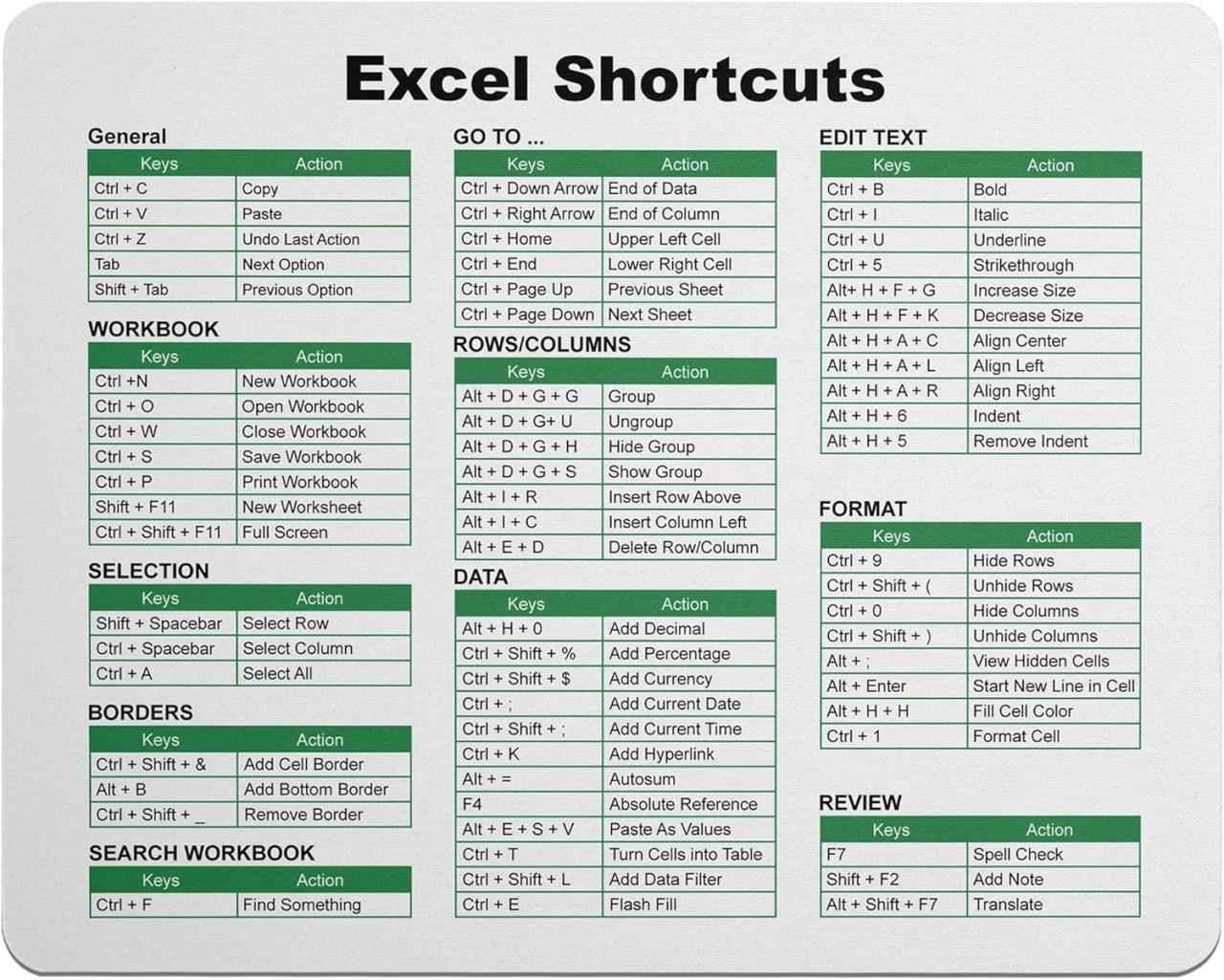
Efficient use of Excel shortcuts can significantly enhance productivity, but users often encounter issues that hinder their effectiveness. Addressing these challenges and optimizing shortcut configurations are essential for seamless workflow automation and accuracy. This section explores common problems faced when using shortcuts, methods to resolve them, strategies to tailor shortcuts for different Excel environments, and ways to master advanced combinations that unlock greater efficiency.
Additionally, best practices for practicing and reinforcing shortcut skills are emphasized to ensure long-term proficiency.Excel shortcut issues can stem from a variety of causes, including software differences, customization conflicts, or hardware limitations. Identifying these issues quickly allows users to implement solutions that restore smooth operation and prevent workflow disruptions. Optimization techniques involve customizing shortcuts to suit individual workflows, updating settings for different Excel versions, and adopting advanced shortcut combinations that provide more powerful functionality.
Regular practice and reinforcement are crucial for internalizing shortcuts, making their use intuitive and second nature in daily tasks.
Common issues with Excel shortcut usage and resolution methods
To maintain efficient shortcut use, users should be aware of common obstacles such as conflicting shortcuts, disabled features, or hardware incompatibilities.
- Conflicting shortcuts: When multiple add-ins or customizations assign the same shortcut to different commands, it causes conflicts or unresponsive keys. Resolving this involves reviewing add-in settings or resetting custom shortcuts to default. Using Excel’s built-in shortcut customization options allows for conflict resolution and tailored commands.
- Shortcut disablement due to security settings: Certain security configurations or enterprise policies may restrict shortcut functionality. Updating security settings or consulting IT administrators can restore full access.
- Hardware issues: Faulty keyboards or unresponsive keys can impede shortcut execution. Testing on a different device or replacing hardware ensures smooth operation.
Methods to optimize shortcuts for different Excel versions and custom setups
Optimizing shortcuts requires adapting to various Excel versions and personalized configurations to ensure maximum efficiency.
As Excel evolves, shortcut commands may change or new options may be introduced, necessitating version-specific adjustments. For instance, Excel 365 introduces new functions and shortcut combinations that differ slightly from Excel 2016 or earlier. Users should refer to version-specific documentation to verify the correct shortcut mappings and incorporate them into workflows.
Custom setups involve remapping shortcuts to match individual preferences or workflows. Using Excel’s options menu, users can modify existing shortcuts or assign new ones to frequently used commands, reducing reliance on long menu navigation. For example, assigning a shortcut to frequently used formatting commands or custom macros streamlines repetitive tasks.
Creating a personalized shortcut scheme enhances productivity by reducing cognitive load and minimizing the need to remember multiple key combinations.
Advanced shortcut combinations and their benefits
Mastering advanced shortcut combinations offers significant productivity gains, especially for complex tasks or data management.
- Ctrl + Shift + L: Toggles filters on selected columns, enabling quick data analysis without navigating through menus.
- Alt + H + O + I: Opens the ‘AutoFit Column Width’ feature, allowing rapid adjustment of column sizes after data entry.
- Ctrl + ` (grave accent): Switches between displaying formulas and calculated values, useful for auditing and troubleshooting formulas.
- Ctrl + Shift + K: Opens the ‘Create Table’ dialog, facilitating rapid data organization and filtering setup.
These combinations reduce mouse reliance, speed up repetitive tasks, and reduce errors, making data management more efficient. Implementing multi-key shortcuts like Alt sequences requires practice but offers a substantial long-term advantage.
Best practices for practicing and reinforcing shortcut skills
Consistent practice is vital for embedding shortcuts into daily workflows, turning them into automatic habits.
- Dedicate time daily to practicing new shortcuts, gradually increasing complexity by combining multiple commands.
- Create a reference cheat sheet for frequently used shortcuts, annotating personalized modifications for easy recall during work sessions.
- Engage in real-life scenarios, such as data entry or analysis tasks, to apply shortcuts contextually, which enhances muscle memory.
- Use online training modules or flashcards designed for Excel shortcuts to reinforce learning and identify areas needing improvement.
- Incorporate shortcut usage into routine tasks gradually, avoiding overwhelm by focusing on a few key commands at a time until they become second nature.
Regular review and deliberate practice ensure that shortcut skills become an integral part of your Excel proficiency, leading to faster, more accurate work and less reliance on mouse navigation.
Last Recap
Incorporating these five steps into your Excel routine will not only improve your efficiency but also make your data management tasks more enjoyable and less time-consuming. Regular practice and customization of shortcuts will help reinforce your skills, ultimately leading to a more proficient and confident use of Excel. Embrace these strategies to unlock the full potential of your spreadsheet capabilities.