Learning how to use Notion for productivity can transform the way you organize your personal and professional tasks. Its versatile platform combines notes, tasks, and databases into a single, customizable workspace that adapts to your unique workflow needs.
By mastering Notion’s core features and setting up an efficient workspace, you can streamline your daily routines, collaborate seamlessly with teams, and maintain long-term productivity with ease. This guide provides practical steps to harness Notion’s full potential and optimize your productivity efforts.
Overview of using Notion for productivity
Notion has emerged as a versatile platform that consolidates various productivity tools into a single, intuitive workspace. Its robust features enable individuals and teams to streamline workflows, organize information, and collaborate effectively. Leveraging Notion’s core functionalities can significantly enhance efficiency and foster a structured approach to managing tasks, notes, and data.
By integrating notes, tasks, and comprehensive databases within one environment, users can reduce the fragmentation often caused by multiple applications. Customization options further empower users to tailor their workspace to specific workflows, preferences, and team structures, resulting in a more personalized and efficient productivity experience.
Core features of Notion that enhance productivity
Notion’s core features serve as the foundation for transforming how users organize and execute their tasks. These include flexible note-taking capabilities, task management tools, and extensive database functionalities that can be adapted to a variety of workflows.
- Blocks: The building units of Notion, allowing users to create, arrange, and customize content such as text, images, tables, and multimedia, offering a highly adaptable content structure.
- Templates: Pre-designed page layouts and workflows that accelerate setup, ensuring consistency and saving time across projects and teams.
- Task Management: Built-in checklists, deadlines, and reminders that facilitate tracking of individual and team responsibilities, promoting accountability.
- Databases: Customizable tables, boards, lists, and calendars that centralize information, making data retrieval and analysis seamless.
- Integration: Compatibility with numerous third-party apps and services, enhancing automation and data synchronization to streamline workflows.
Unified workspace integrating notes, tasks, and databases
One of Notion’s most compelling features is its ability to unify notes, tasks, and databases within a single workspace. This integration allows users to seamlessly connect different types of content, creating a cohesive environment that reduces the need to switch between multiple applications.
For example, a project page can include meeting notes, task lists, and relevant databases such as client information or project timelines. This interconnected structure ensures that all relevant resources are accessible in one place, promoting better organization and faster decision-making.
Moreover, relational databases enable linking of information across various pages, fostering a dynamic and interconnected data ecosystem. This fosters transparency and clarity, especially for teams managing complex projects or multiple ongoing initiatives.
Benefits of customizing Notion for personal and team productivity
Customization plays a pivotal role in maximizing Notion’s potential for productivity. By tailoring the workspace to specific needs, users can optimize their workflows and ensure that their digital environment aligns with their goals.
- Personalization: Users can create personalized dashboards, templates, and workflows that match their unique working styles, making daily tasks more manageable and intuitive.
- Team Collaboration: Custom team spaces with shared templates, permission controls, and standardized processes foster collaboration and consistency across projects.
- Automation: Integration with tools like Zapier or Notion’s API enables automation of repetitive tasks, such as updating status or sending reminders, saving valuable time.
- Scalability: As teams grow, Notion’s flexible architecture allows for expanding and restructuring workflows without major disruptions, supporting long-term productivity enhancements.
Overall, the ability to personalize and adapt Notion according to individual and team needs makes it a powerful asset in cultivating a productive environment. Its versatility accommodates various industries, roles, and project complexities, ensuring that users can craft an optimal workspace for their specific objectives.
Setting up a Notion workspace for maximum efficiency
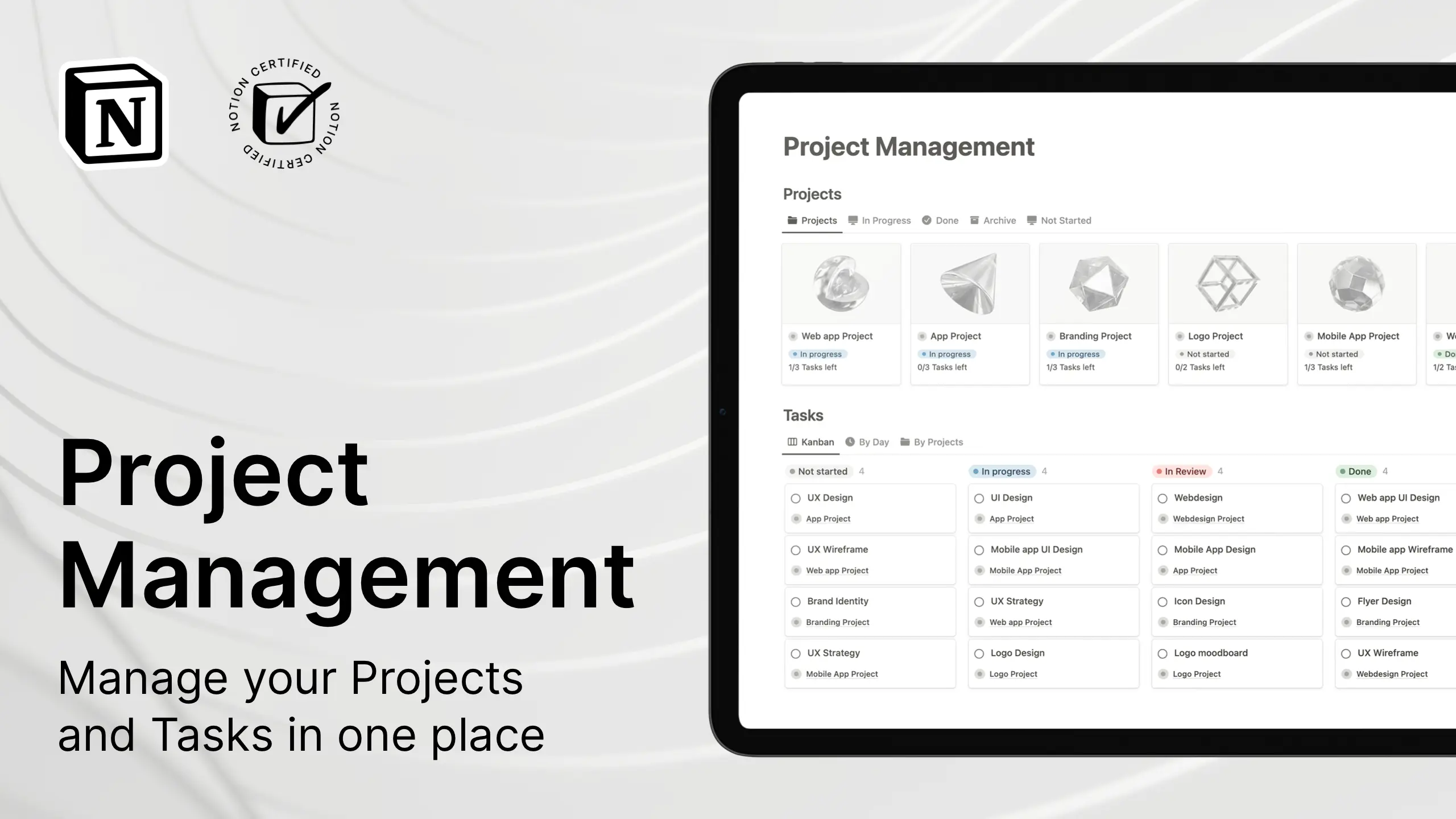
Creating an organized and customized Notion workspace is vital for maximizing productivity. A well-structured environment allows you to access information quickly, prioritize tasks effectively, and streamline your workflow. Proper setup ensures that your digital workspace supports your unique productivity style and goals, reducing clutter and enhancing focus.
This section provides a comprehensive, step-by-step guide to establishing a Notion workspace tailored for optimal efficiency. From initial workspace creation to designing a personalized dashboard, each step emphasizes strategic organization and user-centric customization to foster a productive environment.
Establishing a new workspace tailored for productivity
Setting up a new Notion workspace begins with defining your core objectives and understanding the types of content and tools you will need. Establishing a clear foundation ensures your workspace remains relevant and functional, avoiding unnecessary complexity and promoting consistent usage.
- Sign up or log in to Notion: Visit the Notion website or open the app, then create an account or access your existing account. Use a professional email address to keep your workspace separate from personal use if necessary.
- Create a dedicated workspace: Once logged in, select the option to add a new workspace, giving it a clear, descriptive name such as “My Productivity Hub” or “Work & Personal Organizer.” This helps distinguish it from other workspaces or teams you may manage.
- Define your primary goals: Identify what you aim to achieve with your Notion workspace—whether it’s task management, project tracking, note-taking, or all of these. Document these goals to guide your setup process.
- Choose a workspace template or start from scratch: Notion offers various templates tailored for productivity. Starting with a template can speed up setup, but customizing from scratch ensures the workspace is tailored to your needs.
- Set up user permissions if collaborating: If working with a team, configure permissions to control access levels for different members, ensuring your workspace remains organized and secure.
Organizing content using pages, subpages, and hierarchical structures
Effective organization within Notion relies on a clear hierarchy of pages and subpages, allowing you to categorize and access information efficiently. Proper content structuring minimizes clutter and enhances navigation, making it easier to locate specific information when needed.
Implementing a hierarchical structure involves creating main pages that serve as broad categories, then nesting related subpages within them. This approach reflects natural workflows and allows for scalable expansion as your needs evolve.
- Main pages: Create top-level pages for broad categories such as “Tasks,” “Projects,” “Notes,” and “Calendar.” These serve as centralized hubs for related content.
- Subpages: Within each main page, develop subpages to organize specific topics or projects. For example, under “Projects,” you might add subpages for individual projects like “Website Redesign” or “Marketing Campaign.”
- Use visual cues: Incorporate icons, cover images, and color-coding to distinguish pages visually, improving navigation and reducing cognitive load.
- Maintain consistency: Adopt naming conventions and structuring rules to keep the workspace intuitive and easy to manage, especially as it expands over time.
Designing a personalized dashboard that consolidates daily tasks and priorities
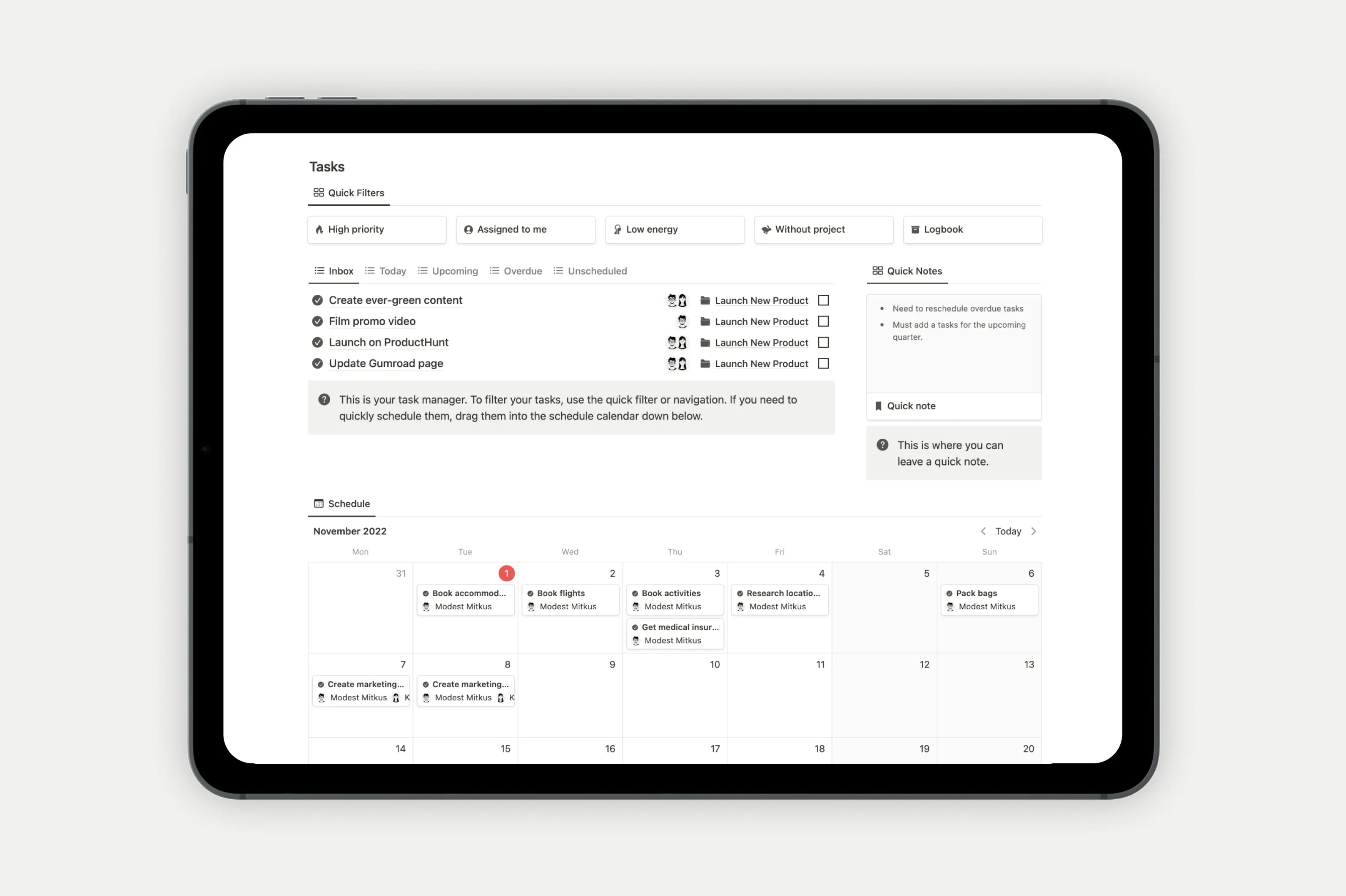
A customized dashboard acts as your central command center, providing a snapshot of your daily priorities, upcoming tasks, and essential information. An effective dashboard consolidates relevant content, reducing the need to switch between multiple pages and enhancing focus.
To craft an efficient dashboard, consider integrating various components such as task lists, calendar views, quick notes, and links to critical pages. Personalization ensures the dashboard aligns with your workflow and preferences, making it a powerful productivity tool.
- Identify key widgets and sections: Determine what information is most critical daily—such as today’s tasks, upcoming deadlines, or current projects—and design sections accordingly.
- Create a task overview: Embed a Kanban board or task list that displays your daily and weekly tasks, prioritized by urgency or importance.
- Integrate calendar views: Link your calendar to display upcoming deadlines, appointments, and events directly on the dashboard for quick reference.
- Add shortcuts and links: Include links to frequently accessed pages, such as project pages or note repositories, to facilitate quick navigation.
- Use visual elements: Incorporate icons, color schemes, and dividers to visually organize sections, making the dashboard both functional and aesthetically pleasing.
Regularly update and refine your dashboard to adapt to changing priorities and workflows. Personalization and intentional design are key to maintaining an efficient workspace that actively supports daily productivity.
Utilizing Templates to Streamline Workflows
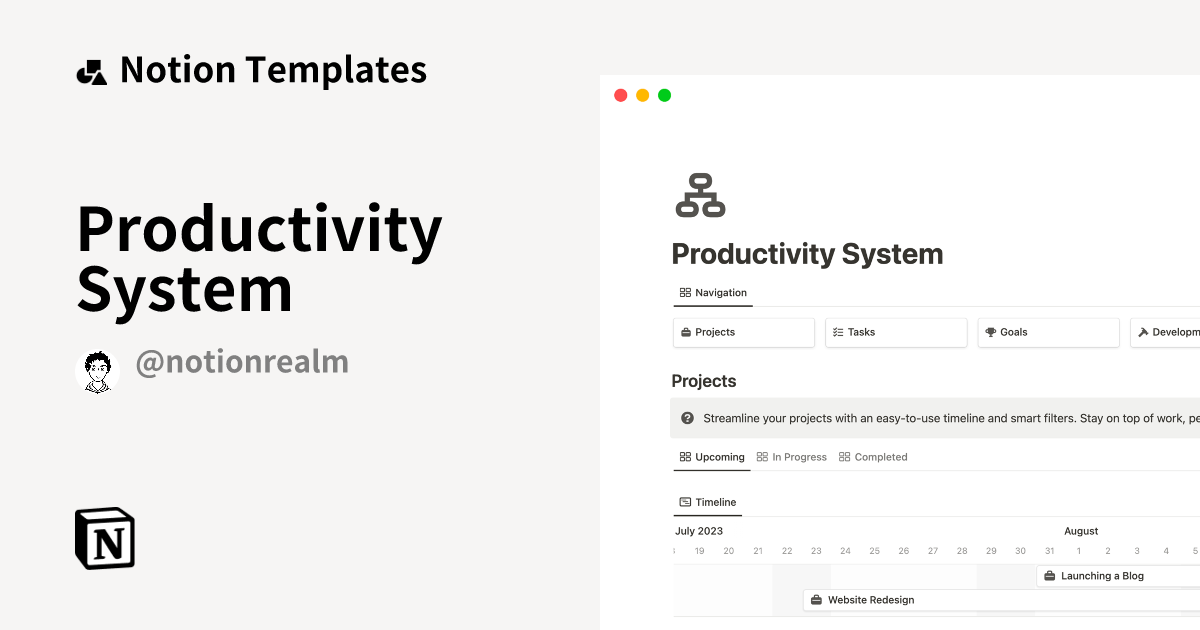
Efficient productivity management in Notion is greatly enhanced through the use of pre-designed templates. These templates serve as foundational frameworks that can save time, promote consistency, and ensure that workflows are organized and effective. By selecting and customizing templates suited to specific needs, users can create a personalized productivity system that aligns with their goals and daily routines, making task management, project planning, and habit tracking more straightforward and less time-consuming.Templates in Notion are readily available for a variety of uses, including task lists, project timelines, note-taking, goal tracking, and more.
The process begins with exploring the Notion Template Gallery, where a broad array of professionally designed templates can be previewed and imported with a single click. For tailored workflows, users can choose templates that closely match their requirements and then modify them to better fit their unique processes. Customization options include adjusting properties, adding new sections, changing visual layouts, and integrating additional tools or databases, thereby ensuring the templates support specific productivity objectives effectively.
Selecting and Implementing Pre-Designed Notion Templates
Choosing the appropriate template involves understanding the specific productivity activities and outcomes desired. For task management, templates such as “Task Tracker” or “To-Do List” provide structured columns for priorities, due dates, and statuses that help in prioritizing daily tasks. Project planning templates like “Roadmap” or “Kanban Board” facilitate visual workflow management, enabling teams or individuals to track project phases, assign responsibilities, and monitor progress seamlessly.
Habit tracking templates, such as “Habit Tracker,” help users build consistency by providing clear visual cues and accountability mechanisms.Once a suitable template is identified, implementation involves importing the template into a dedicated workspace or page within Notion. Users should then review the default structure, adjusting properties like tags, due dates, or statuses to align with personal or team-specific workflows. It is essential to test the template with real tasks or projects to ensure it effectively supports productivity, making iterative adjustments as needed.
Customizing Templates to Fit Specific Productivity Needs
Customizing templates is vital for optimizing their usefulness within individual or organizational contexts. Notion’s flexible interface allows users to modify existing templates by adding, removing, or reorganizing components. For example, a task management template can be tailored by including custom labels that categorize tasks by project, priority, or effort level. Similarly, project planning templates can be enhanced with additional sections for meeting notes, resource links, or stakeholder contacts, providing a comprehensive view tailored to specific workflows.Color coding and icon customization can visually enhance templates, making navigation more intuitive and improving overall clarity.
Users can also create custom views, such as calendar, list, or gallery formats, to suit different perspectives and usage scenarios. Advanced users might incorporate formulas, relations, and rollups to automate updates and interlink various components of the workspace, thereby reducing manual data entry and potential errors.
Comparison of Popular Notion Templates and Their Use Cases
Understanding the strengths and ideal applications of various templates can significantly streamline the process of selecting the right tools for productivity. Below is a comparison table illustrating some popular templates, their primary features, and typical use cases:
| Template Name | Features | Use Cases |
|---|---|---|
| Task Tracker | Kanban view, priority tags, due dates, status tracking | Daily task management, personal to-do lists, small team task coordination |
| Project Roadmap | Timeline view, milestones, dependencies, resource allocation | Long-term project planning, product development timelines, strategic initiatives |
| Habit Tracker | Calendar view, streak tracking, customizable habits | Building routines, health and wellness tracking, accountability partners |
| Meeting Notes | Template fields for agenda, action items, follow-ups, attachments | Team meetings, client consultations, weekly reviews |
| Knowledge Base | Hierarchical organization, search functionality, multimedia support | Documentation repositories, training materials, resource libraries |
In conclusion, leveraging the power of templates in Notion can dramatically improve workflow efficiency. Selecting the right templates, customizing them to meet specific needs, and understanding their application contexts ensures that users can develop a highly effective and personalized productivity system within their Notion workspace.
Managing tasks and to-do lists effectively
Effective task management is essential for maintaining productivity and ensuring that priorities are met in a timely manner. Notion offers a versatile platform to organize, track, and visualize tasks with a variety of tools, making it easier to stay on top of daily responsibilities and long-term projects.
By leveraging Notion’s features such as checkboxes, due dates, and priority labels, users can create dynamic and interactive to-do lists. Incorporating categorization methods like tags, databases, or embedded boards enhances the ability to filter and sort tasks, providing a clear overview of work progress. Visual organization tools like kanban boards and calendar views facilitate an intuitive understanding of task flow and deadlines, aligning workflow with individual or team objectives.
Creating dynamic task lists with checkboxes, due dates, and priorities
To maximize task clarity and accountability in Notion, it is crucial to develop task lists that are both comprehensive and adaptable. Checkboxes serve as simple markers for completed tasks, giving immediate visual feedback on progress. Due dates, when integrated into task entries, allow for automatic reminders and deadline tracking, ensuring that tasks are completed within designated time frames. Assigning priorities helps differentiate between urgent and non-urgent tasks, enabling users to focus on what matters most.
In practice, users can create a dedicated database for tasks, adding columns for each of these elements. For example, a task entry might include a checkbox for completion status, a date field for due date, and a dropdown menu for priority level (low, medium, high). This setup allows for real-time updates and easy filtering, such as displaying only high-priority tasks due this week.
Category organization through tags, databases, or embedded boards
Organizing tasks into categories enhances clarity and streamlines workflow management. Using tags is a straightforward method for labeling tasks based on context, project, or urgency. Tags can be color-coded for quick visual recognition and can be combined with filters to display specific groups of tasks.
Databases within Notion can be customized to serve as comprehensive task repositories, allowing for multiple categorization criteria. For example, a project management database might include properties such as status, priority, and tags, facilitating complex filtering and sorting operations. Additionally, embedded boards like Kanban-style views provide a visual progression of tasks through stages such as “To Do,” “In Progress,” and “Completed.” These boards can be linked to databases, offering a flexible and visual means of managing workflow stages.
Using visual tools like Kanban boards or calendar views transforms abstract task lists into tangible workflows, making it easier to identify bottlenecks and prioritize effectively.
Visual organization of tasks: Kanban boards and calendar views
Visual task organization significantly enhances comprehension and management of workload. Kanban boards in Notion are customizable, allowing users to create columns that represent different stages of a task’s lifecycle. Tasks are represented as cards, which can be moved across columns to reflect their current status. This method is particularly effective for team collaboration, as it provides real-time updates and clear visibility of project progress.
Calendar views offer another powerful visualization tool, enabling users to see tasks and deadlines across a monthly or weekly timeline. By linking tasks with due dates and displaying them on a calendar, users can identify overlapping commitments, plan workloads efficiently, and ensure timely completion of responsibilities. Combining these views within Notion creates a comprehensive and intuitive system for managing tasks in a way that aligns with natural workflow patterns.
Organizing Notes and Knowledge Bases
Effective organization of notes and knowledge repositories within Notion enhances information accessibility, promotes seamless retrieval, and supports ongoing learning and project management. By structuring your notes thoughtfully, you ensure that your workspace remains clear, interconnected, and adaptable to your evolving needs.In Notion, a well-structured knowledge base facilitates quick access to relevant information while allowing for easy updates and expansion. Building such a system involves creating interconnected notes that reference each other, categorizing content with tags, and establishing clear hierarchies that mirror your workflow or subject domains.
Creating Interconnected Notes and Linking Related Content
Creating a network of interconnected notes allows for intuitive navigation and contextual understanding. Notion’s linking feature empowers users to connect related notes, ideas, or resources, effectively mimicking the associative thinking process.To create interconnected notes:
- Start by drafting individual notes for specific topics or ideas, ensuring each note is self-contained yet adaptable for linking.
- Within a note, highlight relevant s or concepts and convert them into internal links using the ‘Link to page’ feature or by typing [[page name]].
- Use backlinks to see all notes referencing a particular page, fostering a web of related content that can be easily traversed.
- Maintain consistency by establishing naming conventions for pages and links, which simplifies navigation and prevents duplication.
- Embed related notes or summaries within broader documents to create a layered understanding.
This interconnected approach not only minimizes information silos but also stimulates creative connections between different ideas or projects.
Building a Knowledge Database for Quick Retrieval and Updates
A robust knowledge database in Notion should prioritize ease of access and flexibility in modification. Structuring your content with a mix of databases, linked pages, and clear categorization enables swift retrieval of information.Key procedures include:
- Implementing databases such as tables or boards to organize notes categorically, with filters and views tailored to your queries (e.g., by date, tag, priority).
- Assigning consistent metadata to each entry, including tags, categories, and status, to facilitate dynamic filtering and sorting.
- Using linked databases to present customized views of your main information sources, allowing you to focus on specific contexts or projects.
- Regularly updating entries with relevant information, ensuring that your database remains current and reliable.
- Leveraging Notion’s search function, bolstered by well-structured tags and categories, to locate content within seconds.
This structure ensures your knowledge base remains scalable, easy to maintain, and responsive to your informational needs.
Tagging and Categorizing Notes for Easy Navigation
Effective tagging and categorization serve as the backbone of streamlined note management in Notion. Proper taxonomy enables rapid filtering, grouping, and contextual understanding of your content.To optimize your tagging system:
- Define a clear taxonomy of tags related to your projects, subjects, or workflows, avoiding excessive or ambiguous tags that could hinder navigation.
- Apply multiple relevant tags to each note to reflect its various aspects, such as priority level, topic, or status.
- Use color-coding or iconography within tags to improve visual scanning and differentiation.
- Implement hierarchical categories, such as parent tags with nested sub-tags, to capture more detailed classifications.
- Regularly review and refine your tags to maintain consistency and relevance, removing obsolete or redundant labels.
Employing an organized tagging system transforms a sprawling collection of notes into a navigable, coherent knowledge ecosystem, supporting both deep dives into specific topics and broad overviews of your information landscape.
Integrating Calendars and Reminders
Integrating calendars and reminders within Notion significantly enhances your ability to manage schedules and ensure timely completion of tasks. Seamlessly embedding external calendars or utilizing Notion’s built-in calendar features enables a unified view of your commitments, helping you stay organized and proactive. Effective use of reminders ensures that important deadlines and appointments are not overlooked, fostering consistent productivity and better time management.Incorporating calendars and reminders into your Notion workspace allows for a flexible and comprehensive approach to planning.
Whether you’re coordinating team meetings, tracking personal milestones, or maintaining project timelines, these tools play a vital role in streamlining your workflow and maintaining focus.
Embedding External Calendars and Using Notion’s Built-in Calendar
External calendar integration provides the advantage of viewing and editing schedules from popular calendar platforms directly within Notion, consolidating your planning in a single environment. Notion offers multiple options for embedding external calendars, such as Google Calendar, which is widely used for personal and professional scheduling.To embed an external Google Calendar:
- Open your Google Calendar and click on the settings icon next to the desired calendar.
- Select “Integrate calendar” and copy the provided embed code or link.
- In Notion, create or open a page where you want to display the calendar.
- Type “/embed” and select the Embed block.
- Paste the calendar embed code or link into the URL field and adjust size as needed.
This integration allows real-time updates, ensuring your Notion workspace reflects your latest schedule changes from external apps.Notion’s native calendar feature, built on the database structure, offers a straightforward way to manage events and deadlines. Creating a calendar database involves:
- Adding a new database and selecting the “Calendar” view.
- Customizing properties such as date, status, priority, and related tasks.
- Entering events directly into the calendar, with options to link to other databases or pages.
This setup enables detailed event tracking within Notion, aligned with your workflow.
Setting Up Reminders for Tasks and Events
Reminders serve as prompt notifications for upcoming tasks or scheduled events, ensuring nothing slips through the cracks. They can be set at the task level or directly within calendar entries, providing versatile ways to stay on top of your commitments.To set a reminder within a task or event page:
- Open the page or task where you want to add a reminder.
- Add a date property—either within a database or as a page property.
- Click on the date property or use the date picker that appears.
- Enable the “Remind” option, then select the specific time for the notification, such as “At time of event,” “5 minutes before,” “1 hour before,” or a custom setting.
For example, in a weekly planning setup, you might schedule reminders 30 minutes before meetings or deadlines, ensuring adequate preparation time. Similarly, daily to-do lists can have reminders set for each task at appropriate intervals. Monthly planning can include reminders for recurring events or review sessions, keeping long-term commitments organized and top of mind.Thoughtful integration of calendars and reminders within Notion transforms cluttered schedules into coherent, actionable plans, elevating your productivity and time management efficacy.
Collaborating with Teams within Notion
Effective collaboration is a cornerstone of productive teamwork, and Notion offers a versatile platform to facilitate seamless joint work. By leveraging shared pages, task assignments, and real-time feedback, teams can enhance their coordination and efficiency. This section provides comprehensive procedures to optimize team collaboration within Notion, ensuring that workflows are streamlined and communication remains clear.Within shared workspaces, Notion empowers users to easily share pages with team members, assign specific responsibilities, and monitor progress collectively.
These features foster transparency and accountability, making it easier to stay aligned on project goals. The collaborative environment encourages continuous feedback, allowing teams to iterate and improve their work dynamically.
Sharing Pages and Assigning Tasks to Team Members
Sharing pages in Notion is straightforward and customizable. To share a page, users can click the “Share” button located at the top right corner of the workspace. From there, they can add team members by entering their email addresses or generating shareable links with specific permissions, such as view-only or edit access. This flexibility allows for controlled collaboration tailored to each project’s needs.Assigning tasks within shared pages enhances accountability.
Notion provides dedicated task management tools, such as checklists or Kanban boards, where tasks can be assigned directly to team members. Each task can include details like deadlines, priority levels, and descriptive notes, ensuring clarity on responsibilities and expectations. Users can also set reminders linked to individual tasks to ensure timely completion.
Tracking Progress and Providing Feedback
Monitoring project progress within Notion involves utilizing status indicators, progress bars, and activity logs embedded within shared pages. Status properties can be customized to reflect phases of a project, such as “In Progress,” “Review,” or “Completed,” enabling teams to visualize their workflow at a glance. Activity logs record all updates and comments, fostering transparency and accountability.Providing feedback is streamlined through inline comments and mentions.
Team members can comment directly on specific sections of content, tagging relevant colleagues for input. This targeted approach facilitates precise feedback, reducing misunderstandings and accelerating decision-making processes. Additionally, Notion’s version history feature allows teams to review previous iterations, making it easier to track changes and revert if necessary.
Best Practices for Collaborative Workflows in Notion
To maximize the benefits of Notion’s collaborative features, adopting best practices is essential. These guidelines help maintain clarity, reduce redundancies, and enhance overall productivity:
- Define clear roles and responsibilities: Assign specific tasks and permissions to team members to prevent overlaps and ensure accountability.
- Establish standardized templates and protocols: Use shared templates for recurring projects or documentation to maintain consistency across teams.
- Utilize comment and mention features effectively: Encourage team members to provide inline feedback and tag colleagues for timely responses, fostering open communication.
- Maintain an organized workspace: Structure pages systematically with logical hierarchies and clear labels to facilitate easy navigation and information retrieval.
- Regularly update and review progress: Schedule routine check-ins within Notion to assess project status, address bottlenecks, and adjust workflows as needed.
- Leverage integrations and notifications: Connect Notion with communication tools like Slack or email to receive real-time updates and ensure continuous engagement.
Adopting these practices ensures that team collaboration within Notion remains efficient, transparent, and aligned with organizational goals, ultimately driving projects forward with clarity and cohesion.
Automating routines and workflows
Efficient automation within Notion can significantly enhance productivity by reducing manual effort and minimizing errors. By integrating Notion with other tools and leveraging automation features, users can create seamless workflows that operate with minimal intervention. Setting up recurring tasks, notifications, and alerts ensures timely completion of activities, freeing up mental space and allowing focus on more strategic priorities.Automation in Notion involves combining its native capabilities with third-party services, enabling users to connect workflows across platforms.
This integration facilitates real-time data synchronization, automated task creation, and prompt notifications, creating a cohesive productivity ecosystem. Implementing templates and recurring tasks is particularly useful for repetitive activities, ensuring consistency and saving time. Additionally, configuring notifications and alerts guarantees prompt awareness of upcoming deadlines, maintaining workflow momentum and accountability.
Integration with tools and third-party automation services
Integrating Notion with other productivity tools enhances its functionality by enabling automated data transfer and task management across different platforms. Native integrations include options such as connecting with Slack, Google Calendar, or GitHub using built-in features or APIs. For more complex workflows, third-party services like Zapier, Automate.io, or Make (formerly Integromat) provide extensive connectors that bridge Notion with over 2,000 apps.These integrations allow for automating routine tasks such as creating new Notion pages when emails arrive, updating project statuses across platforms, or syncing calendar events with task lists.
For instance, using Zapier, a user can set up a trigger that adds a new task in Notion whenever a new row appears in a Google Sheets tracker, streamlining project management efforts across tools.
Creating templates and recurring tasks to save time
Establishing templates for common projects, meetings, or reports streamlines workflows by standardizing recurring content and eliminating repetitive setup. Notion allows users to create customizable templates that can be duplicated effortlessly for similar tasks, ensuring consistency and accelerating task initiation.Recurring tasks are integral to maintaining regular routines, such as weekly reports or monthly reviews. These can be set up using Notion’s database features, where a task template includes predefined properties like deadlines, priorities, and checklists.
When combined with automation tools, these templates can be scheduled to generate automatically at specified intervals, reducing manual follow-up and oversight.
Using recurring task templates with built-in automation ensures that routine activities are consistently addressed without additional manual input, optimizing time management and operational flow.
Setting up notifications and alerts for deadlines
Timely notifications are essential to maintain workflow momentum and avoid missing critical deadlines. Notion provides several methods to implement alerts, including in-app reminders, email notifications, and integrations with external notification services.Configuring reminders within Notion involves setting date properties with associated alerts that notify users ahead of deadlines. For example, setting a reminder two days prior to a project deadline helps teams prepare in advance.
Integrating Notion with tools like Slack or email via automation platforms can push alerts directly to team channels or individual inboxes, ensuring everyone stays informed.Effective notification setup includes defining clear alert times, customizing recipient groups, and leveraging automation workflows to trigger reminders based on specific conditions. This proactive approach helps teams stay aligned, reduces last-minute rushes, and improves overall project delivery timelines.
Tips for maintaining long-term productivity in Notion
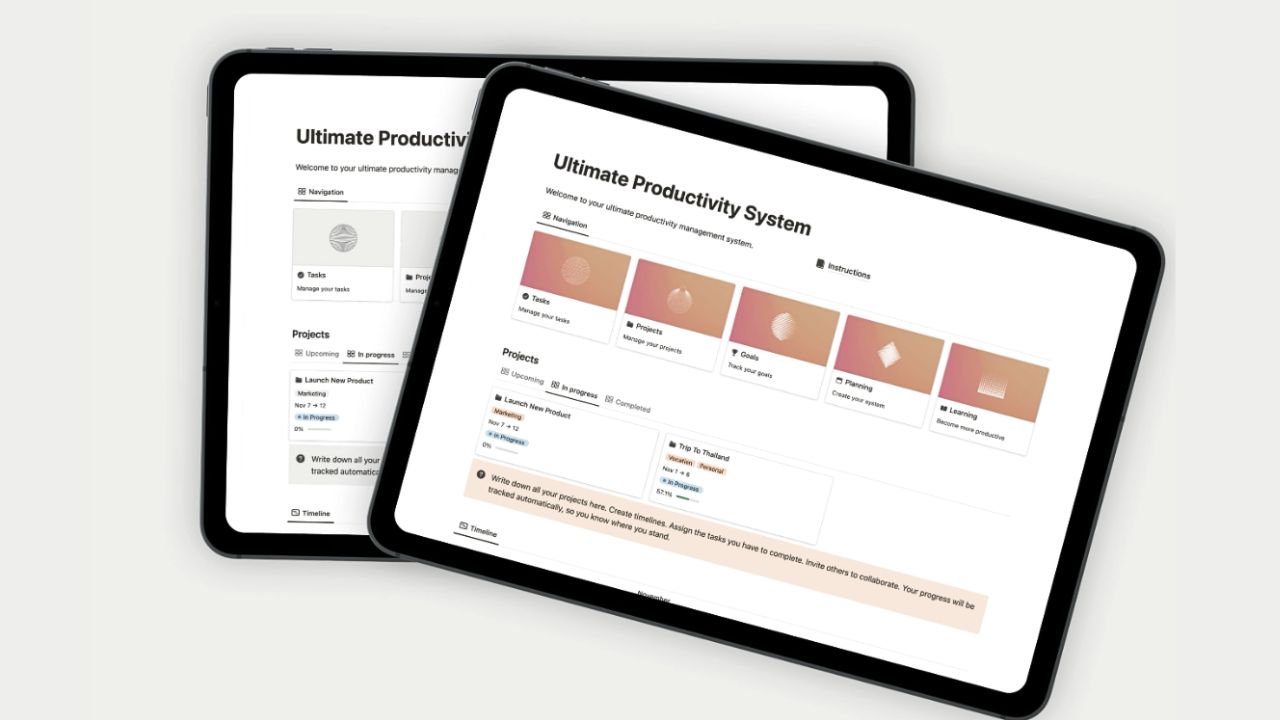
Maintaining consistent productivity using Notion requires ongoing effort and strategic management of your workspace. As your projects and responsibilities evolve, it becomes essential to establish habits that ensure your workspace remains organized, relevant, and efficient. By adopting regular review routines and thoughtful content management, you can keep Notion a vital tool for your productivity journey.A proactive approach to managing your Notion workspace helps prevent clutter, keeps information current, and allows your setup to adapt to changing needs.
Implementing systematic review practices and flexible organizational strategies ensures your productivity system continues to serve you effectively over time.
Regular review and updating of content
Periodic review and updating of your Notion workspace are crucial for maintaining relevance and usability. Over time, outdated information can clutter your environment, making it harder to find what you need quickly. Establishing a consistent schedule for reviewing key pages, databases, and templates ensures that your workspace remains accurate and tailored to your current priorities.This process involves examining active projects, recurring tasks, and knowledge bases to verify accuracy, remove obsolete data, and refine workflows.
For example, setting quarterly review sessions helps identify completed projects that can be archived or removed, and updates to ongoing tasks ensure deadlines and details are current. Regular updates not only improve efficiency but also reinforce a habit of intentional workspace management.
Decluttering and archiving outdated information
Over time, your Notion workspace can accumulate a significant amount of outdated or irrelevant content. Decluttering involves identifying and removing unnecessary pages, notes, and databases to free up mental and digital space, making your workspace more navigable and less overwhelming.Archiving is an effective method for preserving historical data without cluttering your active workspace. For instance, completed projects, old research notes, or past meeting minutes can be moved to an archive section or a dedicated database.
Use clear naming conventions and categorization to distinguish between current and archived content, which simplifies retrieval if needed later. Regular decluttering and archiving prevent your workspace from becoming unwieldy and support long-term clarity.
Guidelines for evolving your workspace as productivity needs change
Your productivity requirements are likely to shift over time, influenced by new projects, roles, or personal goals. An adaptable Notion workspace must evolve accordingly to continue supporting your efficiency. Establishing flexible structures allows you to modify or expand your setup without disrupting your workflow.Begin by periodically assessing your current organization system—determine which elements are still effective and which need adjustment.
For example, if you transition from individual projects to team collaborations, you might introduce shared workspaces or new templates. Incorporate new features or integrations as your needs grow, such as linking your calendar or automating repetitive routines. Embracing change and customizing your workspace ensures it remains aligned with your evolving productivity landscape, enabling sustained efficiency and motivation.
Final Wrap-Up
In conclusion, mastering how to use Notion for productivity empowers you to create a highly organized and adaptable environment that evolves with your needs. Implementing these strategies ensures sustained efficiency and helps you stay focused on your goals while making your workflow more enjoyable and less cluttered.