Discovering how to use Trello boards with 5 lists opens the door to a streamlined and organized approach to managing complex projects. This method provides a clear visual workflow that enhances collaboration and efficiency, making it easier to track progress at each stage of your tasks. Whether you’re overseeing a team or managing personal projects, mastering this structure can transform how you approach task management and ensure nothing falls through the cracks.
By designing a Trello board with five well-defined lists, you create a flexible yet disciplined environment to plan, execute, and complete your projects. From initial ideas to final delivery, each list serves a purpose—helping you visualize the entire process, organize tasks effectively, and adapt as your project evolves. Learning how to populate, customize, and collaborate within this setup will maximize your productivity and project clarity.
Overview of Trello Boards and Their Core Components
Trello boards serve as a versatile visual platform for organizing, managing, and tracking projects across various domains, from personal tasks to complex team initiatives. Their intuitive interface facilitates collaboration and ensures that all team members have a clear understanding of project progress at a glance. Using Trello effectively can significantly enhance productivity, streamline workflows, and promote transparency within any project environment.
The structure of a Trello board revolves around several fundamental components that work together to create a flexible and dynamic task management system. The core elements include lists, cards, labels, and various other features that help customize workflows to meet specific needs. Understanding how these elements interconnect enables users to optimize their project management strategies on Trello.
Core Components of a Trello Board
To utilize Trello efficiently, it is essential to grasp the functions and advantages of its main components:
- Lists: Vertical columns that organize stages, categories, or groups of tasks. Lists act as containers for cards and help visualize workflow progression or classification, such as “To Do,” “In Progress,” and “Completed.”
- Cards: Individual units representing tasks or items within lists. Cards contain detailed information, including descriptions, checklists, due dates, attachments, and comments, making them the primary means for task execution and tracking.
- Labels: Colored tags that categorize cards for quick visual identification. Labels can denote priority levels, departments, or task types, enhancing sorting and filtering capabilities.
Functionality and Use Cases of Lists in Trello
Lists play a pivotal role by structuring tasks in a manner that reflects workflow stages, priority levels, or thematic groupings. Their flexibility allows for diverse applications:
- Workflow Visualization: Lists such as “Backlog,” “In Development,” and “Review” help track progress and identify bottlenecks in a project pipeline.
- Categorization: Separate lists for different project areas or departments, like “Marketing,” “Design,” or “Finance,” facilitate focused task management.
- Prioritization: Lists arranged from high to low priority enable teams to focus on critical tasks first, ensuring that important deadlines are met.
By structuring lists thoughtfully, teams can tailor their Trello boards to reflect their unique processes, making collaboration more transparent and efficient. For example, a product development team might use a series of lists to track each phase, from concept to launch, while a marketing team could organize campaign tasks into creative, approval, and deployment stages.
Designing a Trello Board with 5 Lists
Creating an organized Trello board with five distinct lists enhances task management by clearly categorizing workflow stages or project components. Structured design facilitates better visualization, prioritization, and collaboration, making it easier for teams and individuals to stay aligned on objectives and progress.
Developing an effective five-list layout requires careful planning regarding the purpose of each list, consistent naming conventions, and thoughtful customization. This approach ensures clarity, improves productivity, and allows for seamless adjustments as project needs evolve.
Step-by-Step Guide to Creating a Trello Board with Five Lists
Follow this systematic process to set up a Trello board that is both functional and easy to navigate:
- Create a New Board: Log into Trello and select the “Create new board” option from your dashboard. Provide a clear, descriptive name for the board that reflects its purpose, such as “Project Launch” or “Content Calendar.”
- Add and Name the Lists: Click on “Add a list” and input the first list name. Repeat to create all five lists. Names should be concise yet descriptive to convey each list’s role effectively.
- Organize List Order: Drag and drop lists to establish a logical workflow or priority order. For example, starting with “Ideas,” followed by “To Do,” then “In Progress,” “Review,” and concluding with “Completed.”
- Populate Lists with Cards: Add cards within each list to represent individual tasks or items. Include relevant details such as descriptions, due dates, and attachments for comprehensive tracking.
- Customize Lists: Use colors, labels, and order adjustments to categorize tasks further and enhance visual clarity. Set due dates, assign members, and incorporate checklists as needed to streamline project management.
Best Practices for Naming and Organizing Lists
Effective naming conventions and organization strategies are crucial for maintaining clarity across a Trello board with multiple lists. Below are key guidelines to optimize your list structure:
- Use Clear and Consistent Naming: Choose descriptive titles that immediately convey each list’s function. For example, “Backlog,” “Upcoming,” “Doing,” “Testing,” “Done” rather than vague labels.
- Implement Logical Flow: Arrange lists to mirror the natural progression of tasks. This minimizes confusion and ensures a smooth workflow, reducing overlaps or backtracking.
- Incorporate Standardized Labels: Apply color-coded labels for task priority, category, or department. For instance, red for urgent items, blue for research tasks, green for completed work, aiding quick visual identification.
- Maintain Flexibility: Regularly review and adjust list names and arrangements to reflect project changes or team preferences. This dynamic approach fosters ongoing clarity and efficiency.
- Limit the Number of Lists: Keep the list count manageable to prevent complexity. Five lists strike a balance between detailed tracking and usability, ensuring the board remains accessible and not overwhelming.
Customizing Lists with Colors, Labels, and Order
Personalization of lists enhances visual management and prioritization efforts.
Colors and labels serve as visual cues that allow team members to quickly identify task status, importance, or categorization. Adjusting the order of lists ensures that the workflow reflects real processes, making it intuitive and straightforward to follow.
| Color and Label Usage | Best Practice |
|---|---|
| Assign distinctive colors to labels corresponding to task categories or priority levels. | For example, use red for high-priority issues, yellow for medium, and green for low-priority tasks. This color-coding enables quick assessment and triage. |
| Apply labels consistently across all lists | Maintain a standard labeling system to prevent confusion, facilitating faster recognition and filtering of related tasks. |
| Adjusting List Order | Best Practice |
| Drag lists to mirror the task progression or team workflow. | For instance, place “Ideas” or “Backlog” at the start, followed by “To Do,” “In Progress,” “Review,” and “Completed” at the end for a natural workflow. |
| Rearrange lists based on project phase or priority shifts | Flexibility in order allows the board to adapt dynamically to project changes or team preferences, ensuring ongoing relevance and clarity. |
Structuring List Content for Effective Workflow
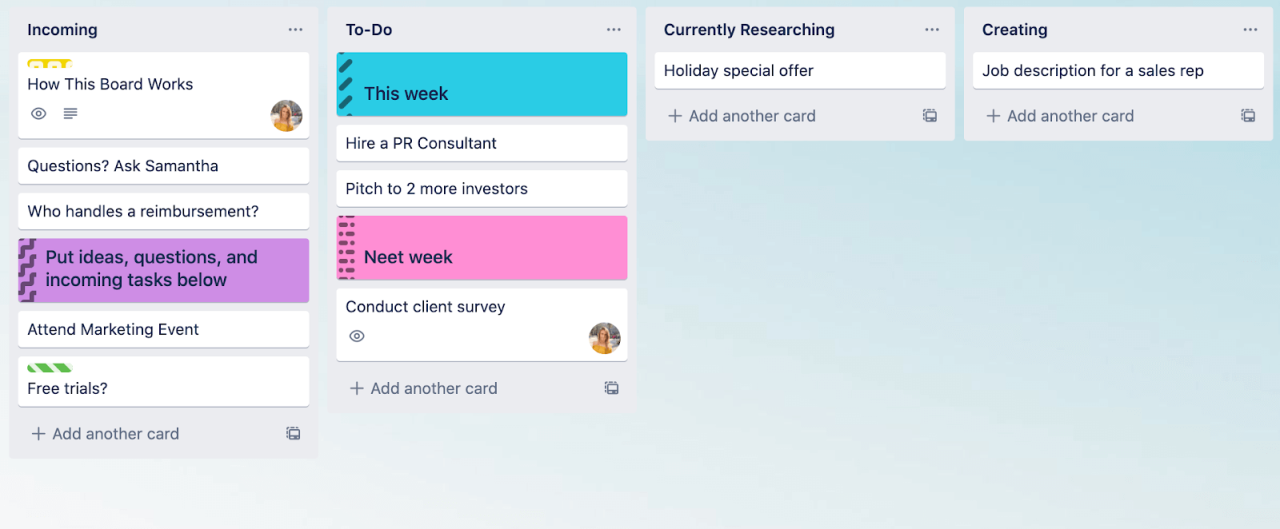
Organizing each list with well-structured cards is essential for maintaining an efficient and transparent workflow within a Trello board. Thoughtful population of lists ensures that tasks are easily identifiable, trackable, and manageable, enabling teams to collaborate seamlessly and meet project goals effectively.
In this section, we explore methods to populate each list with relevant cards, enrich card details with descriptions, checklists, due dates, and attachments, and categorize cards within lists for optimal task tracking. Implementing these strategies enhances clarity, prioritization, and accountability across your project board.
Populating Lists with Appropriate Cards
To ensure each list accurately reflects the current stage of tasks or projects, it is vital to create cards that are specific, actionable, and clearly defined. For example, in a project management board, the ‘To Do’ list should contain cards representing upcoming tasks with concise titles and detailed descriptions outlining objectives, scope, and involved stakeholders. Assigning labels or tags to cards—such as priority levels or departments—further clarifies their nature and importance.
Utilizing templates for recurring tasks can speed up card creation while maintaining consistency. For example, a standard card for client meetings could include predefined checklists for agenda points and required preparations. Regularly reviewing and updating cards ensures that the list remains relevant and reflective of the project’s evolving needs.
Organizing Card Content with Descriptions, Checklists, Due Dates, and Attachments
Enhancing cards with comprehensive content facilitates a more structured workflow and reduces the need for constant clarification. Descriptions should clearly articulate task details, objectives, and expected outcomes, providing context for all team members. Checklists serve as step-by-step guides, ensuring that sub-tasks are completed systematically, such as verifying design approval before proceeding to development in a product launch project.
Including due dates within cards promotes accountability by setting clear deadlines, which Trello visually represents with date stamps and calendar views. Attachments—such as relevant documents, images, or links—offer quick access to resources directly linked to the task, minimizing search time and confusion. For instance, attaching a project brief, reference materials, or client feedback directly to the relevant card streamlines communication and ensures all pertinent information resides in one accessible location.
Categorizing Cards within Lists for Improved Task Tracking
Effective categorization of cards enhances visibility and allows team members to quickly identify task statuses and priorities. Applying labels, color codes, or custom fields enables categorization based on criteria like urgency, department, or task type. For example, a marketing campaign board might categorize cards with labels such as ‘Design,’ ‘Content,’ ‘Review,’ and ‘Launch,’ helping team members focus on specific areas and track progress accordingly.
Sorting cards within lists based on due dates or priority levels further refines task management. Trello offers options like sorting by date or custom views that facilitate prioritization and workload balancing. Regularly reviewing and updating categories ensures that the board remains organized, adaptive, and aligned with project goals, ultimately leading to a more streamlined workflow and increased productivity.
Utilizing Lists to Manage Project Phases
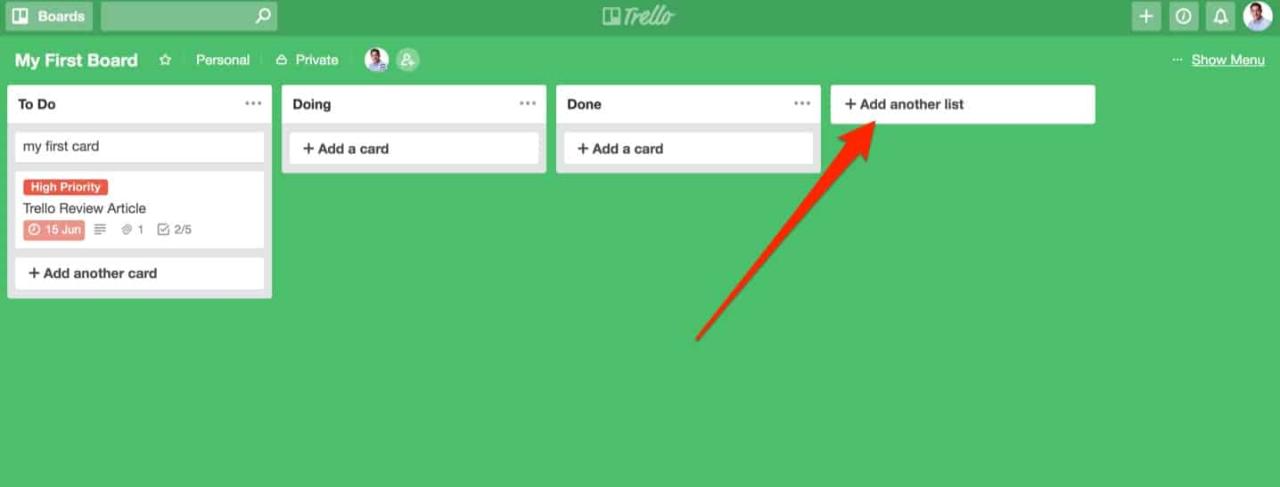
Managing a project effectively requires clear delineation of each stage in the workflow. Assigning specific lists to represent distinct project phases allows teams to visualize progress, identify bottlenecks, and streamline task management. By structuring Trello boards with dedicated lists such as To Do, In Progress, Review, Completed, and Archived, project members can easily track the lifecycle of each task and ensure smooth transitions through each phase.This method enhances transparency and accountability within the team, providing a visual overview of project status at a glance.
Properly managing these lists prevents tasks from stagnating and facilitates timely updates, leading to more efficient project completion.
Assigning Lists to Different Project Stages
Effectively categorizing project stages involves creating lists that mirror the natural flow of work. The typical setup includes:
- To Do: Contains all upcoming tasks awaiting initiation. This list serves as the backlog, where team members can add new ideas or requirements.
- In Progress: Tasks actively being worked on. Moving cards to this list signifies the commencement of work.
- Review: Tasks completed but pending review or approval. This stage helps ensure quality control before finalization.
- Completed: Successfully finished tasks. Transitioning cards here confirms the closure of a task.
- Archived: An optional list for tasks that are no longer active but may need future reference. Alternatively, Trello’s archive feature can be used for clean-up without cluttering the main workflow.
Aligning lists with these phases ensures that each task moves sequentially through the project lifecycle, promoting clarity and accountability.
Moving Cards Between Lists to Reflect Progress
The dynamic aspect of Trello involves transitioning task cards across different lists to portray progress accurately. This movement signifies the current status of each task and provides real-time updates on project development. For example, when a team member commences work on a task, they drag the card from the To Do list to In Progress, visually indicating active engagement.This process is fundamental in keeping the team synchronized, enabling everyone to see which tasks are underway, pending review, or completed.
The act of moving cards can be complemented with labels or due dates to add layers of information, making workflow tracking more intuitive.
Visual Strategies to Monitor Workflow and Bottlenecks
Implementing visual management techniques within Trello enhances project oversight and highlights potential delays. Common strategies include:
- Color-coded labels: Assigning specific colors to task priorities or stages helps instantly identify critical areas or bottlenecks. For example, red labels for urgent tasks or delays.
- WIP (Work In Progress) Limits: Setting a cap on the number of tasks in each list prevents overload and promotes balanced workflow. For instance, limiting the In Progress list to three cards ensures focus and resource allocation.
- Progress tracking through checklists: Integrate checklists within cards to break down tasks into manageable steps, providing granular visibility into progress and potential holdups.
- Use of dashboards and reports: External tools like Trello Power-Ups can visualize workflows via charts or heatmaps, pinpointing areas with accumulated tasks or slow movement.
By employing these visual tools, teams can swiftly identify stagnating tasks or process inefficiencies, enabling proactive adjustments and fostering continuous workflow improvement.
Applying Labels, Checklists, and Due Dates on Cards within Lists
Effective project management within Trello involves not only organizing tasks across lists but also enhancing the clarity, prioritization, and tracking of each card. Utilizing labels, checklists, and due dates on cards is essential for creating a dynamic and manageable workflow that adapts to evolving project needs. These features enable team members to quickly identify task statuses, monitor progress on subtasks, and adhere to deadlines, thereby improving overall productivity and accountability.In Trello, each card functions as a comprehensive task container capable of holding various attributes that contribute to effective task management.
Applying labels helps categorize and prioritize cards visually, checklists break down complex tasks into manageable steps, and due dates keep the team aligned with project timelines. Properly implementing these tools allows for seamless tracking and updating of task details, fostering transparency and collaboration within the team.
Adding Labels for Prioritization and Categorization
Labels are color-coded tags that can be attached to individual cards, providing an immediate visual cue about a task’s nature, urgency, or category. They are particularly useful for distinguishing between different types of tasks or identifying priority levels within each list, enabling team members to focus on critical items without delving into detailed descriptions.
- Assigning labels such as “High Priority,” “In Review,” or “Design” helps categorize tasks based on their function or status, facilitating quick filtering and sorting.
- Color schemes can be customized to align with organizational standards or project-specific classifications, ensuring consistency across boards.
- Labels can be added or modified easily by clicking on a card, selecting the label icon, and choosing the appropriate tags from the palette.
“Labels serve as visual management tools that streamline task identification and prioritization within complex project workflows.”
Incorporating Checklists into Cards to Track Sub-tasks
Checklists are instrumental for breaking down larger tasks into smaller, actionable components, providing a clear structure for progress tracking within each card. They enable team members to monitor the completion status of individual sub-tasks systematically, ensuring nothing is overlooked.
- Adding a checklist involves opening a card, selecting the “Checklist” option, and creating a new list of subtasks relevant to the main task.
- Each subtask can be checked off independently as it is completed, offering real-time insight into project progress.
- Checklists can include specific details, such as due dates for sub-tasks or assigning specific team members to particular items, fostering accountability.
“Incorporating checklists within cards transforms complex tasks into manageable steps, enhancing clarity and tracking efficiency.”
Setting Due Dates for Tasks in Each List
Due dates are critical for maintaining momentum and ensuring timely completion of tasks across project phases. By setting deadlines on individual cards, teams can better plan their workload, prioritize urgent tasks, and avoid project delays.
- Assigning a due date is straightforward; clicking on a card and selecting the “Due Date” option allows setting a specific deadline for the task.
- Due dates can be complemented with calendar integrations or notifications to alert team members as deadlines approach.
- Using due dates in conjunction with labels and checklists provides a comprehensive view of task status and urgency, promoting proactive management.
“Effective deadline management through due dates ensures project milestones are met and resources are allocated efficiently.”
Sharing and Collaborating Using a 5-List Trello Board
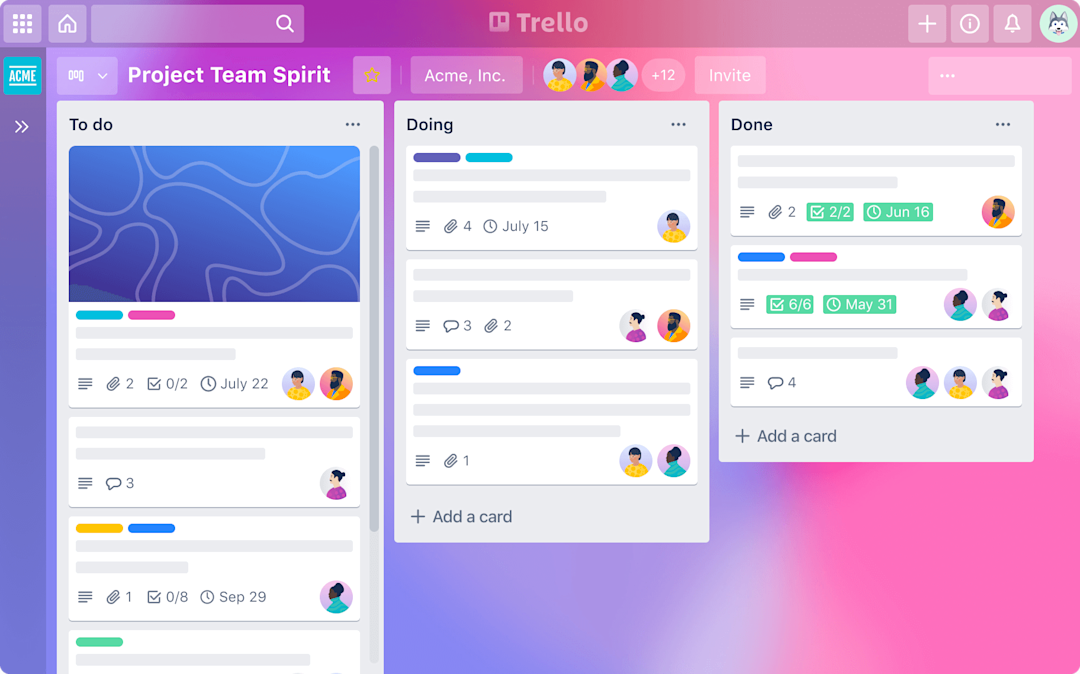
Effective collaboration and seamless sharing are fundamental to maximizing the benefits of a Trello board, especially when managing complex projects through a structured five-list setup. Utilizing Trello’s collaborative features ensures that team members stay informed, engaged, and aligned throughout the project lifecycle, leading to improved productivity and clarity.Sharing your Trello board with team members involves inviting users via email or sharing a direct link, depending on the board’s visibility settings.
Once members accept the invitation, you can assign specific cards or tasks to individuals, clearly delineating responsibilities. This process fosters accountability and streamlines workflow management, as everyone understands their roles within each list.Furthermore, Trello offers a robust set of tools for real-time communication and document sharing. Users can comment directly on cards to provide updates, ask questions, or clarify details.
Attaching files, such as documents, images, or spreadsheets, to cards ensures all relevant information is centralized and easily accessible. Updating cards with new information, changing due dates, or modifying labels keeps the project current and transparent.Monitoring activity and progress across all five lists is facilitated through Trello’s activity feed and notification system. The activity feed consolidates recent changes, comments, and attachments, allowing project managers and team members to track ongoing developments effortlessly.
Additionally, Trello’s built-in progress tracking features, such as labels and checklists, help visualize the status of individual tasks and overall project phases in real-time, enabling proactive management and timely adjustments.
Inviting Team Members and Assigning Cards
Inviting team members to a Trello board is an essential step in collaboration. Users can be added by entering their email addresses directly within the ‘Invite’ button on the board menu or by generating a shareable link. Once invited, team members gain access based on the permissions granted—view-only, comment, or edit rights. Assigning cards to team members involves opening a specific card and selecting the “Members” option.
You can then select one or multiple users to be responsible for that task. This clear assignment helps avoid confusion regarding ownership and ensures accountability.
Commenting, Attaching Files, and Updating Cards
The collaborative process extends beyond mere assignment; active communication occurs through comments directly within individual cards. Comments facilitate ongoing discussion, clarification, and feedback, which is especially useful for remote teams or complex tasks. Attaching files to cards consolidates all relevant documents, images, or links in one accessible location. Users can attach files from their local devices, cloud storage services, or directly from emails, providing versatility and efficiency.
Updating cards involves modifying details such as due dates, labels, or checklist items. These updates reflect the evolving status of tasks and keep all team members aligned on current priorities and deadlines. Regular updates ensure that the board remains a dynamic and accurate reflection of project progress.
Monitoring Activity and Progress Across the Five Lists
Tracking activity on a Trello board requires leveraging its built-in tools designed for transparency and oversight. The activity feed captures all recent modifications, comments, and attachments, providing a chronological overview of project developments. Notifications can be customized to alert team members about changes relevant to their tasks, promoting timely responses. Additionally, the use of labels, checklists, and due dates across cards enables visual progress tracking within each list, from initial planning to completion.
Managers can regularly review the activity log and utilize Trello’s dashboards or third-party integrations to generate progress reports. This comprehensive monitoring ensures that potential bottlenecks are identified early, and project momentum is maintained across all five lists, resulting in coordinated and efficient teamwork.
Customizing and Extending Functionality of the 5-List Board
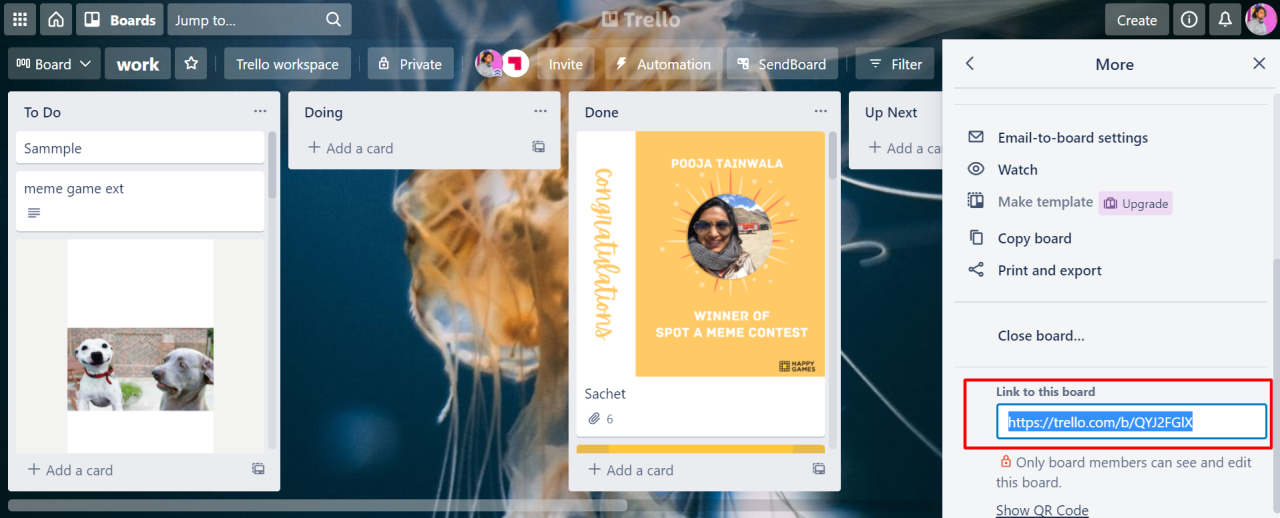
Enhancing a Trello board with customization options and integrations significantly improves workflow efficiency and user engagement. By tailoring the system to specific project needs and automating repetitive tasks, teams can streamline their processes and focus more on high-value activities. Customization extends beyond visual aspects, incorporating powerful tools like Power-Ups and automations that expand Trello’s core capabilities.
Implementing these enhancements requires understanding available integrations, automation triggers, and customization options. This allows teams to create a more personalized and dynamic project management environment that adapts seamlessly to evolving requirements.
Adding Power-Ups and Integrations to Enhance List Functionalities
Power-Ups serve as plugins that extend Trello’s native features, enabling functionalities such as calendar views, time tracking, or integrations with other productivity tools. They can be activated directly within the board settings, providing additional tools without overcomplicating the interface.
Popular Power-Ups include calendar integrations for deadline visualization, Slack for team communication, and Jira for advanced issue tracking. Integrations with tools like Google Drive or Dropbox facilitate seamless document sharing and collaboration. To add a Power-Up, navigate to the board menu, select “Power-Ups,” browse or search for relevant extensions, and activate those needed for your workflow.
For example, integrating a Calendar Power-Up allows automatic synchronization of card due dates with external calendars, ensuring that deadlines are visible across platforms. This synchronization improves deadline management and team coordination.
Implementing Automations to Move Cards Based on Triggers
Automation in Trello, through Butler or third-party tools, enables setting rules that automatically execute actions based on specific triggers. Such automations reduce manual management and ensure consistency in task progression.
For instance, an automation rule can be established to move a card from the “In Progress” list to the “Review” list once all checklists are completed. Another example involves automatically assigning a label when a card reaches a certain due date or when specific s are added to the card description.
Using the Butler automation feature, you can create rules like: “When a card is marked complete in List 4, move it to List 5 and notify team members.” These automations can be scheduled or triggered by card activity, enabling real-time workflow adjustments.
Customizing Backgrounds, Stickers, and Card Covers
Personalizing the visual appearance of your Trello board enhances user experience and makes project tracking more engaging. Custom backgrounds, stickers, and card covers help visually distinguish lists and cards, making information easier to identify at a glance.
Background customization options include uploading custom images, choosing solid colors, or selecting from Trello’s predefined themes. Applying stickers provides visual tags to highlight important cards or denote statuses, such as priority or completeness. Card covers enable adding images to individual cards, offering visual cues or contextual information about the task or item.
For example, a marketing team might set a vibrant background with branded colors, add stickers such as “Urgent” or “Review,” and assign relevant cover images—such as a campaign logo or product photo—to specific cards. This visual differentiation accelerates workflow comprehension and project oversight.
Visual customization in Trello enhances clarity and user engagement, making project boards more intuitive and lively.
Best Practices for Maintaining a 5-List Trello Board
Maintaining an organized and efficient Trello board ensures that your project management remains smooth and productive. Regularly reviewing and updating your lists prevents clutter, keeps your workflow clear, and helps your team stay aligned on project goals and progress. Implementing best practices for board maintenance is essential for maximizing Trello’s capabilities and ensuring your project stays on track.Effective maintenance involves systematic review, thoughtful organization, and strategic archiving of completed tasks.
These practices not only enhance clarity but also contribute to the overall performance of your Trello workspace. By adopting structured routines and clear guidelines, you can sustain a tidy, functional, and scalable project management system.
Regular Review and Updating of Lists
Maintaining a consistent review schedule is crucial for keeping your Trello board relevant and accurate. Regular assessments help identify outdated or irrelevant cards, ensure that ongoing tasks are properly prioritized, and facilitate timely updates to reflect project changes.Establish specific intervals for review—such as weekly or bi-weekly—to check each list’s content. During these reviews, update the status of cards, adjust deadlines, and reassign tasks as necessary.
Use these sessions to remove or archive cards that are no longer active or relevant, preventing the accumulation of unnecessary information. Engaging team members in the review process encourages accountability and promotes collective ownership of the workflow.
Tips to Prevent Clutter and Ensure Clarity
A cluttered Trello board can hinder productivity and obscure important information. To maintain clarity across all lists, it is vital to implement organizational strategies that streamline content and promote a clean visual layout.Begin by establishing consistent naming conventions for cards and lists, which aids in quick identification and sorting. Limit the number of cards within each list to avoid overwhelming the visual space; if a list becomes too crowded, consider creating sub-lists or using labels to categorize tasks further.
Use color-coded labels to differentiate priorities, departments, or task types, which makes scanning the board faster and more intuitive.Regularly reviewing and decluttering lists ensures that only active and relevant tasks are visible, reducing confusion and enhancing focus. Encourage team members to update or close completed cards promptly, maintaining a dynamic and clear workspace.
Archiving Completed Cards and Optimizing Board Performance
Archiving is a key strategy for managing completed tasks and maintaining optimal board performance. It allows you to retain historical data for reference without cluttering your active workflow.Create a routine where completed or obsolete cards are moved to an archive or a dedicated “Completed” list. This keeps your main lists focused on current tasks, making it easier to monitor progress and plan upcoming work.
Many teams prefer to archive cards instead of deleting them, ensuring that valuable information remains accessible if needed for future review or reporting.To further optimize your Trello board’s performance, periodically review and clean out archived cards. Trello’s search and filtering capabilities perform better without an excessive backlog of inactive items. Utilizing Trello’s native archiving feature not only maintains a tidy workspace but also enhances loading times and overall responsiveness, especially for boards with large volumes of tasks.
Ending Remarks
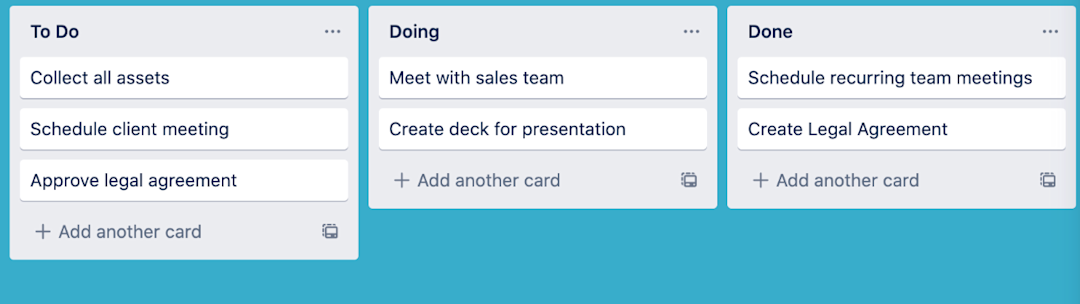
In conclusion, utilizing a Trello board with five lists provides a comprehensive framework for managing projects with clarity and precision. By regularly reviewing and updating your lists, leveraging labels and automations, and fostering team collaboration, you can ensure your workflow remains smooth and efficient. Embracing this method empowers you to stay organized, meet deadlines, and achieve your goals with confidence.